Kelvin UI Guided Tour
This is the introduction to the Kelvin UI course.
By the end of this page, you will understand what the Kelvin UI is, who uses it, and how each user role interacts with it.
What is the Kelvin UI?
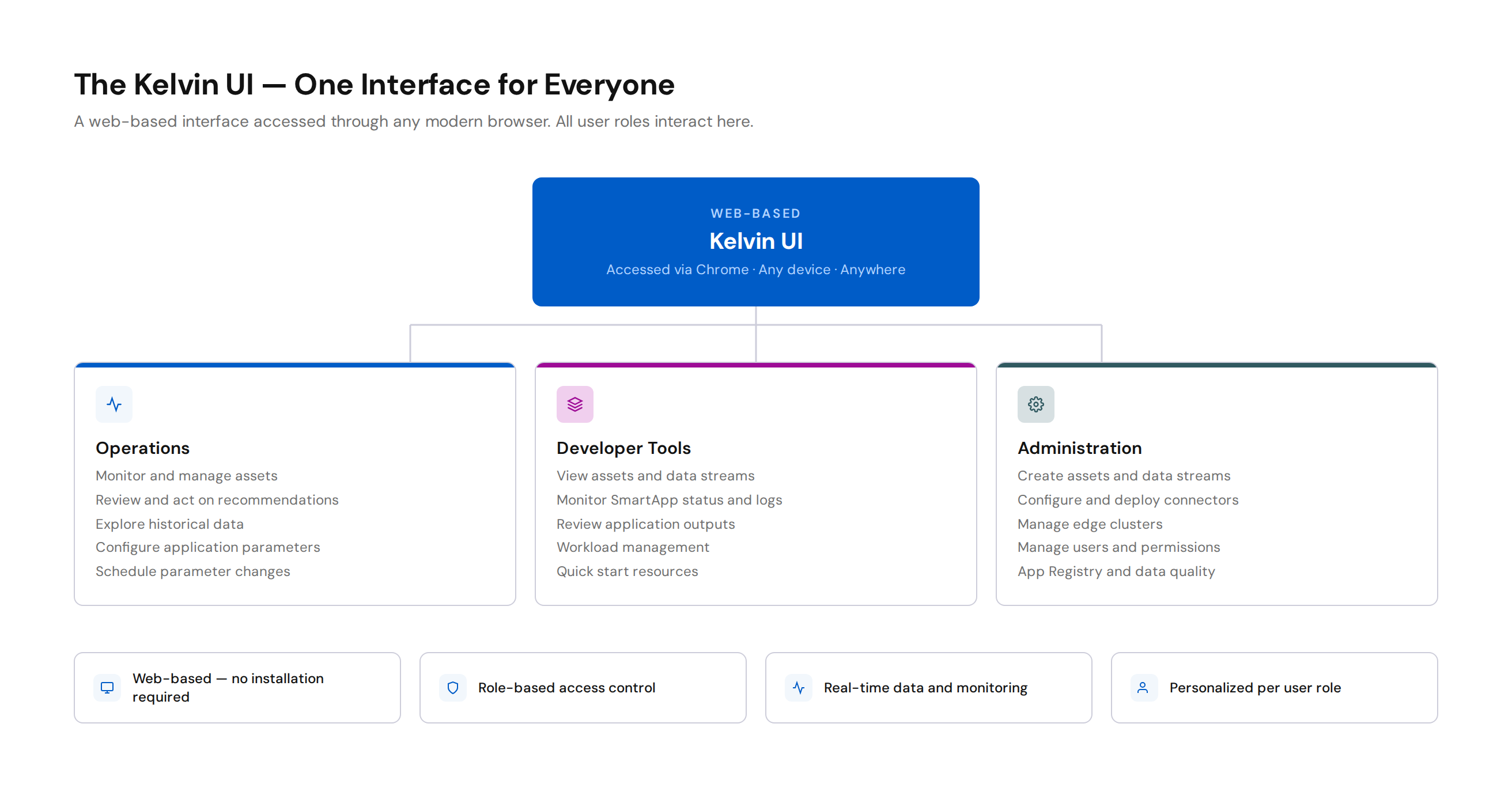
The Kelvin UI is a web-based interface accessed through any modern browser. It is the main interface for Operations teams and an important interface for Platform Administrators and Developers. Administrators and Developers also use the Kelvin SDK, Kelvin API, and CLI for tasks that are not handled in the UI.
Browser Support
The Kelvin UI is fully tested on the latest version of Google Chrome. For a seamless experience, always use the latest Chrome version.
Who Uses It?
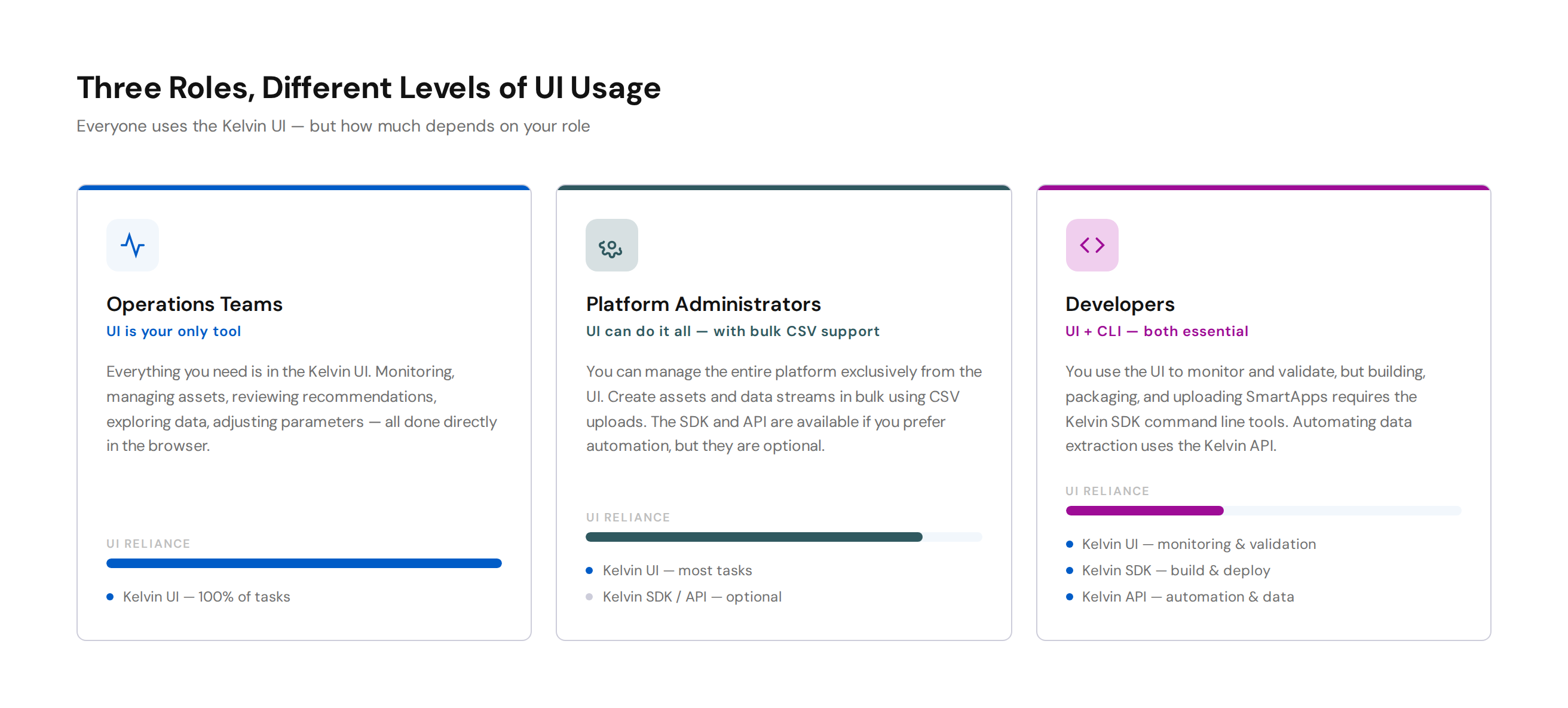
All three Kelvin user roles interact with the Kelvin UI, but the depth and frequency of their usage differs significantly.
Operations Teams — UI is Your Home
Operations Engineers live in the Kelvin UI. It is the only tool they need.
Everything an Operations Engineer does — monitoring assets, reviewing recommendations, approving or rejecting actions, exploring historical data, adjusting application parameters, and scheduling changes — happens directly in the Kelvin UI.
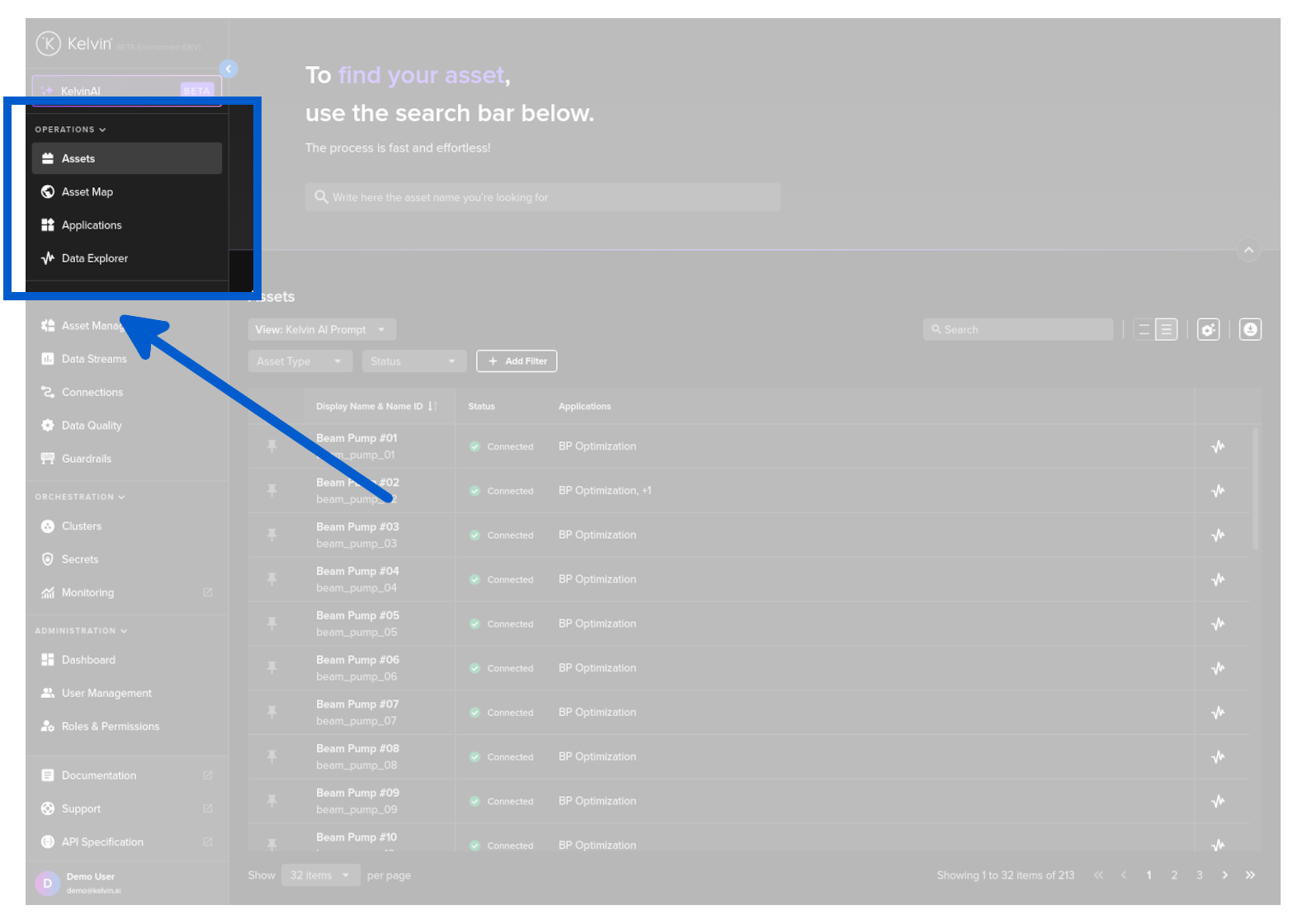
The left-hand sidebar provides the Operations section, which brings together all the tools needed to monitor, manage, configure, and control assets.
Key activities in the Kelvin UI for Operations:
- View and filter all assets and their data streams
- Review and act on recommendations from SmartApps
- Monitor real-time and historical data in the Data Explorer
- Change application configuration parameters per asset
- Deploy premade SmartApps and ML models to assets
- Schedule parameter changes
- Manually update data stream values when needed
Platform Administrators — UI is Your Primary Tool
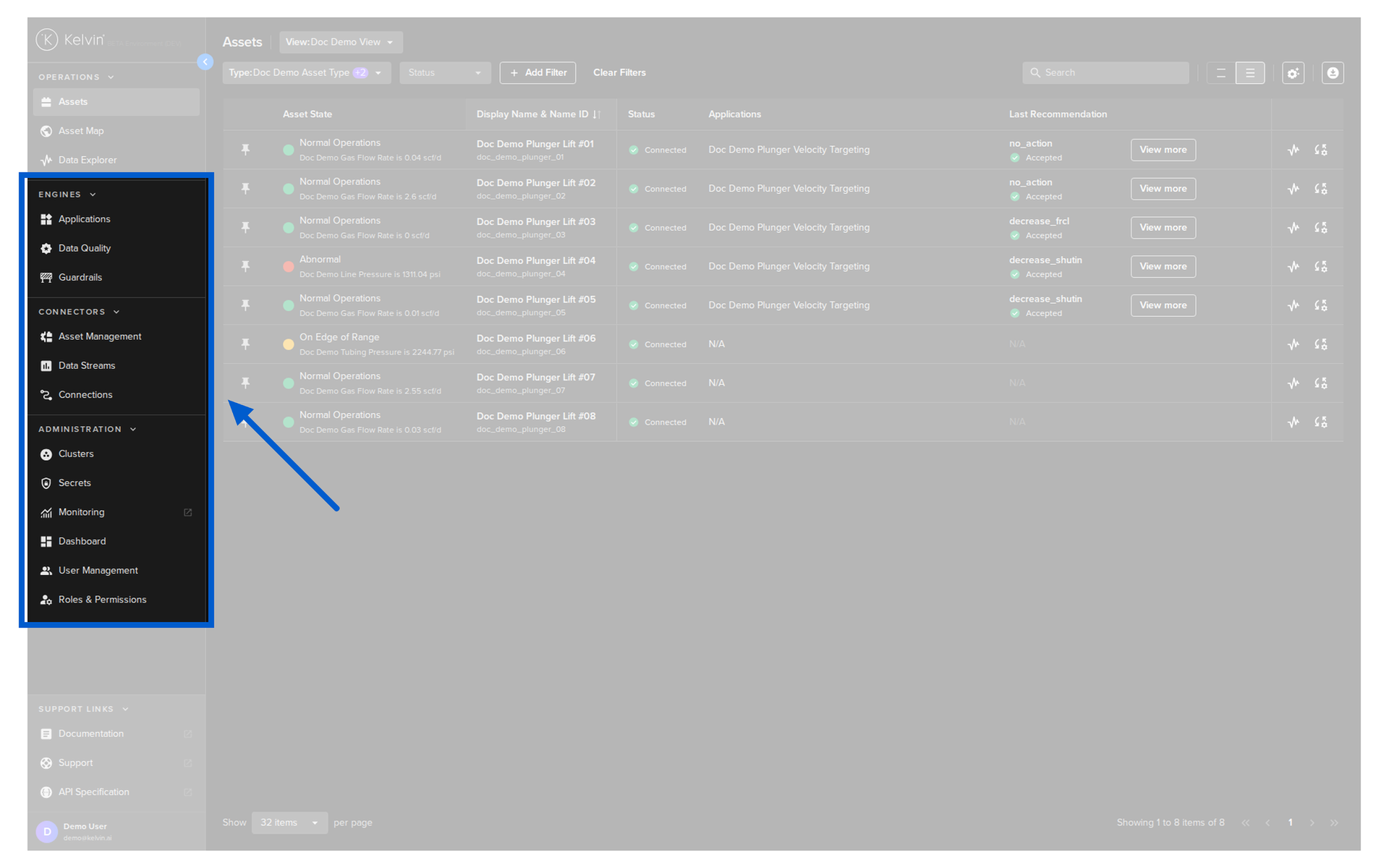
Platform Administrators can manage the entire platform exclusively through the Kelvin UI if they choose to. The UI provides access to all the administration areas needed to set up and maintain the platform.
Key activities in the Kelvin UI for Administrators:
- Create and manage assets and data streams — individually or in bulk
- Configure and deploy connectors to data sources
- Set up and manage edge clusters
- Monitor infrastructure health
- Manage users, groups, and access permissions
- Configure data quality rules
- Manage the App Registry
Bulk Operations
Platform Administrators do not need to create assets or data streams one by one. You can prepare a CSV file with all the information needed and upload it directly in the Kelvin UI to create assets and data streams in bulk. This makes initial setup and large-scale changes fast and efficient.
Developers — UI is Part of Your Toolkit
Developers interact with the Kelvin UI for some tasks, but the UI alone is not enough. Many developer tasks — building SmartApps, packaging applications, uploading them to the App Registry — can only be done from the command line using the Kelvin SDK.
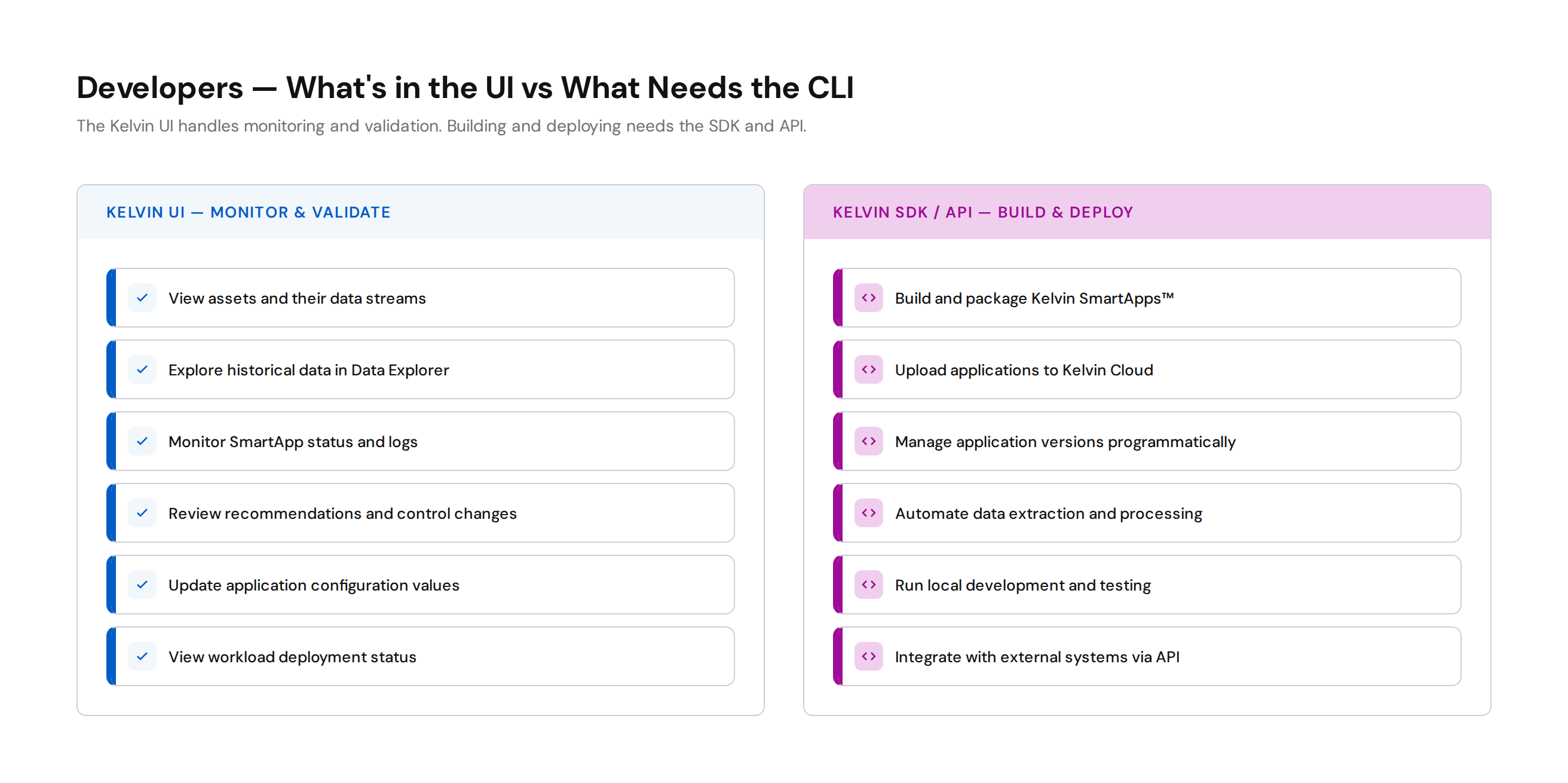
What developers can do in the Kelvin UI:
- View assets and their data streams
- Explore historical data in the Data Explorer
- Monitor application status and logs
- Review recommendations and control changes their SmartApps produce
- Update application configuration values
What developers need the CLI / SDK / API for:
- Build and package Kelvin SmartApps™
- Upload applications to the Kelvin Cloud
- Automate data extraction and processing
- Manage application versions programmatically
- Run local development and testing environments
For Developers
Think of the Kelvin UI as your monitoring and validation tool — you check that your SmartApps are producing the right results. The Kelvin SDK and Kelvin API are your build and deploy tools. For automating data extraction or integrating with external pipelines, the Kelvin API is the way to go.
The Three Interfaces
Kelvin provides three ways to interact with the platform. Understanding when to use each one is key.
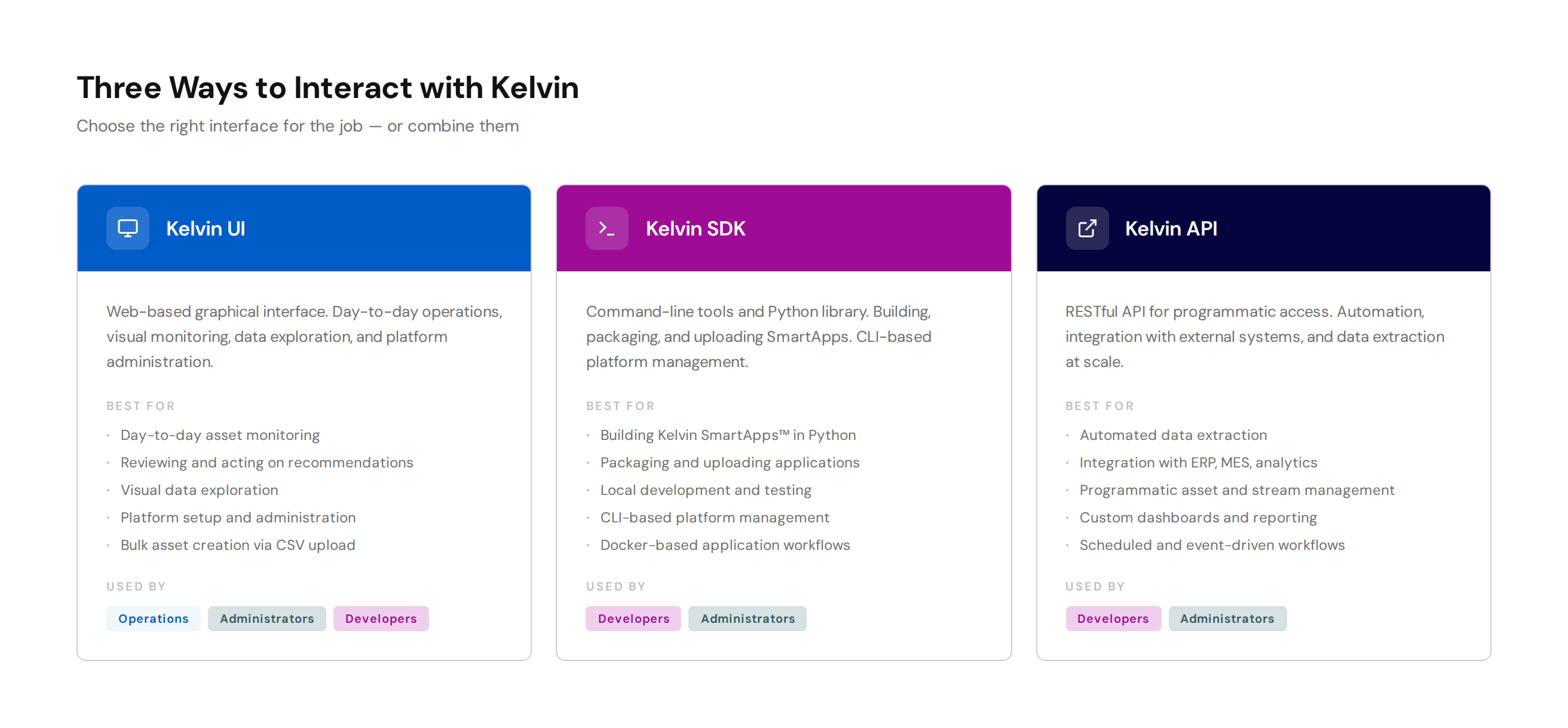
| Interface | Best For | Used By |
|---|---|---|
| Kelvin UI | Day-to-day operations, monitoring, administration, visual data exploration | Operations, Administrators, Developers |
| Kelvin SDK | Building SmartApps, packaging and uploading applications, CLI-based management | Developers, Administrators |
| Kelvin API | Automation, programmatic access, integration with external systems, data extraction at scale | Developers, Administrators |
The Kelvin UI Sidebar
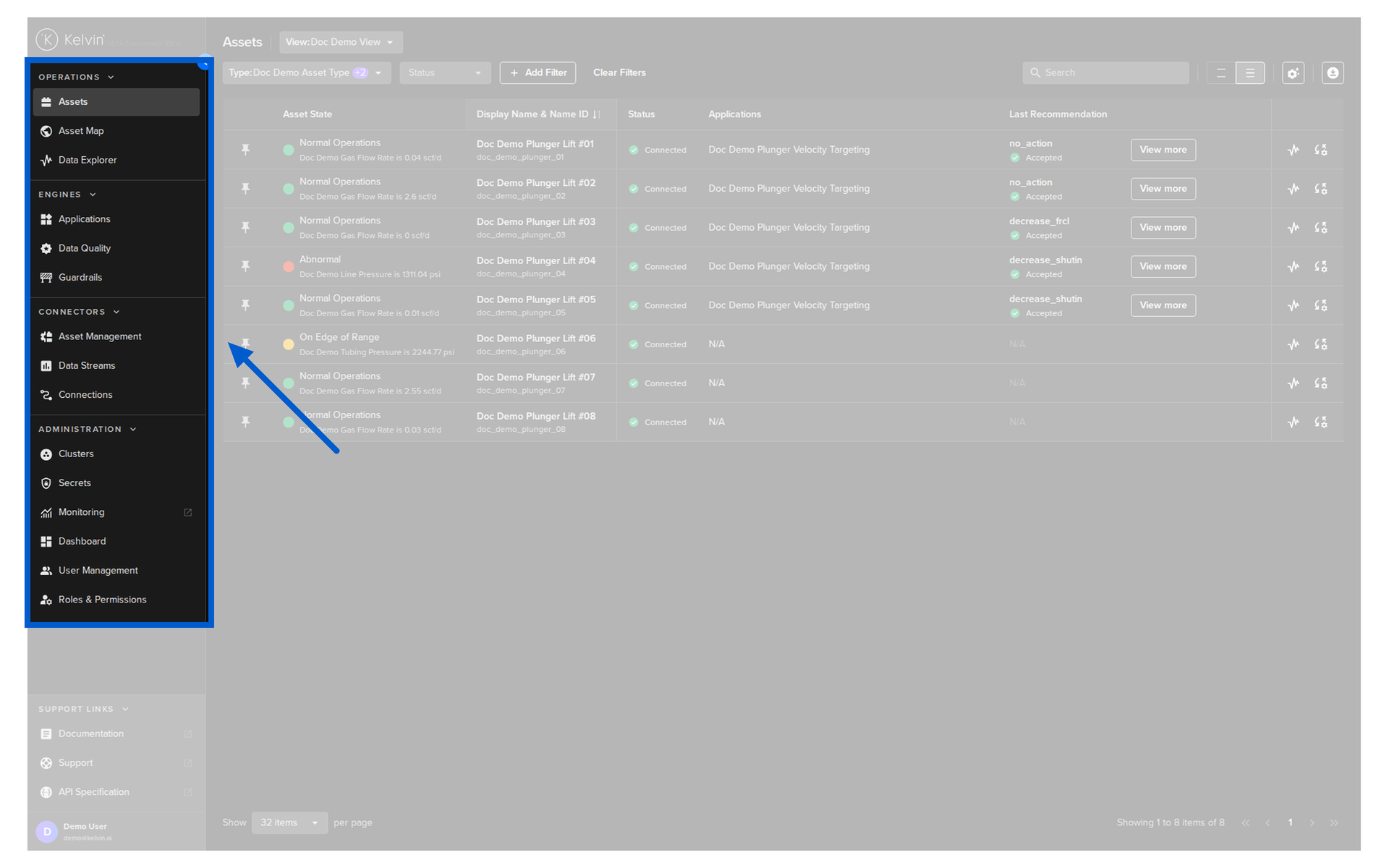
The Kelvin UI is organized through a left-hand sidebar menu. The sidebar is divided into four sections, each focused on a distinct area of the platform.
The visible entries can vary by role and permissions, but the sidebar groups are:
| Sidebar Section | Purpose | Primary Audience |
|---|---|---|
| Operations | Access asset views such as Assets, Asset Map, and Data Explorer | Operations Teams |
| Engines | Manage Applications, Data Quality, and Guardrails | Operations Teams, Platform Administrators |
| Connectors | Manage Asset Management, Data Streams, and Connections | Platform Administrators |
| Administration | Manage Clusters, Secrets, Monitoring, Dashboard, User Management, and Roles & Permissions | Platform Administrators |
What's Next?
Now that you understand how the Kelvin UI fits into the picture for each user role, you can jump into the detailed course for your role in the Intermediate Courses.
Good luck and Happy Learning !
Test Your Knowledge
1. What is the Kelvin UI?
Answer: A web-based interface accessed through any modern browser. It is the single place where all three types of Kelvin users — Operations, Administrators, and Developers — interact with the platform.
2. Which user role lives in the Kelvin UI as their primary tool?
Answer: Operations Engineers. They use it for everything — monitoring assets, reviewing recommendations, approving or rejecting actions, exploring historical data, adjusting parameters, and scheduling changes.
3. Name three things an Operations Engineer can do in the Kelvin UI.
Answer: Any three of:
- View and filter all assets and their data streams
- Review and act on recommendations
- Monitor real-time and historical data in the Data Explorer
- Change application configuration parameters per asset
- Deploy premade SmartApps to assets
- Schedule parameter changes
- Manually update data stream values
4. What is a key productivity tip for Platform Administrators when setting up assets?
Answer: Bulk operations. Administrators can prepare a CSV file with all asset and data stream information and upload it directly in the Kelvin UI — no need to create assets one by one.
5. What tasks require a Developer to use the CLI/SDK rather than the Kelvin UI?
Answer: Any of:
- Building and packaging Kelvin SmartApps™
- Uploading applications to the Kelvin Cloud
- Automating data extraction and processing
- Managing application versions programmatically
- Running local development and testing environments
6. What are the three interfaces Kelvin provides and what is each best for?
Answer:
| Interface | Best For |
|---|---|
| Kelvin UI | Day-to-day operations, monitoring, administration, visual data exploration |
| Kelvin SDK | Building SmartApps, packaging, uploading, CLI-based management |
| Kelvin API | Automation, programmatic access, integration with external systems |
7. What are the four sections of the Kelvin UI sidebar and who is each for?
Answer:
| Section | Primary Audience |
|---|---|
| Operations | Operations Teams |
| Engines | Operations Teams, Platform Administrators |
| Connectors | Platform Administrators |
| Administration | Platform Administrators |
8. Which browser is the Kelvin UI fully tested on?
Answer: The latest version of Google Chrome.
How Did You Do?
| Score | Level |
|---|---|
| 8/8 | Ready to move to the Intermediate Courses |
| 6–7 | Good foundation — review the sections you missed |
| Below 6 | Read through the course again before moving on |
Next Steps
You have completed the 100 Introduction Courses. Head to the Kelvin Academy Index to choose your next course based on your role.