241: Add Assets to Applications
This course is for Operations Engineers.
By the end, you will confidently know how to add assets to an application and set the application parameters for each asset.
The Key Concept
In Kelvin, you add assets to an application — not the other way around.
An application is prepared by Developers and Platform Administrators behind the scenes. As an Operations Engineer, your job is much simpler: choose the application version, select the assets, set any asset-level parameters, and add them.
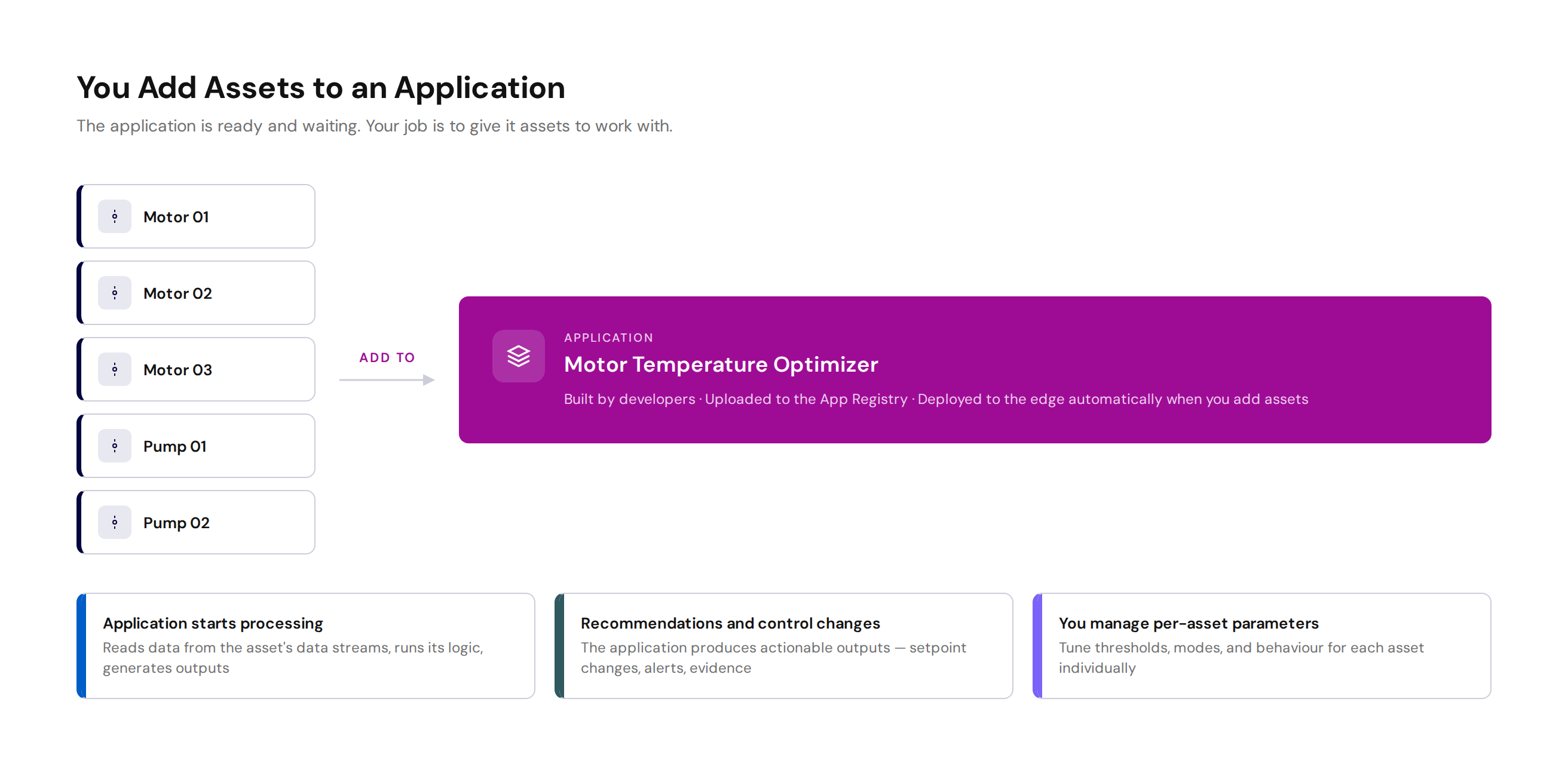
Once an asset is added to an application:
- The application starts processing data from that asset
- It generates outputs such as recommendations, control changes, and computed data
- You manage the application's behaviour for that asset through parameters
No Technical Knowledge Required
You do not need to understand the code inside the application, workload settings, or infrastructure variables. The platform handles those technical details automatically.
Before You Start
Before you can add an asset to an application, a few things need to already be in place. These are typically handled by Platform Administrators and Developers before you start:
| What | Who Sets It Up | Why |
|---|---|---|
| Asset exists in the platform | Platform Administrator | The asset must be created with its data streams |
| Connection is active for the asset | Platform Administrator | Data must be flowing from the asset into Kelvin |
| Application is uploaded to the App Registry | Developer | The application must already be available in Kelvin |
| Default deployment settings are ready | Developer / Platform Administrator | Operations should not need to configure workloads or infrastructure variables |
If any of these are missing, Kelvin will show warnings during the add asset process. Contact your Platform Administrator or Developer to resolve them.
Step-by-Step: Adding an Asset to an Application
The process follows a simple guided flow in the Kelvin UI.
Step 1 — Go to the Assets tab
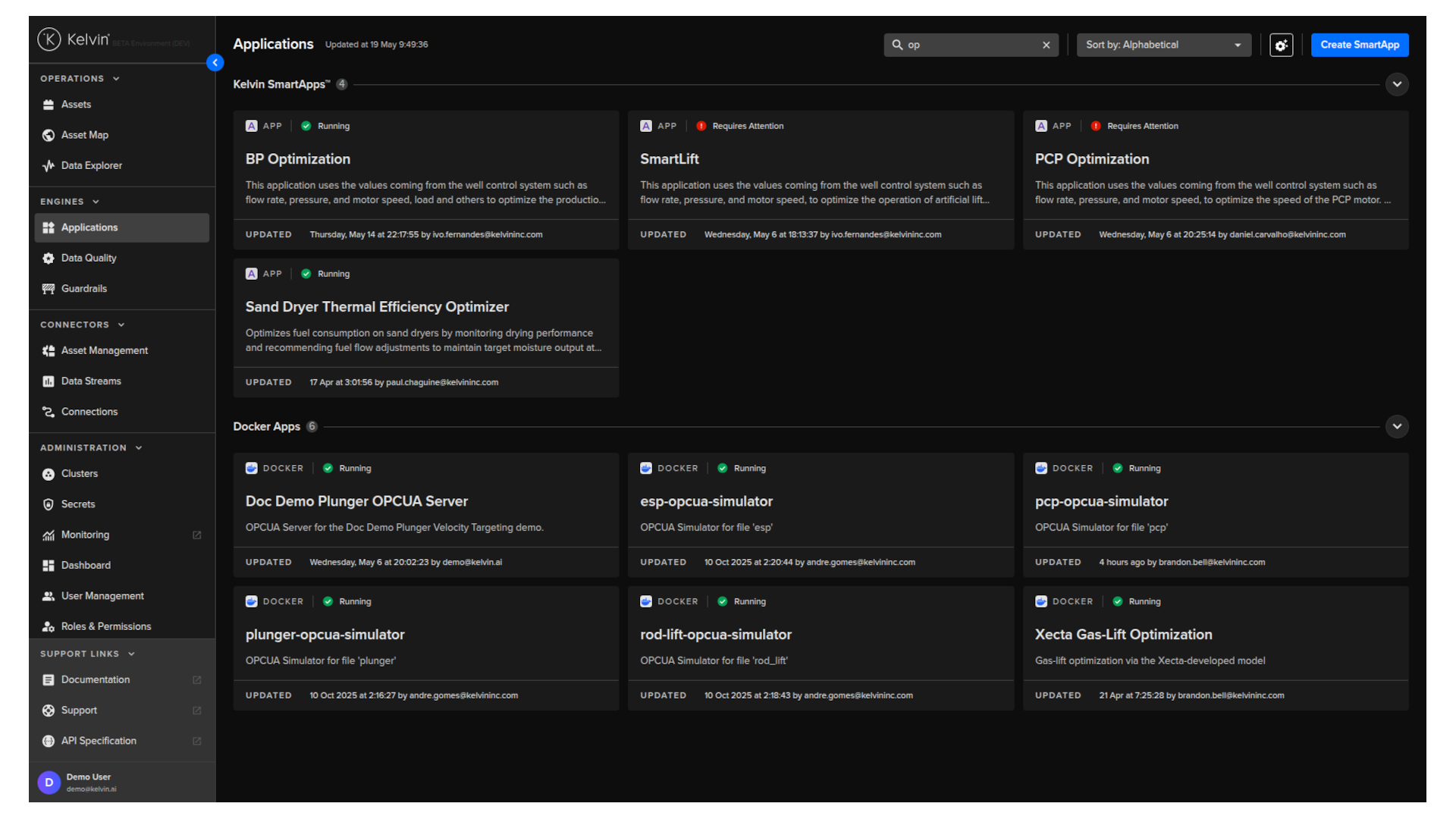
From the left sidebar, click Applications. You will see a list of all applications that have been uploaded to the platform.
Select the application you want to add assets to. This opens the application detail page.
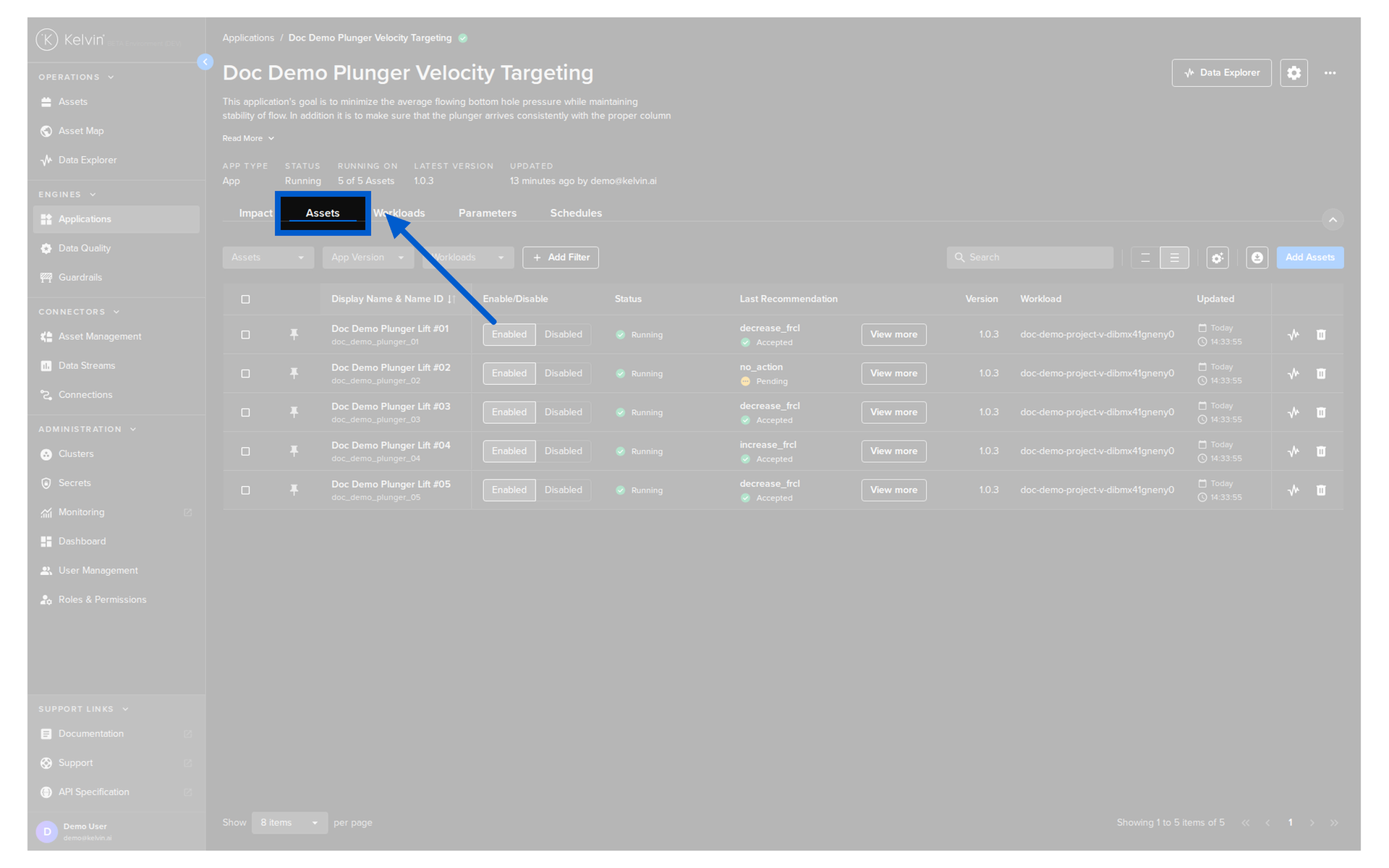
Go to the Assets tab.
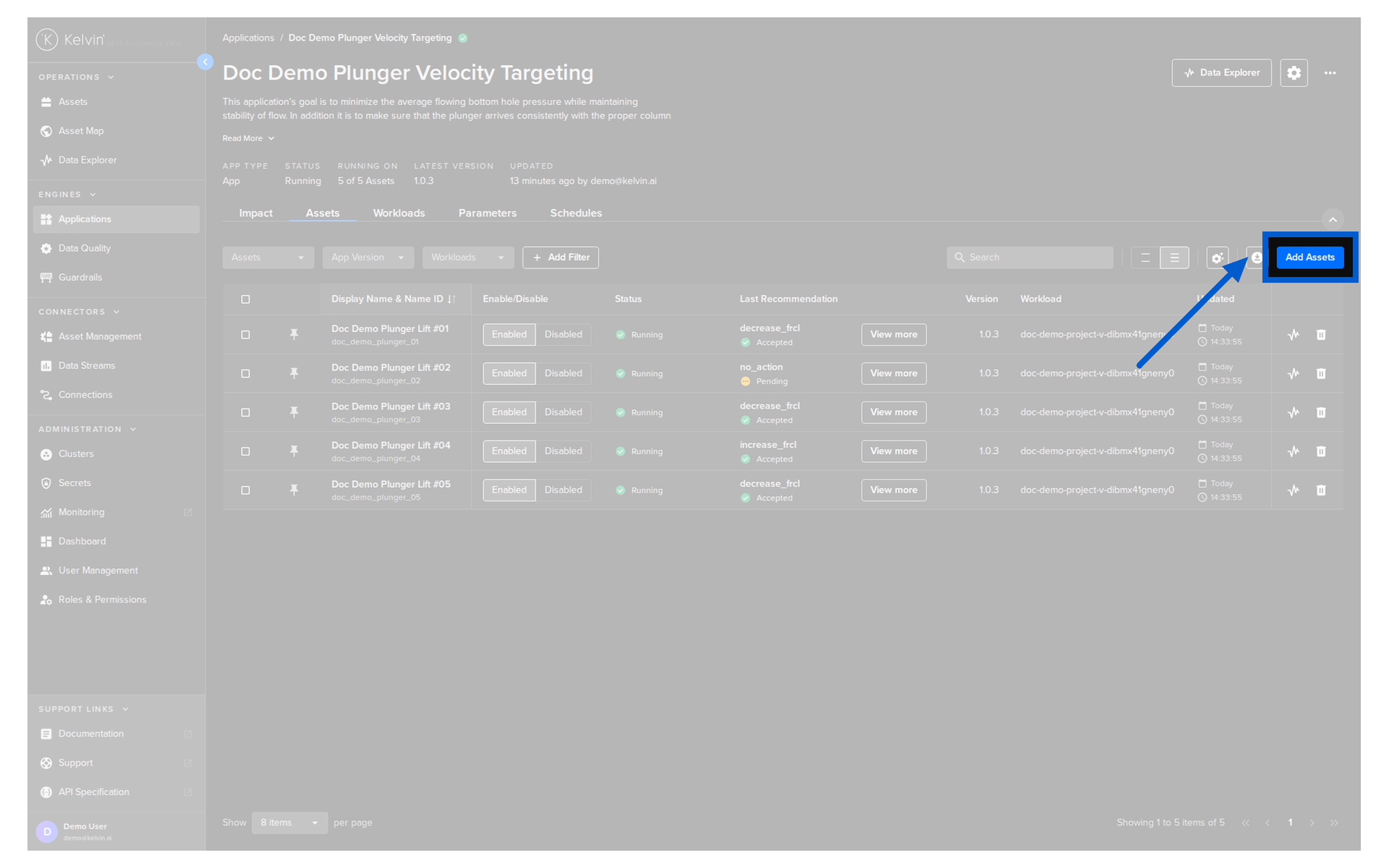
Click the Add Assets button.
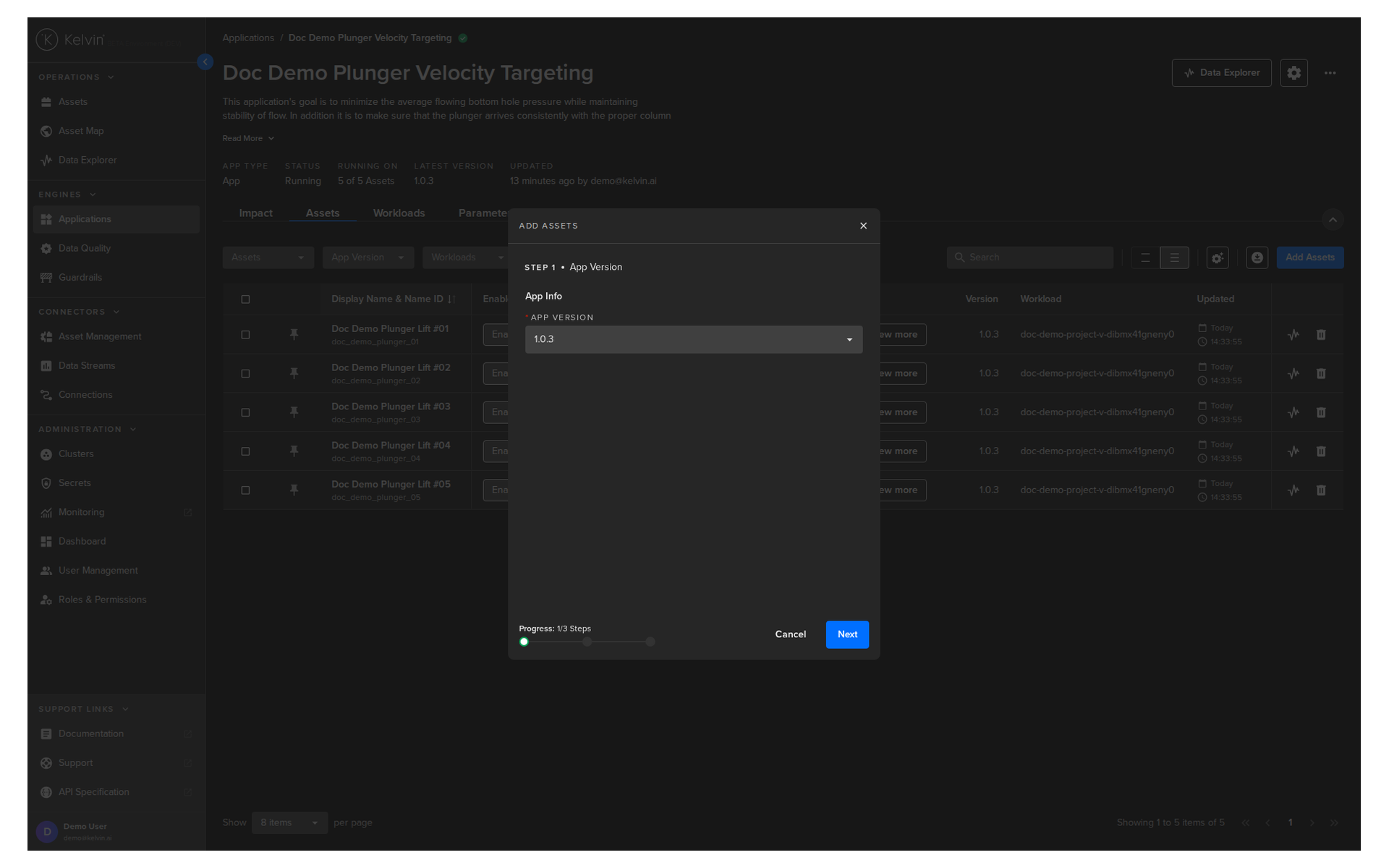
Step 2 — Select the application version
Choose which version of the application the assets should use.
When ready, click Next.
Versions
Different versions can have different parameters and behavior. You can have different assets running on different versions of the same application.
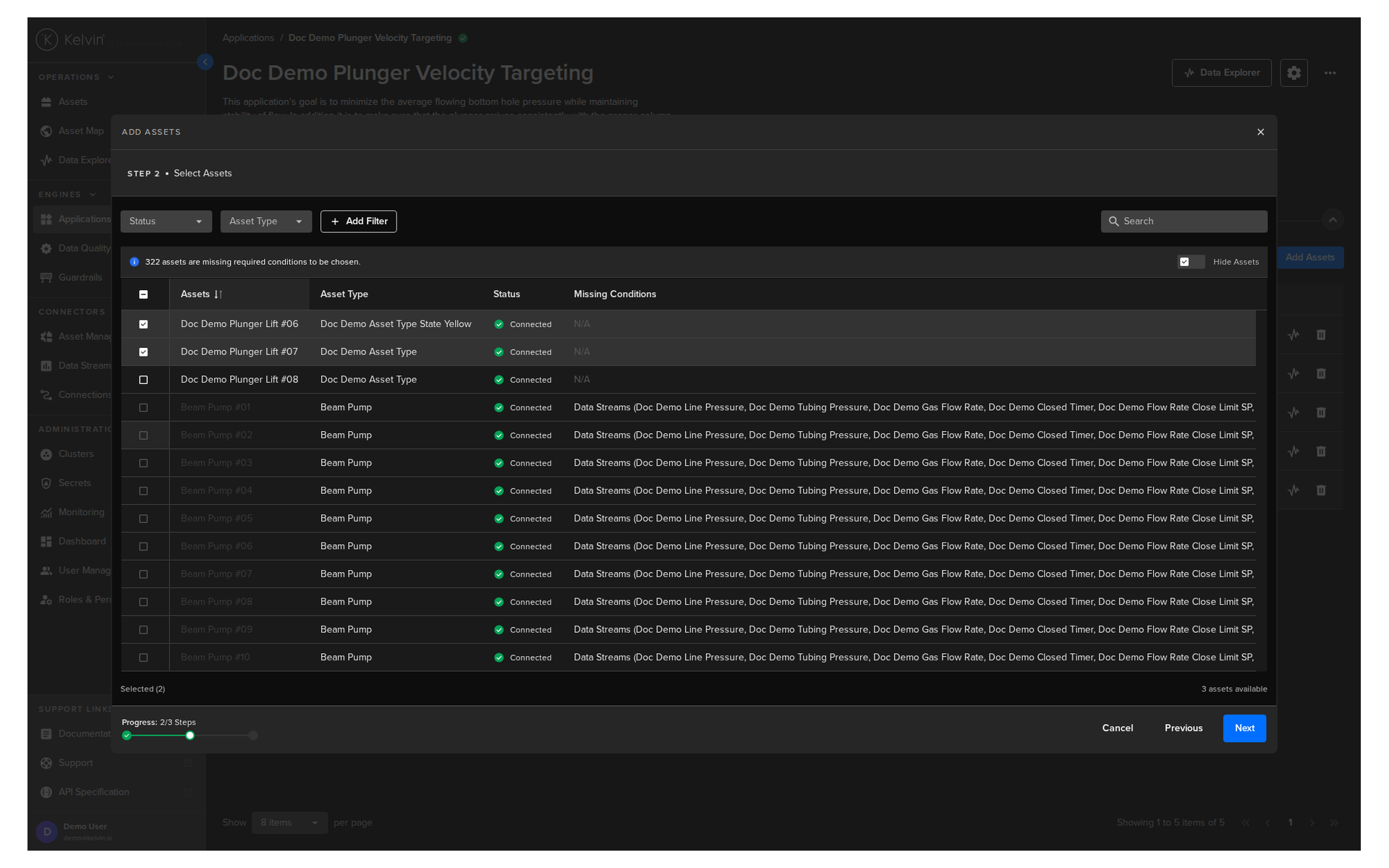
Step 3 — Select assets
Choose one or more assets to add. You can select individual assets or bulk-select many assets at once.
If any assets are missing requirements, Kelvin shows an alert in this step. You can also filter the list to see only the assets with missing requirements.
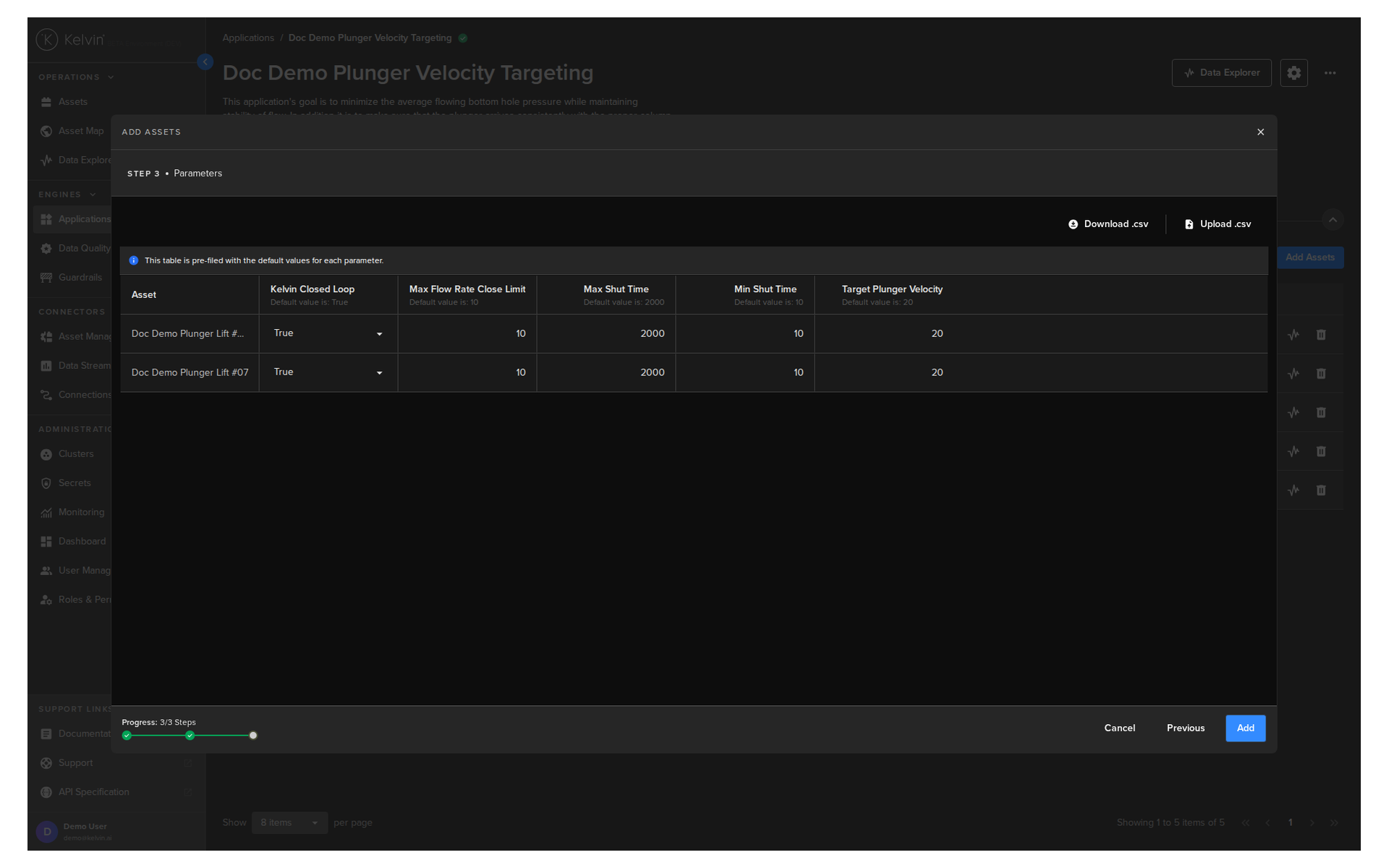
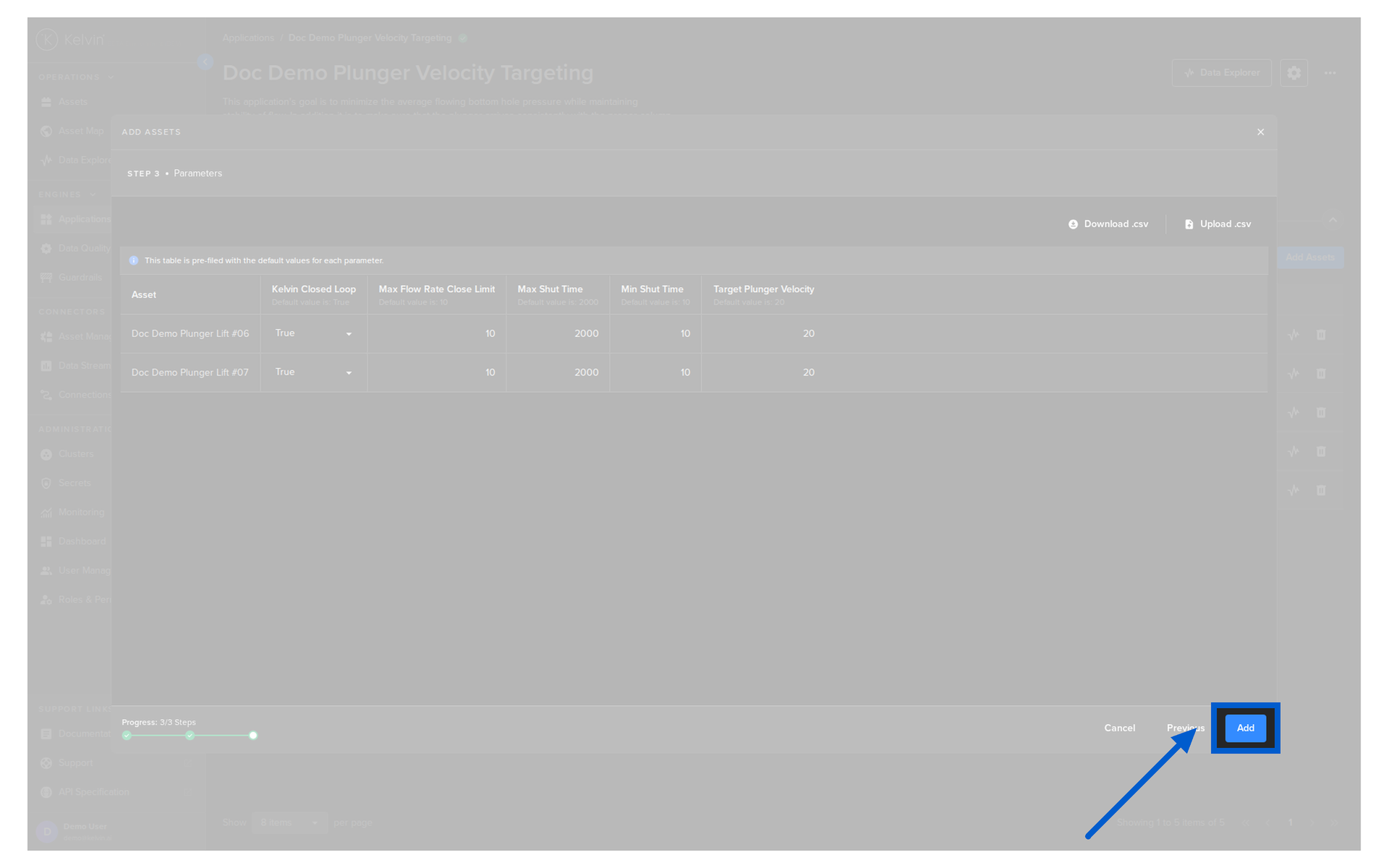
Step 4 — Set app parameters
If the application has configurable parameters, you can set values for each asset here.
This step is optional. If you do nothing, Kelvin uses the default values that were already prepared for the application.
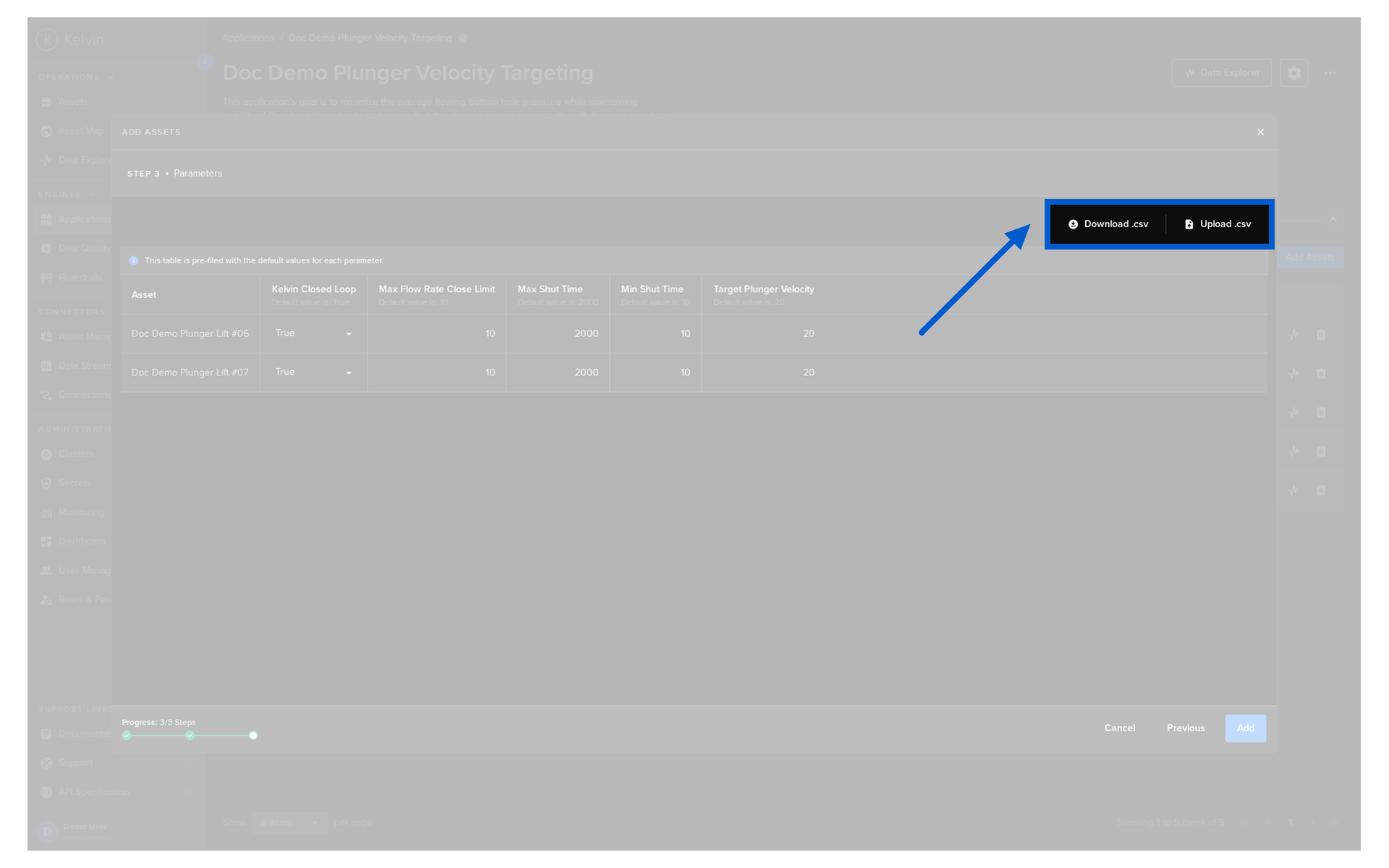
If you are adding many assets, you can download the parameter list as a CSV file, update it in a spreadsheet, and upload it again.
Step 5 — Add the assets
When you are satisfied, click Add.
Kelvin handles the rest automatically:
- The assets are added to the application
- The application starts automatically for those assets
- The deployment uses the default cluster configuration prepared behind the scenes
Success
You have now successfully added assets to the application.
For full details, see the Add Asset to Application documentation.
Managing Your Asset in the Application
Once an asset is deployed, you manage it from two places:
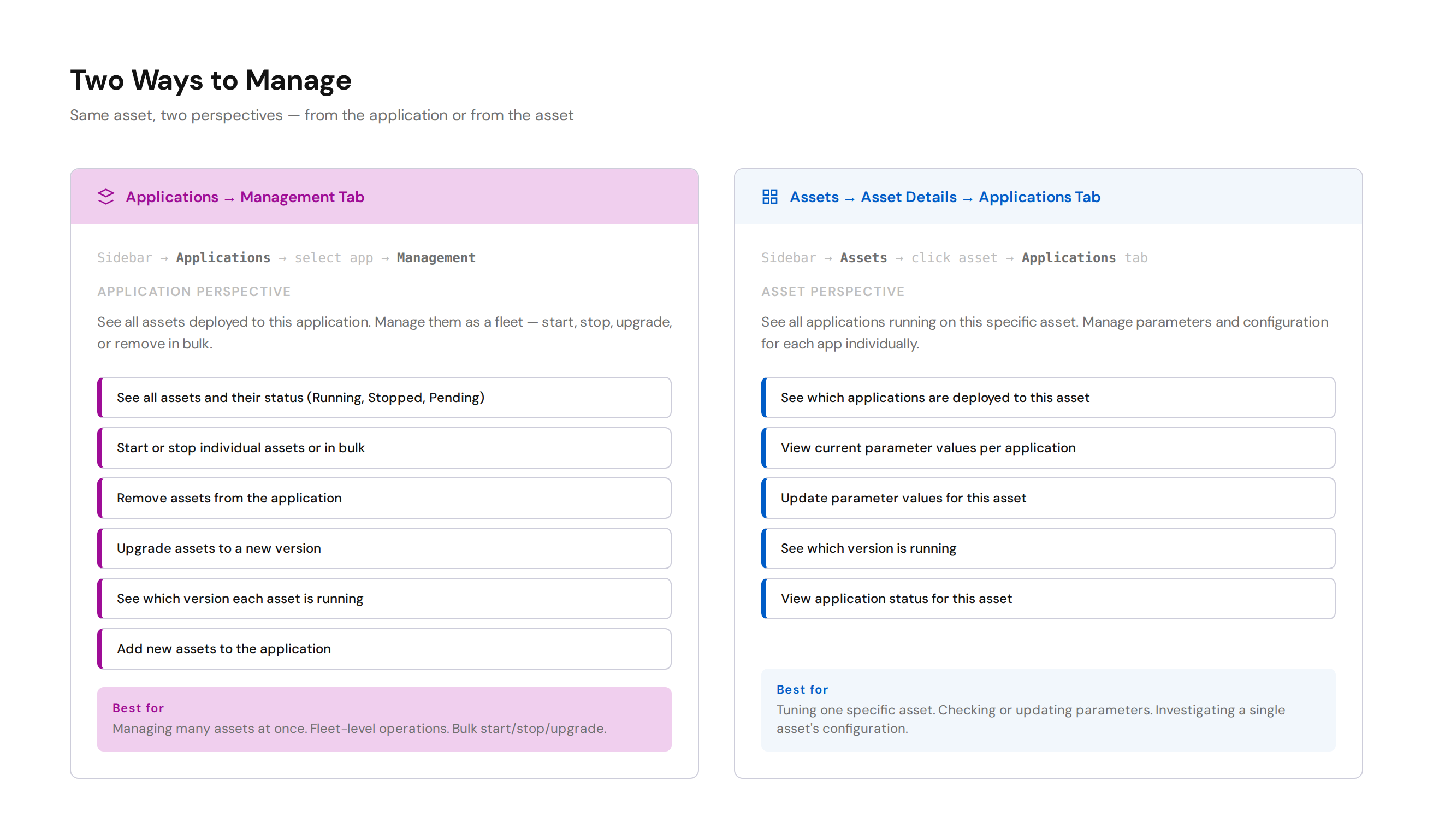
From the Applications page — Assets tab
Go to Applications → select the application → Assets tab. Here you see all assets deployed to this application.
From here you can:
- Enable or disable an asset
- Remove an asset from the application
- Manage multiple assets in bulk
- Review the asset table and its status information
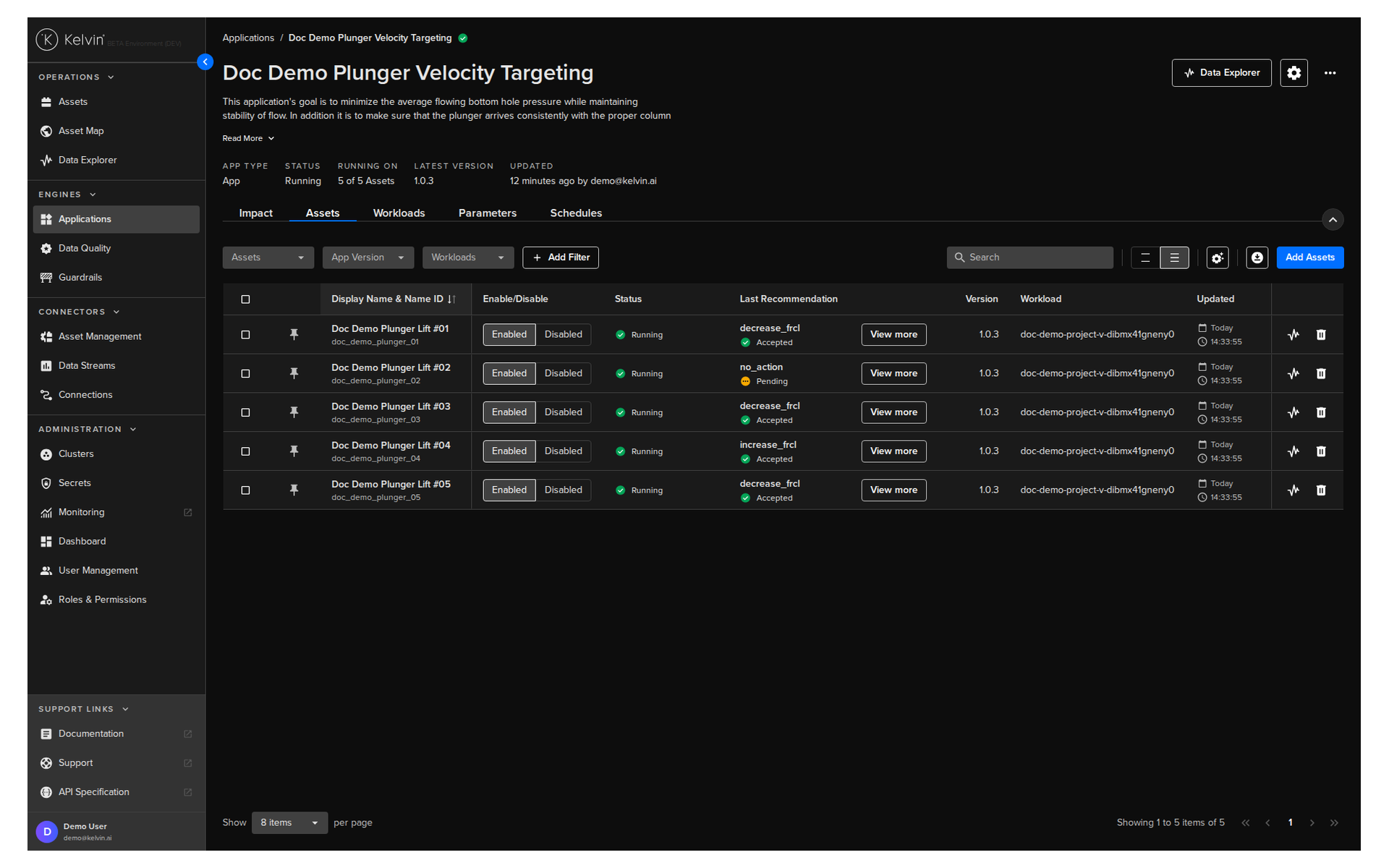
From the Asset details page — Applications tab
Go to Assets → click on any asset → Applications tab. This shows the asset's perspective — which applications are running on it, their status, and their configuration.
From here you can:
- View which applications are deployed to this asset
- See the current parameter values for each application
- Update parameter values for this specific asset
- View the application version running on this asset
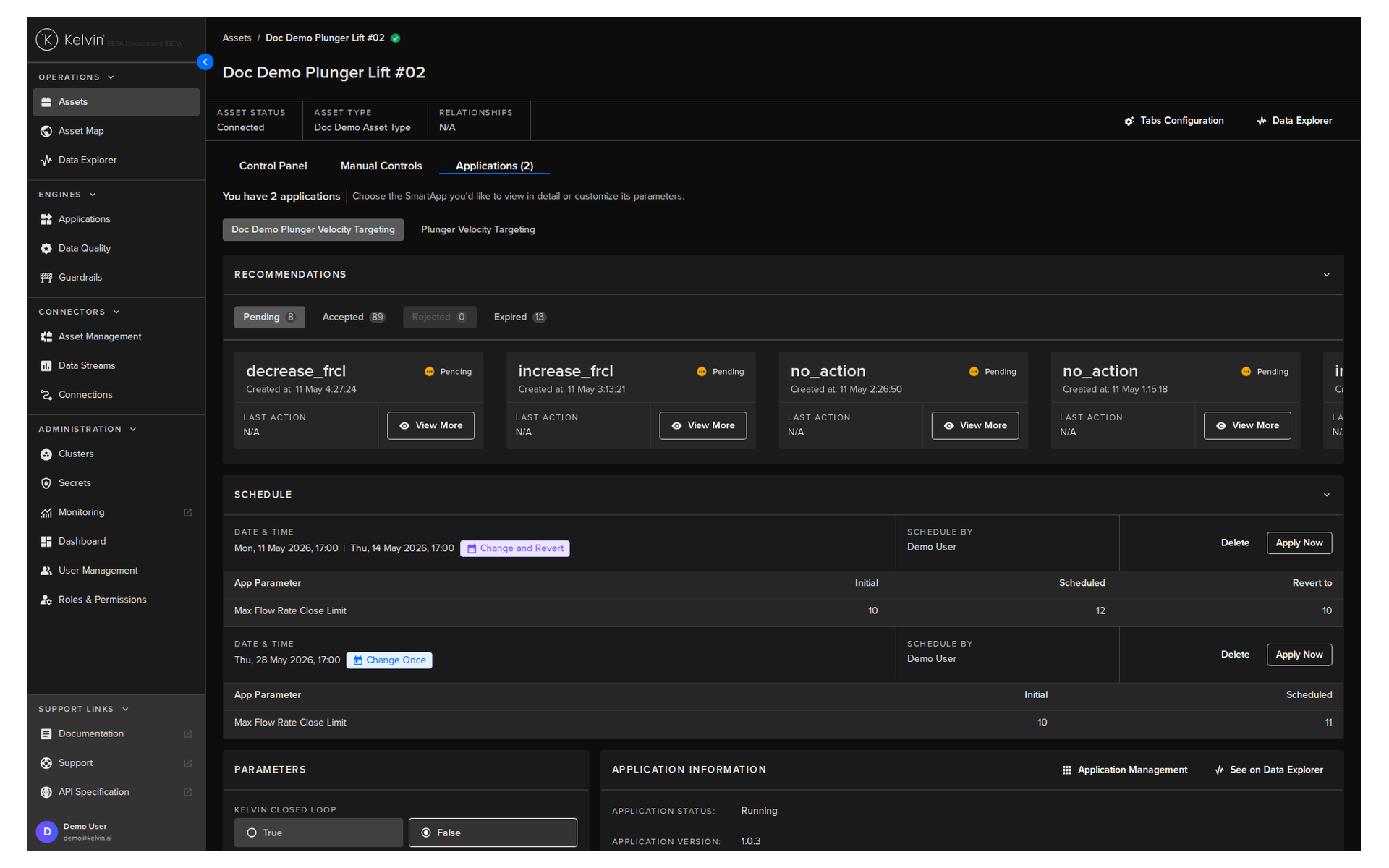
For full details, see the Asset Details — Applications Tab documentation.
Managing Parameters
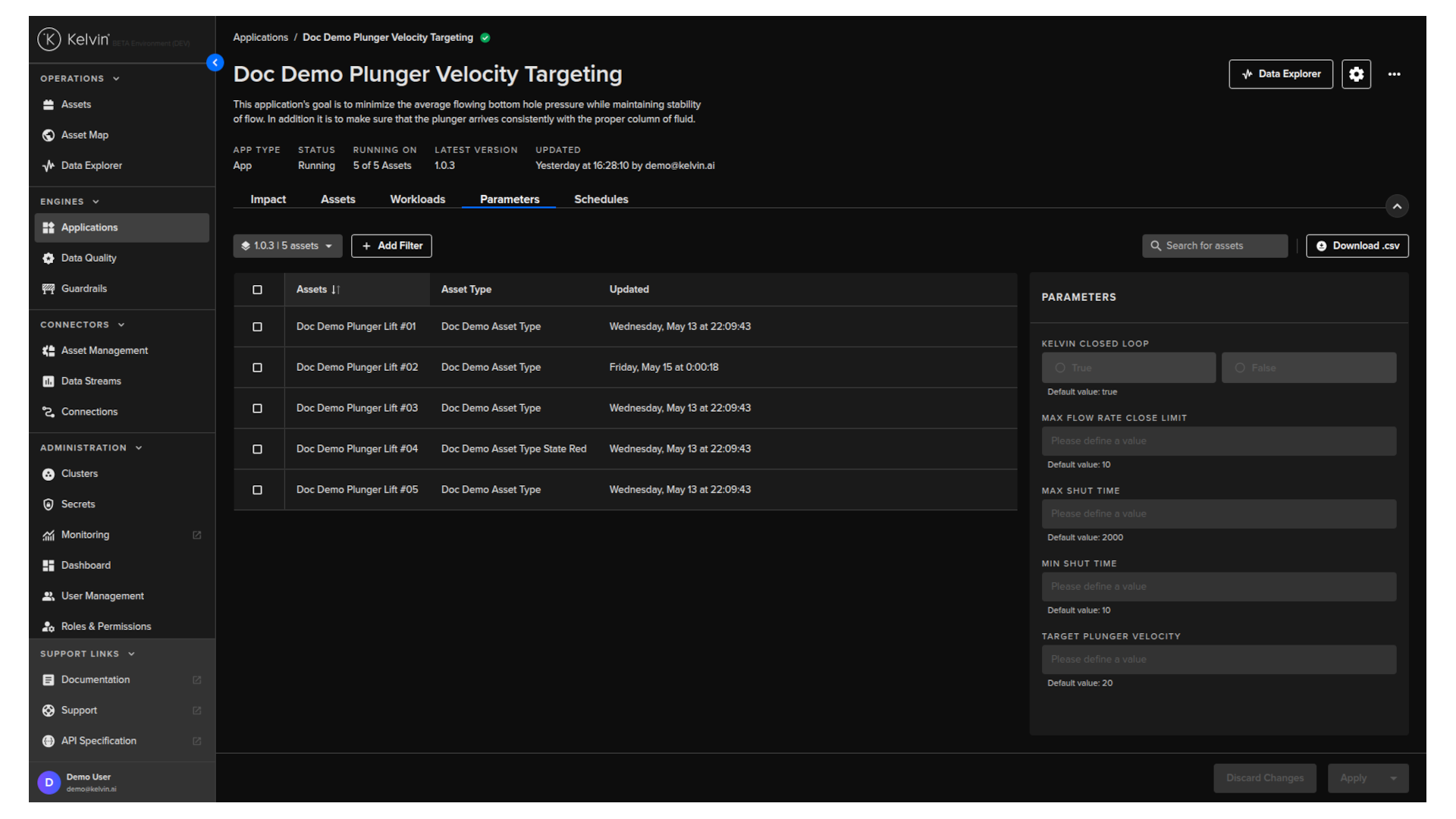
Parameters are how you tune an application for each individual asset. A developer creates the parameters (e.g., maximum speed, target temperature, threshold values) and you set the values per asset.
Where to change parameters in Applications
Applications → select app → Parameters tab → select the asset → edit parameters
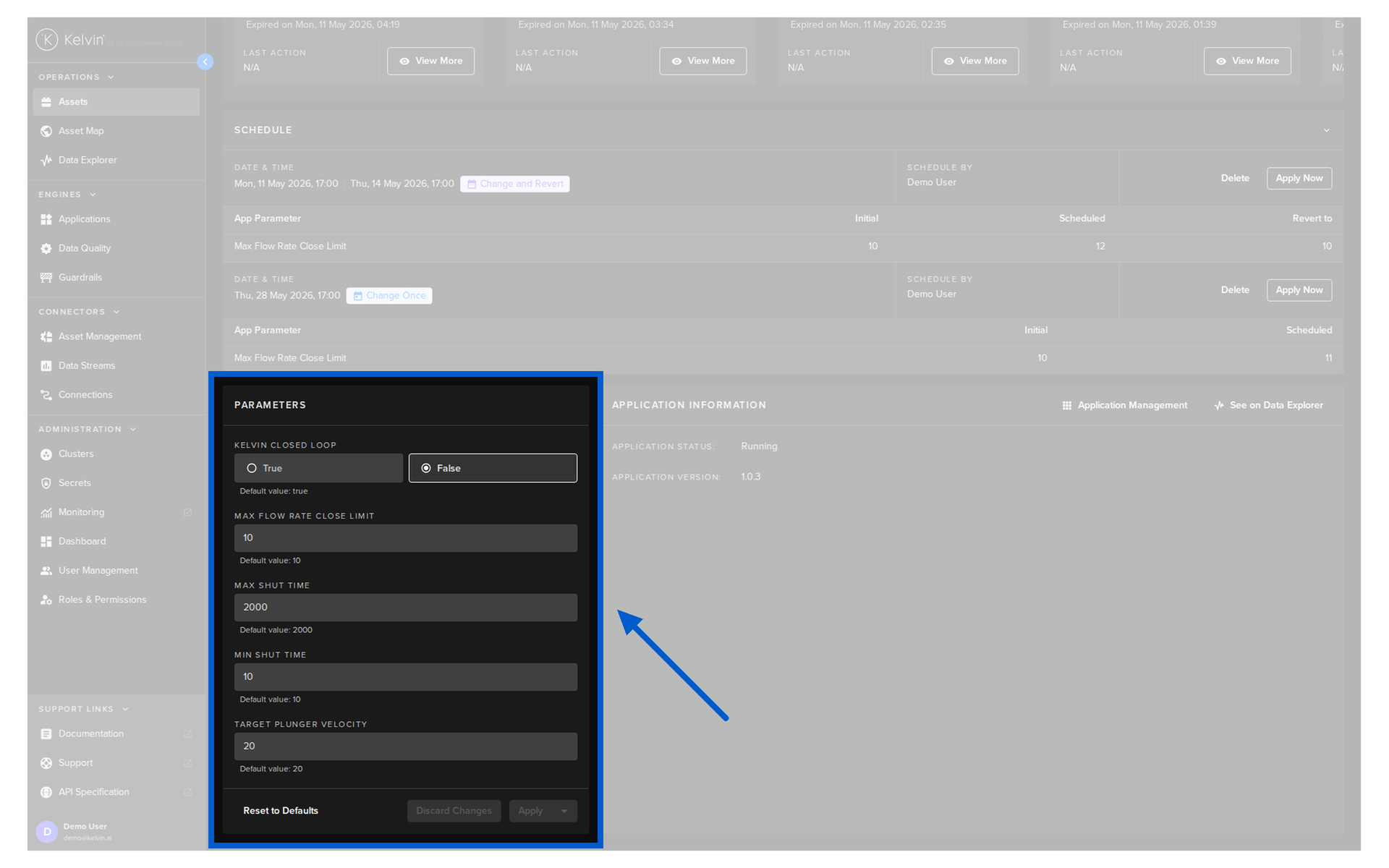
Where to change parameters in Assets
Assets → click on asset → Applications tab → edit parameters for a specific application
Note
If there is only one application, then the tab will show the application's name rather than the word Applications.
Bulk Parameter Updates
When managing many assets, updating parameters one by one is slow.
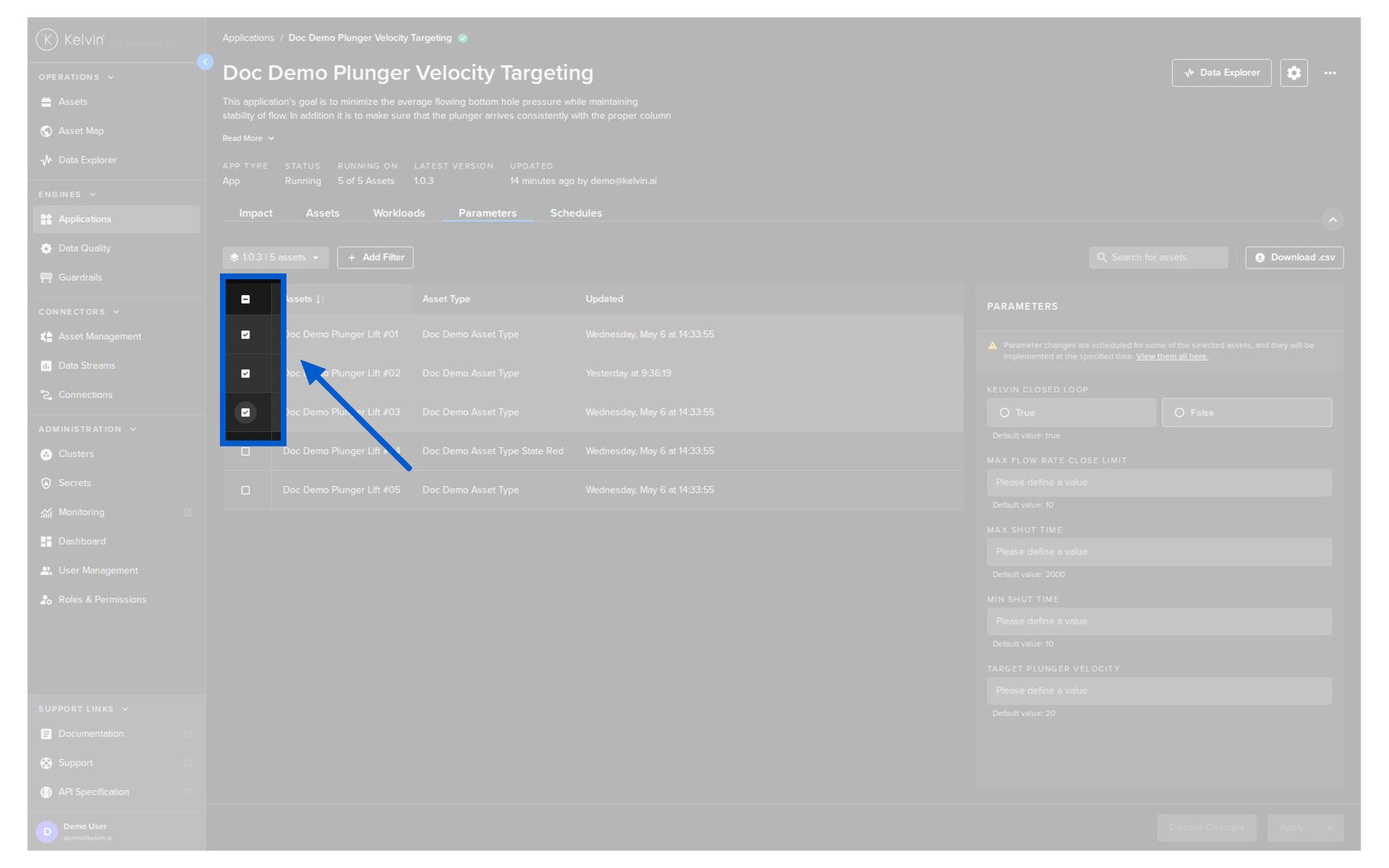
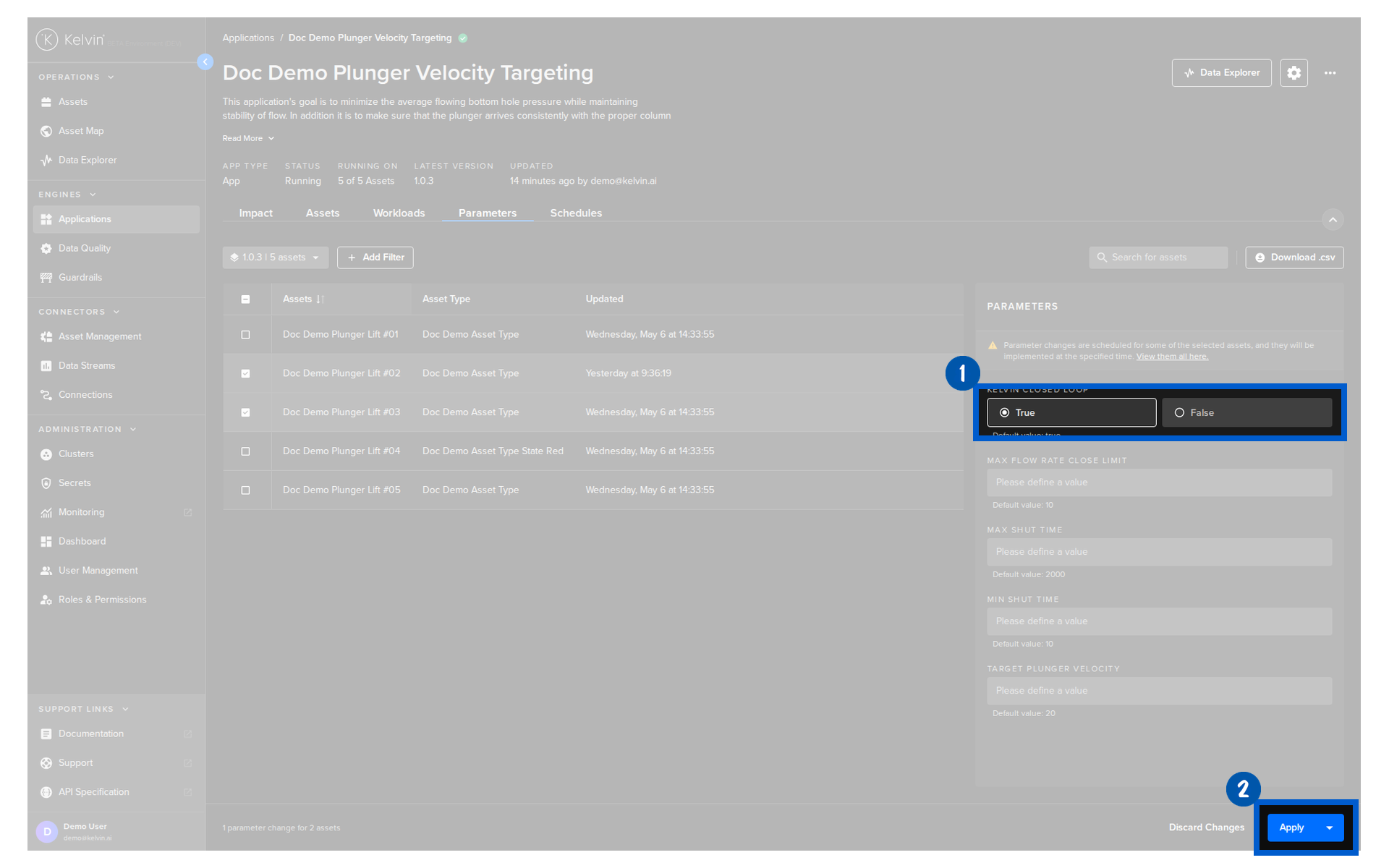
In Applications you can update multiple Assets together as long as they all need the same new parameter value.
First select all the Assets you want to update.
Then update the parameters you want to apply to the selected Assets.
Quick Quiz
Quiz 1: Where do you go to add assets to an application?
Answer: Go to Applications in the left sidebar → select the application → Assets tab → click Add Assets.
You add assets TO an application — not applications to an asset.
Quiz 2: What are the main steps when adding an asset?
Answer: The guided flow is:
- Select application version
- Select assets
- Set app parameters, if needed
- Click Add
Quiz 3: What happens if the cluster is offline when you deploy?
Answer: Operations does not need to configure the deployment target. Kelvin uses the default deployment setup that was prepared behind the scenes.
Quiz 4: Can you have different assets running on different versions of the same application?
Answer: Yes. Each asset can run a different version. You can upgrade individual assets or groups of assets to a new version at any time.
Quiz 5: Where do you go to change parameter values for a specific asset?
Answer: Two places:
- Applications → select app → Parameters tab → click on the asset
- Assets → click on the asset → Applications tab → edit parameters
Both give you access to the same parameters, but in Applications you can work across many assets more easily.
Quiz 6: What is the difference between stopping and removing an asset?
Answer:
- Stopping pauses the application for that asset. No outputs are generated, but the asset remains in the application. You can enable it again anytime.
- Removing permanently deletes the asset from the application. This cannot be undone. You would need to re-add and reconfigure the asset.
Summary
Adding assets to applications is one of the most important things you do as an Operations Engineer. Here is what to remember:
- You add assets to applications — not the other way around
- The guided flow is simple: select the version, select the assets, set parameters if needed, and click Add
- You do not need technical knowledge — the platform handles the deployment details automatically
- Once deployed, manage assets from the Applications Assets tab or the Asset Details Applications tab
- Parameters let you tune the application per asset — individually or in bulk via CSV
- You can enable, disable, or remove assets at any time
For full documentation:
Good luck and Happy Learning !