Simulator
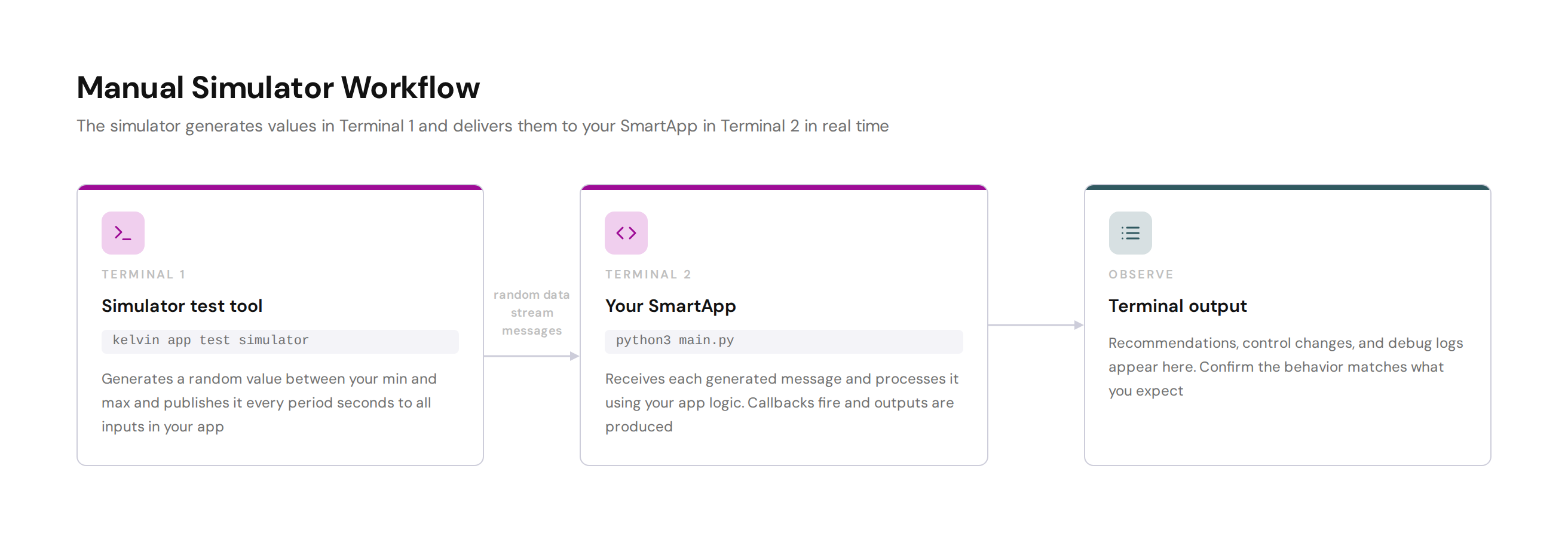
The simulator generates random numeric values and delivers them to your Application in real time. You run it in one terminal and your app in another. There is no data file — values are created on the fly within a range you choose.
This is the fastest way to get your app receiving data. Use it early in development when you want to confirm callbacks fire and app logic triggers before you have recorded data to work with.
Requirements
The kelvin CLI must be installed and you must have a valid app.yaml in your project folder. If you created your app with kelvin app create, both are already in place.
You can use config.yaml to override values from app.yaml without changing your committed files. Read more in Create an Application.
Step 1: Start the simulator
Open a terminal in your app folder and run:
The simulator starts and publishes one random value per input data stream defined in your app.yaml, once every --period seconds. You will see log output like this:
INFO:kelvin.testing:Starting simulator test
INFO:kelvin.testing:Publishing to doc_demo_plunger_01 (temperature=73.4)
INFO:kelvin.testing:Publishing to doc_demo_plunger_02 (temperature=81.2)
INFO:kelvin.testing:Publishing to doc_demo_plunger_01 (temperature=68.9)
INFO:kelvin.testing:Publishing to doc_demo_plunger_02 (temperature=77.5)
Available options:
| Parameter | Required | Description |
|---|---|---|
--config |
Optional | Path to app.yaml. Defaults to the current directory. |
--period |
Optional | Seconds between each publish cycle. Default is 5. |
--min |
Optional | Minimum value in the generated range. Default is 0. |
--max |
Optional | Maximum value in the generated range. Default is 100. |
Step 2: Run your Application
Open a second terminal in the same folder and run:
Your Application starts and connects. As the simulator publishes each value your app receives it, processes it, and logs the result:
INFO:my_app:Connected
INFO:my_app:Received temperature=73.4 for doc_demo_plunger_01
INFO:my_app:Threshold exceeded — publishing alert for doc_demo_plunger_01
INFO:my_app:Received temperature=68.9 for doc_demo_plunger_01
INFO:my_app:Value within normal range for doc_demo_plunger_01
Step 3: What to look for
Watch the Application terminal and confirm:
- Callbacks fire each time a value arrives
- The values your app receives are within the range you set
- Logic that depends on threshold crossings fires when expected
- Outputs such as recommendations or control changes appear at the right times
When you are satisfied, stop both terminals with Ctrl+C.
Ready to write automated tests instead? See Test Harness & Setup to get started with KelvinAppTest and Random & Synthetic Sources for the automated equivalent of the simulator.