Guardrails
Overview
Note
To understand the concept of Guardrails, you can read a full description in the Concept Overview page here.
The Guardrails page displays all configured guardrail rules across your Assets and Data Streams.
Guardrails define safe operating boundaries for control values -- preventing Applications from writing values that fall outside acceptable limits, protecting your assets from potentially harmful commands.
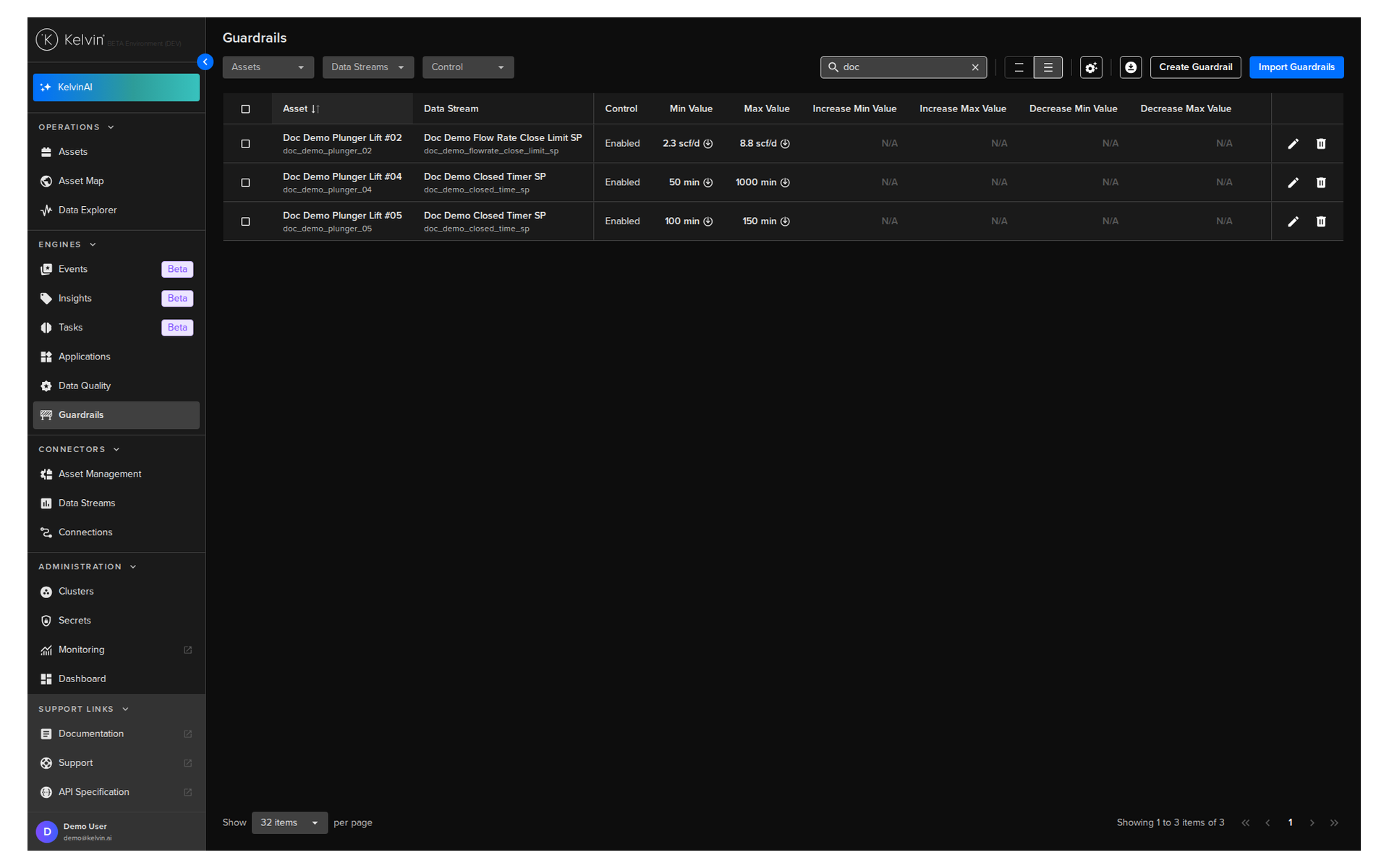
Each guardrail rule is defined for an Asset / Data Stream pair and specifies:
- The Control status -- whether the guardrail is currently enforced
- A Min Value and Max Value -- the absolute boundaries for the control value
- Increase and Decrease delta limits -- the maximum change allowed in a single step
Warning
Guardrails apply at the platform level. An Application recommendation that falls outside these boundaries will be blocked regardless of the application logic.
Columns
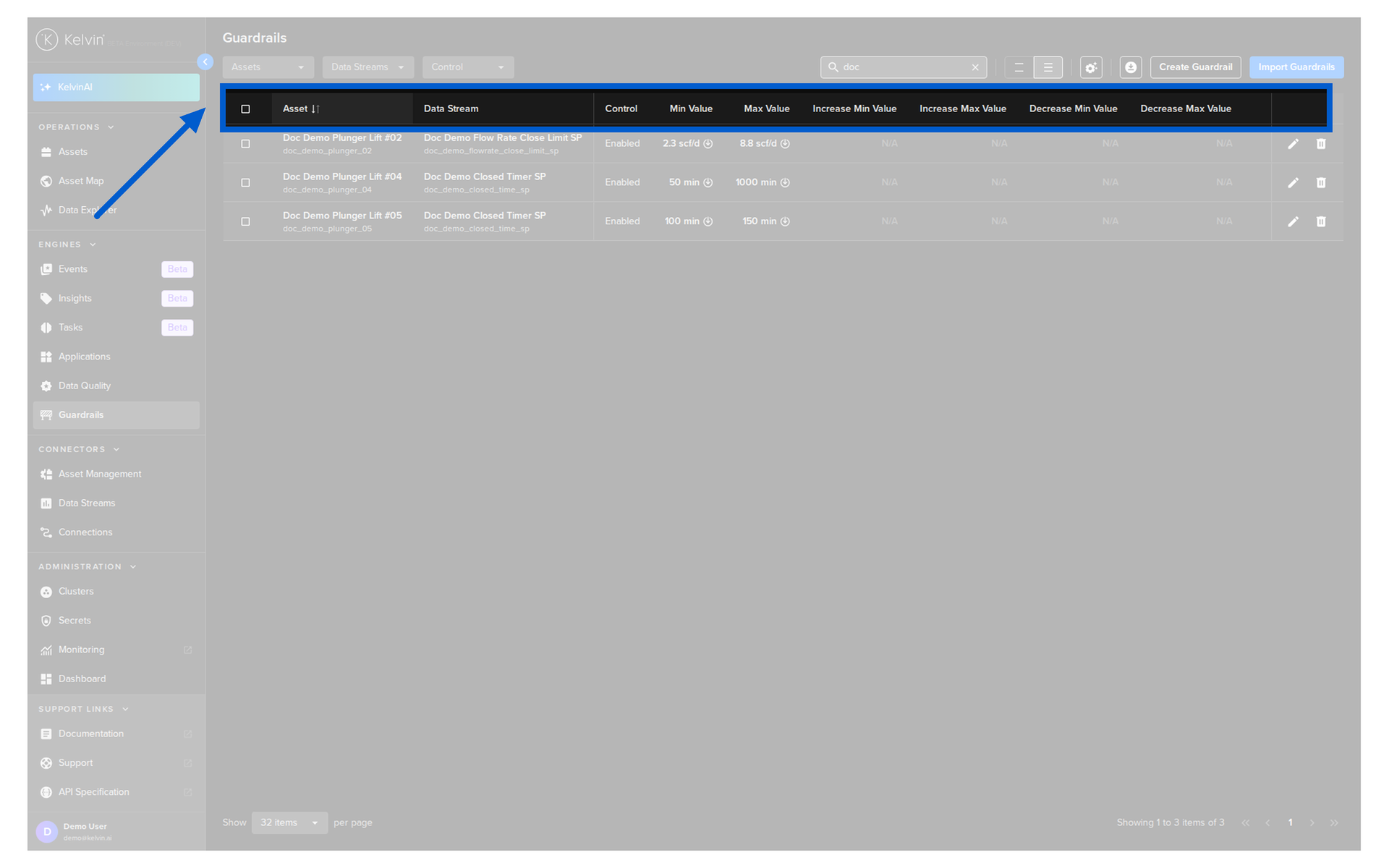
The table shows one row per Asset / Data Stream guardrail configuration.
| Column | Description |
|---|---|
| Asset | The Asset the guardrail applies to |
| Data Stream | The specific Data Stream being controlled |
| Control | Whether the guardrail is currently Enabled or Disabled |
| Min Value | The minimum value the control is permitted to write |
| Max Value | The maximum value the control is permitted to write |
| Increase Min Value | The minimum step size allowed when increasing the value |
| Increase Max Value | The maximum step size allowed when increasing the value |
| Decrease Min Value | The minimum step size allowed when decreasing the value |
| Decrease Max Value | The maximum step size allowed when decreasing the value |
Note
If a limit has not been configured for a particular field, you will see the N/A symbol.
Filter
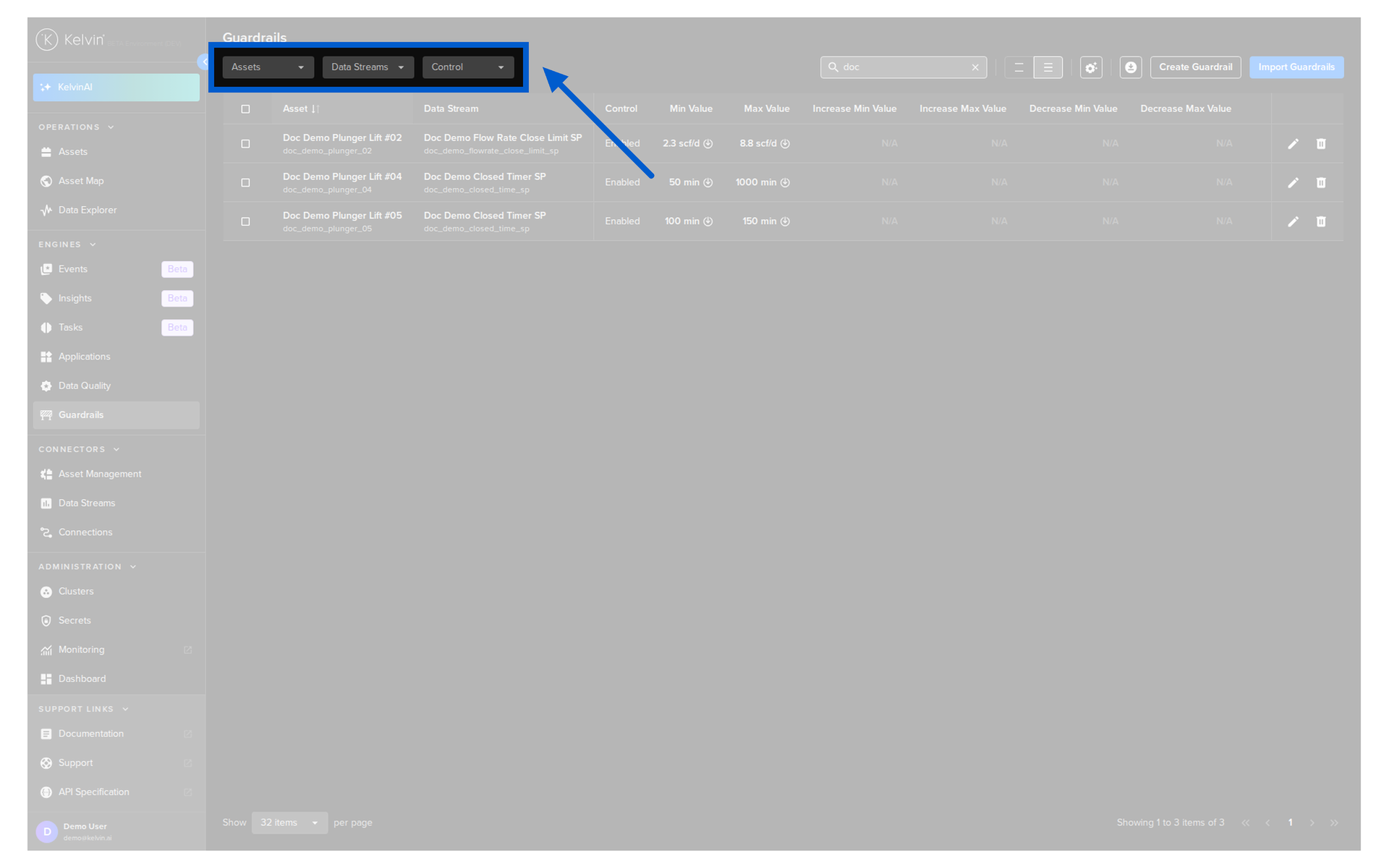
Three filters can be applied to narrow the guardrail list:
| Filter | Description |
|---|---|
| Assets | Select one or more Assets to show only their guardrail rules |
| Data Streams | Select one or more Data Streams to filter by stream |
| Control | Select to show only Enabled or Disabled Guardrails |
A search field is also available in the top toolbar to search by keyword across Asset and Data Stream names.
Creating a guardrail
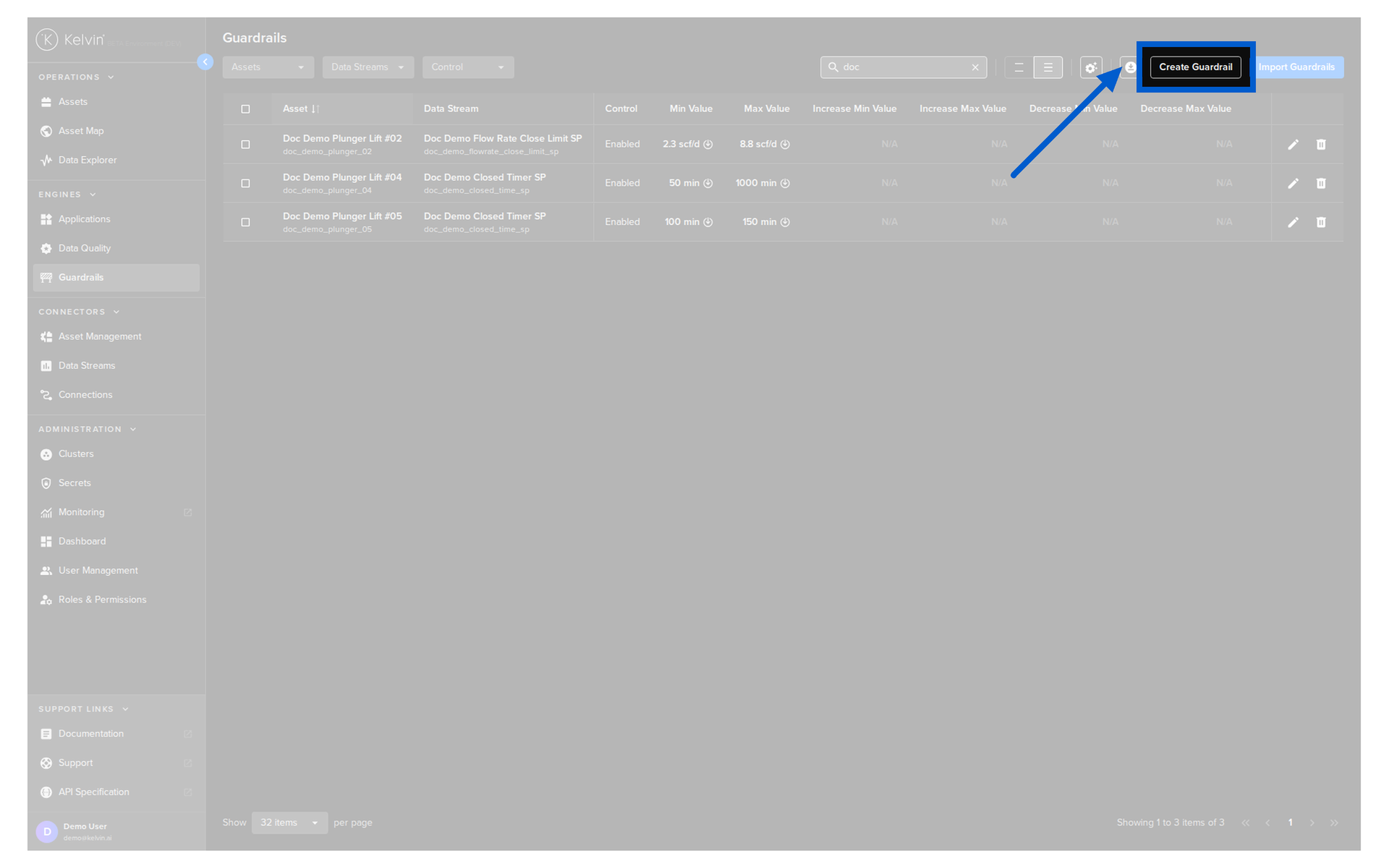
Click Create Guardrail in the top-right corner to open the creation form.
You will be prompted to select an Asset / Data Stream pair and define the boundary values for that control.
Note
You can also bulk-import guardrail configurations using the Import Guardrails button. This accepts a structured file format -- refer to the Import Guardrails page for the expected schema.
Click here to read how to create a new guardrail or here to create many guardrails at one time.
Edit a guardrail
Click the edit icon on the right side of any row to modify an existing guardrail configuration.
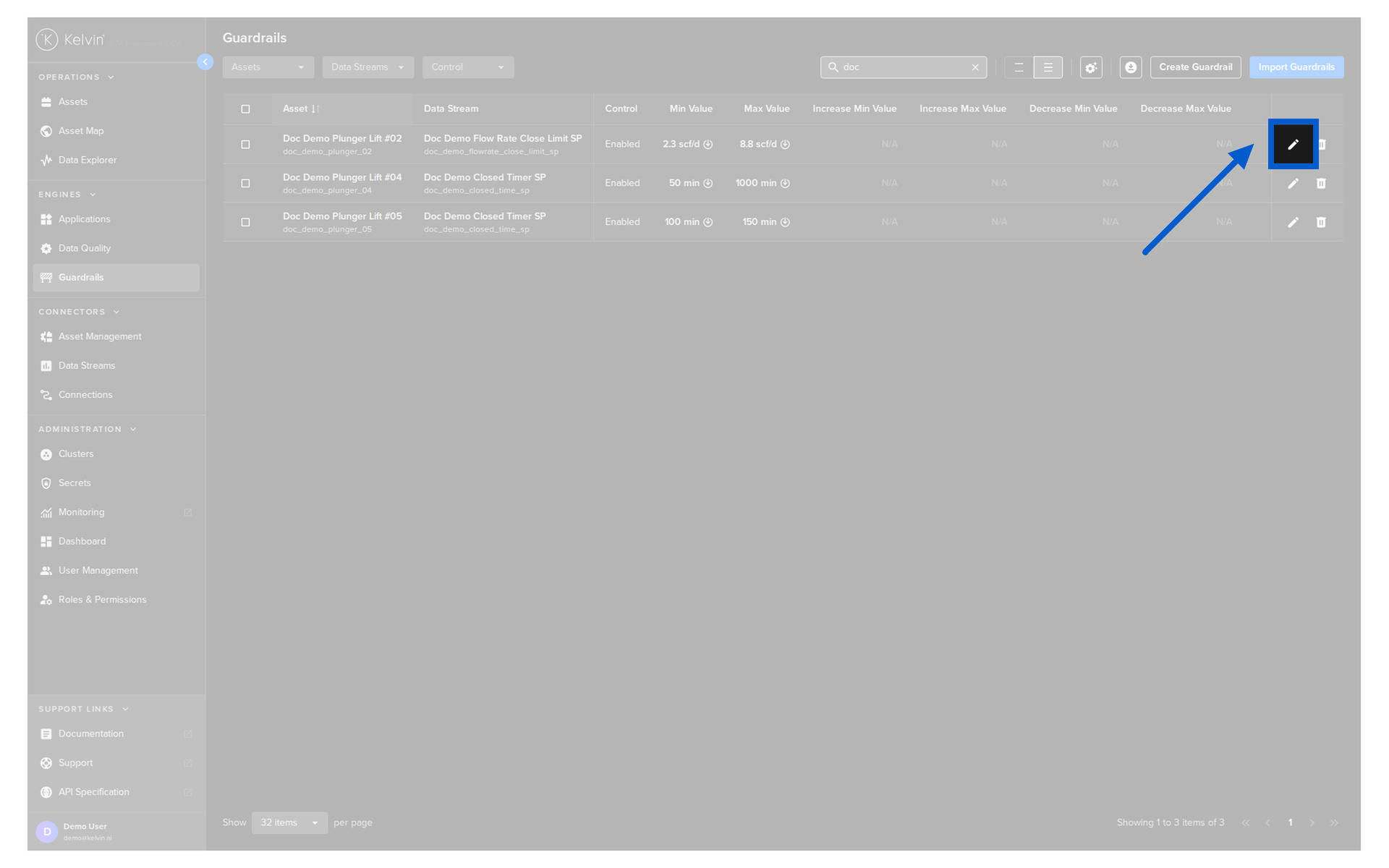
You can update any of the boundary values or toggle the Control status.
Click here to read how to edit a guardrail.
Deleting a guardrail
Click the delete icon on the right side of any row to permanently remove a guardrail rule.
Warning
Deleting a guardrail removes all boundary enforcement for that Asset / Data Stream pair immediately. Application recommendations will no longer be blocked for that control.
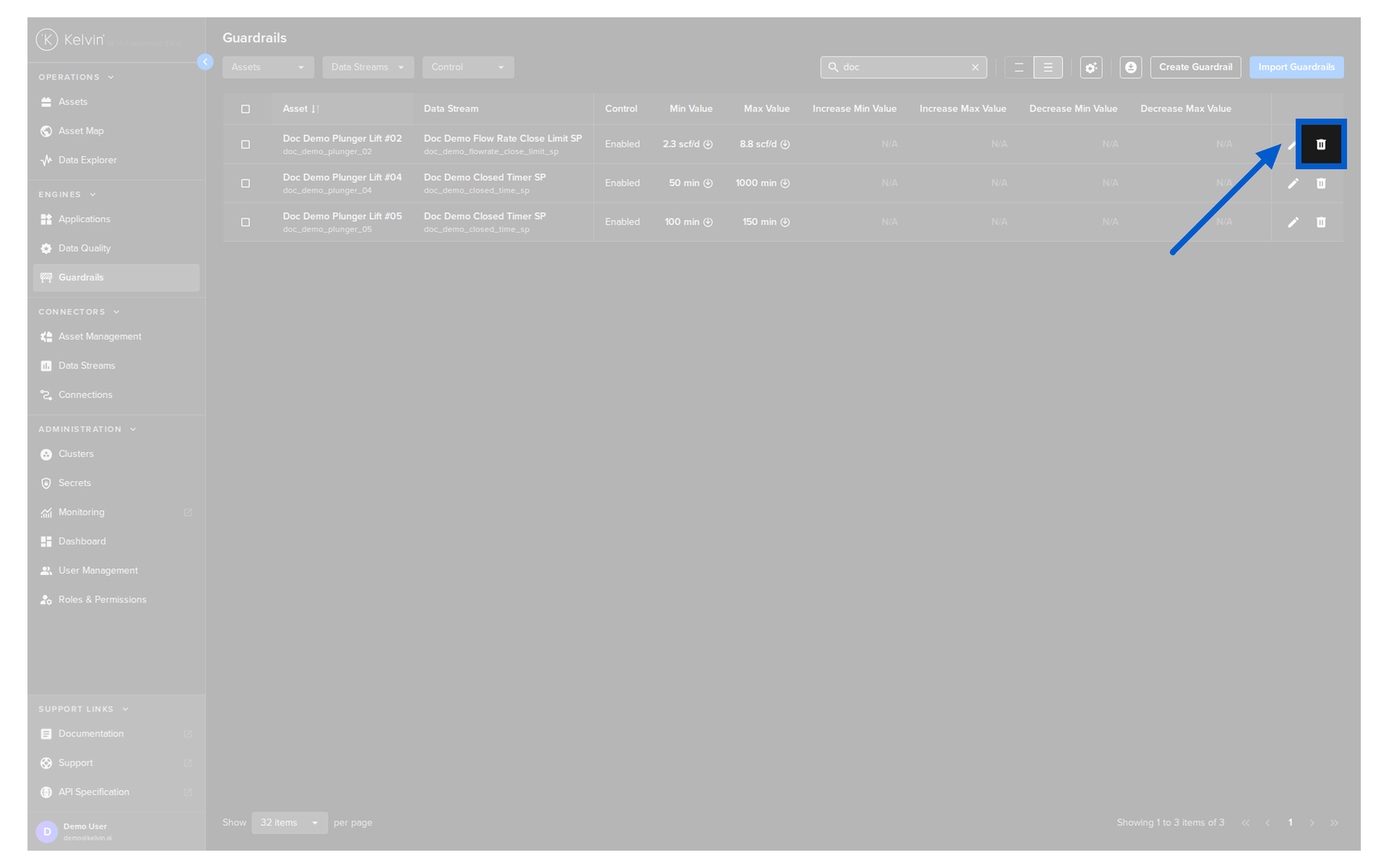
Click here to read how to delete a guardrail or here delete many guardrails at one time.
Table configuration
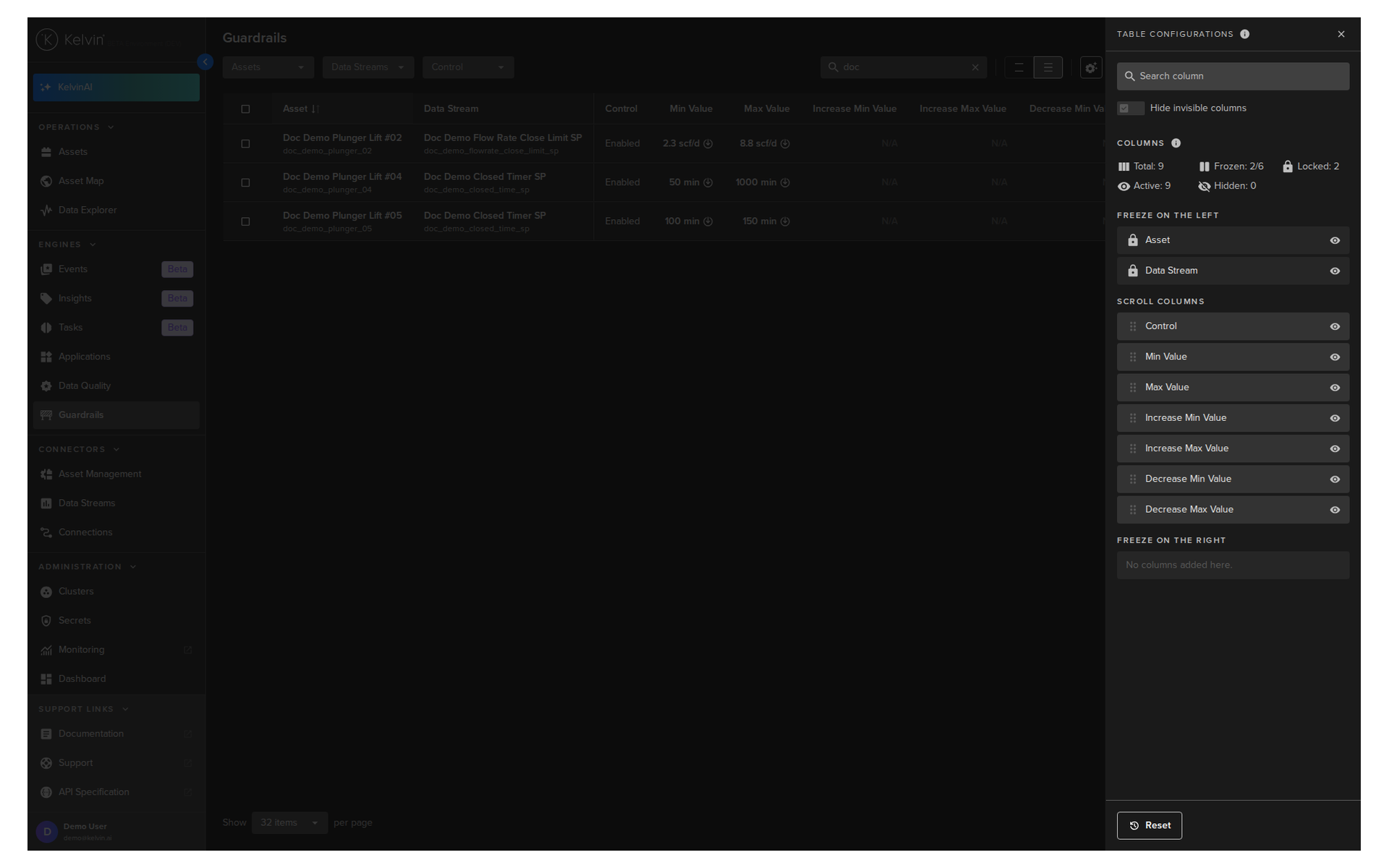
Click the table configuration icon in the top toolbar to open the Table Configurations panel.
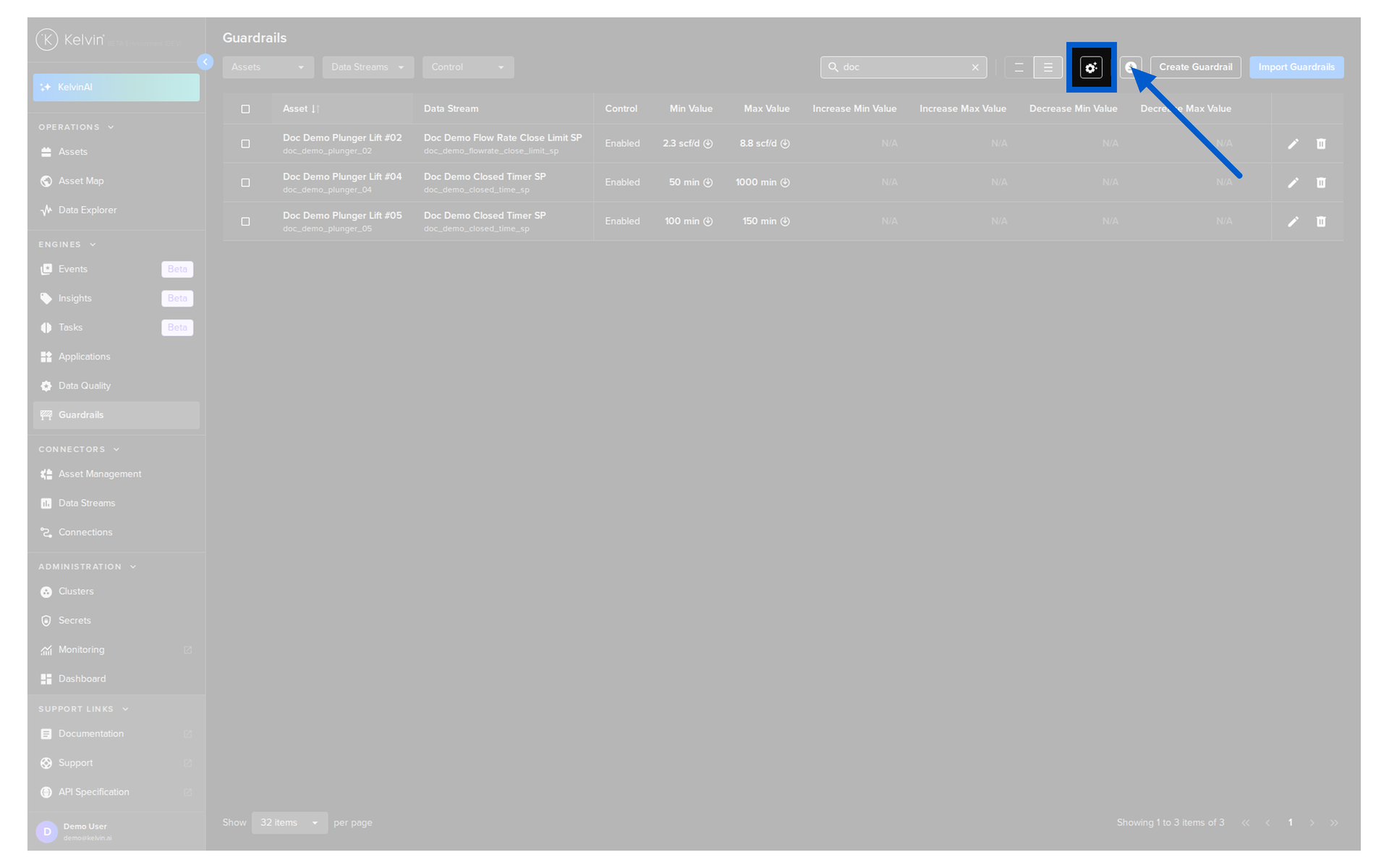
This panel lets you control column visibility and layout. The columns are divided into three sections:
- Freeze on the left -- Asset and Data Stream are locked and always visible when scrolling horizontally
- Scroll columns -- all other columns can be shown or hidden using the eye icon
- Freeze on the right -- reserved for columns you want pinned on the right side
Note
Unlike some other tables in the Kelvin UI, the Guardrails table does not support adding custom columns. The available columns are fixed to the guardrail configuration fields.
List options
The table supports sorting and row spacing adjustments to help you navigate large guardrail sets.
Sort order
Click any column header to sort the list. Clicking the same column cycles through ascending, descending, and unsorted.
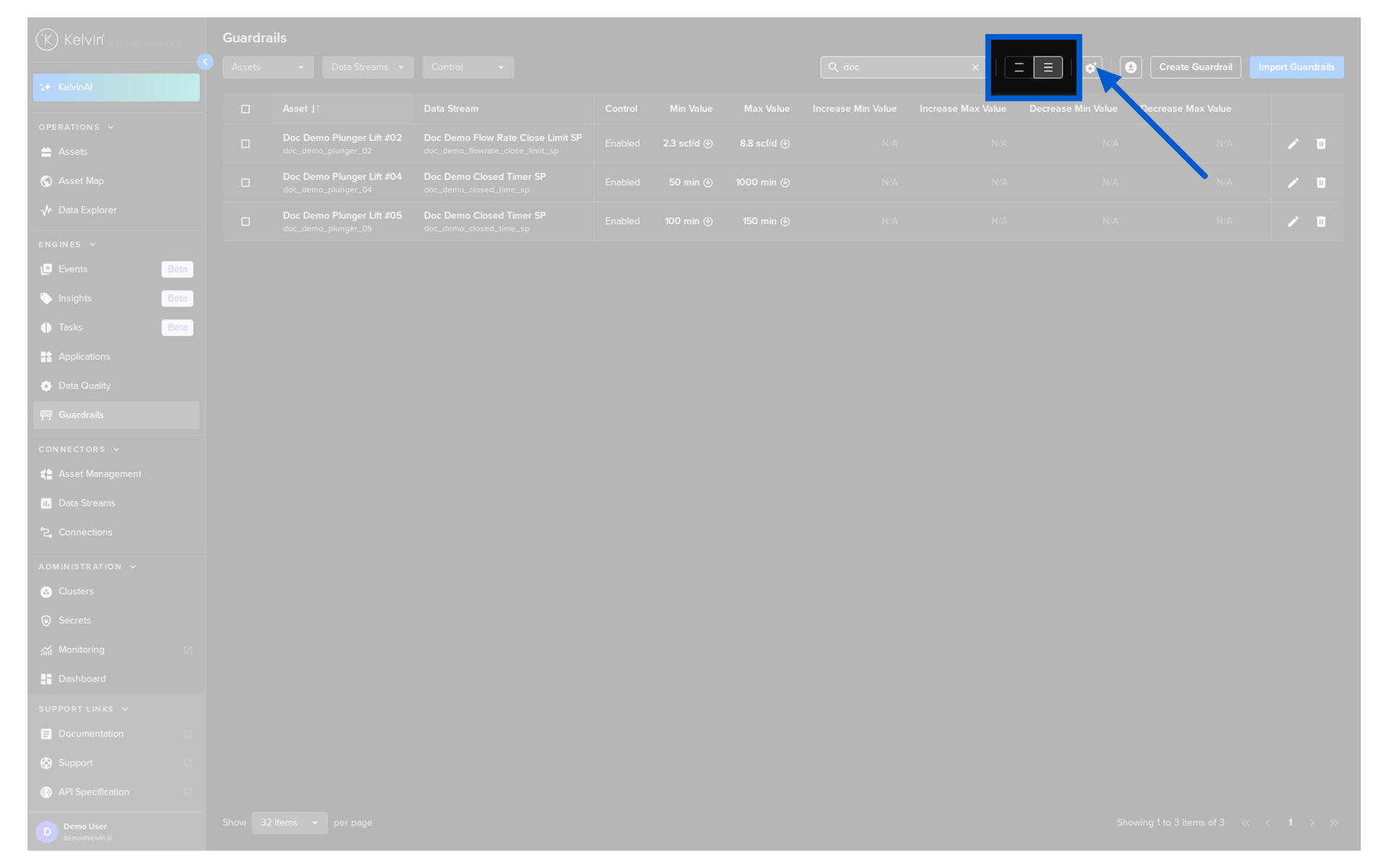
Row spacing
Use the row spacing control in the toolbar to adjust how many rows are visible on screen at once.
Download table
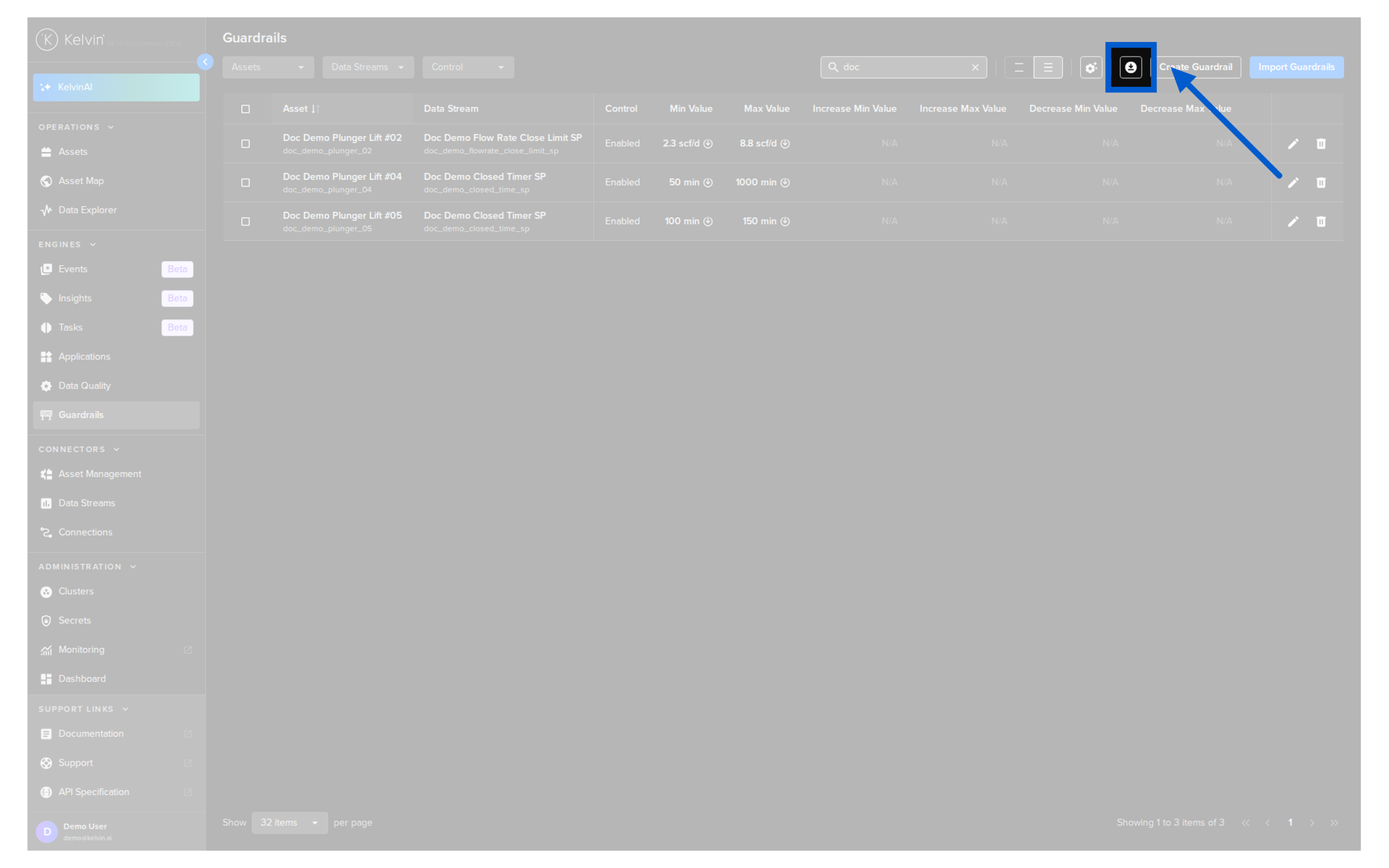
You can export the current guardrail list to a CSV file using the download icon in the toolbar.
Note
The export reflects the current filter and search state -- only visible rows are included in the download.