Tasks Beta
Beta Release
Tasks is currently in beta. Improvements and new capabilities will continue to be added quickly with each new release.
On this page you will learn how to create a Task from an Insight, understand the flowchart it generates, and manage your Tasks from the overview table.
Overview
The Create Task page opens after you click Create Task from the Insights screen.
A Task defines what should happen when a specific event pattern is detected on an asset. You describe your intent in plain language, the AI asks a series of clarifying questions to make sure it understands, and then generates a logical flowchart showing exactly how the task will run.
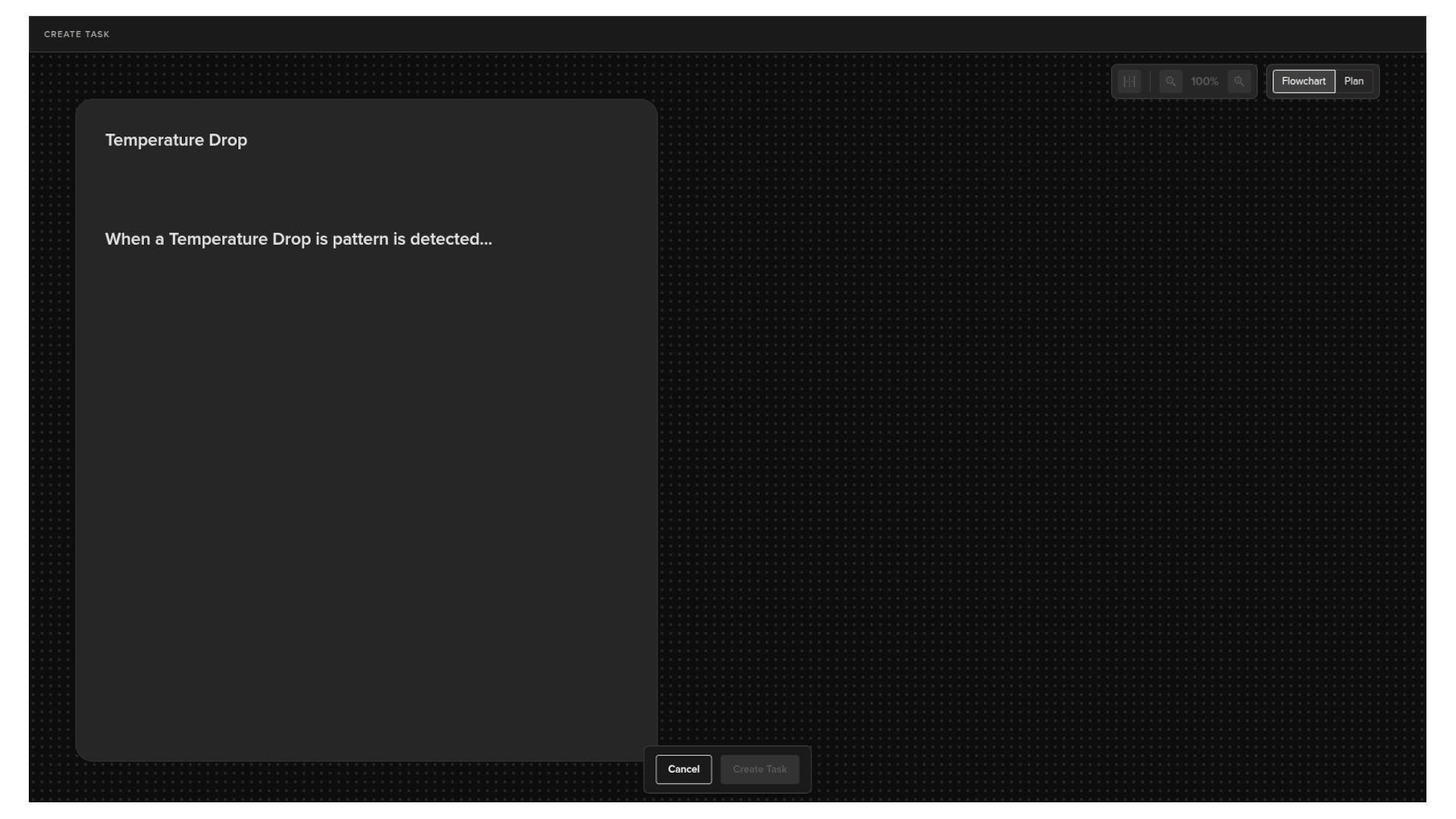
Write your task
On the left side of the screen, write a description of what the task should do.
You do not need to be precise or technical. Describe the situation and the outcome you want in your own words. For example:
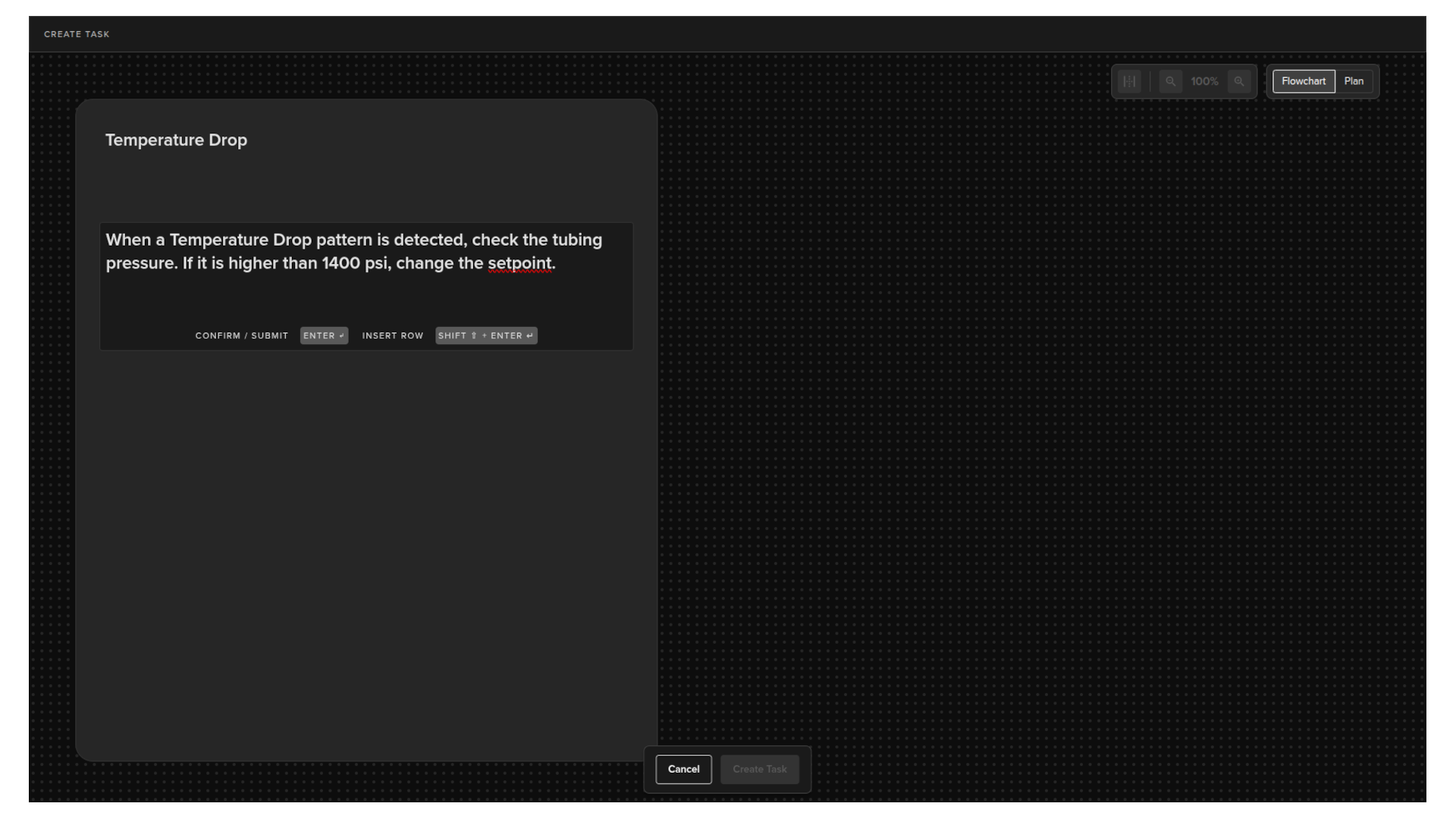
When a Temperature Drop pattern is detected, check the tubing pressure. If it is higher than 1400 psi, change the setpoint.
Note
The description is intentionally left open-ended. The AI will ask follow-up questions to clarify the details it needs before generating the task logic.
Then press Enter to submit and let the AI organize your request into a flowchart.
AI clarification
After you submit your description, the AI will ask a series of questions to confirm it has understood your intent correctly. Answer each question to help it build an accurate picture of what you want the task to do.
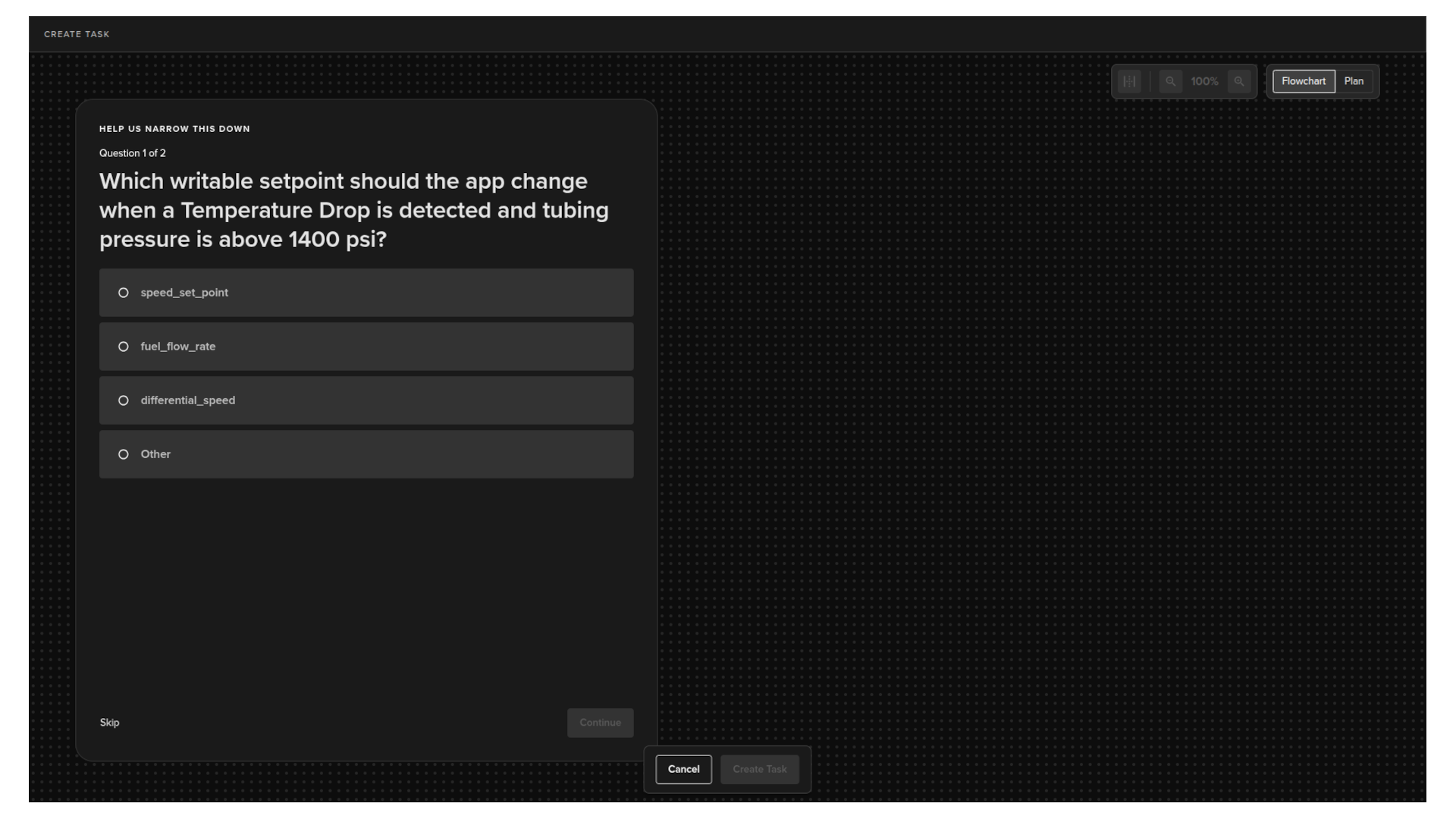
Once the questions are complete, the AI cleans up your original prompt and generates the task logic automatically.
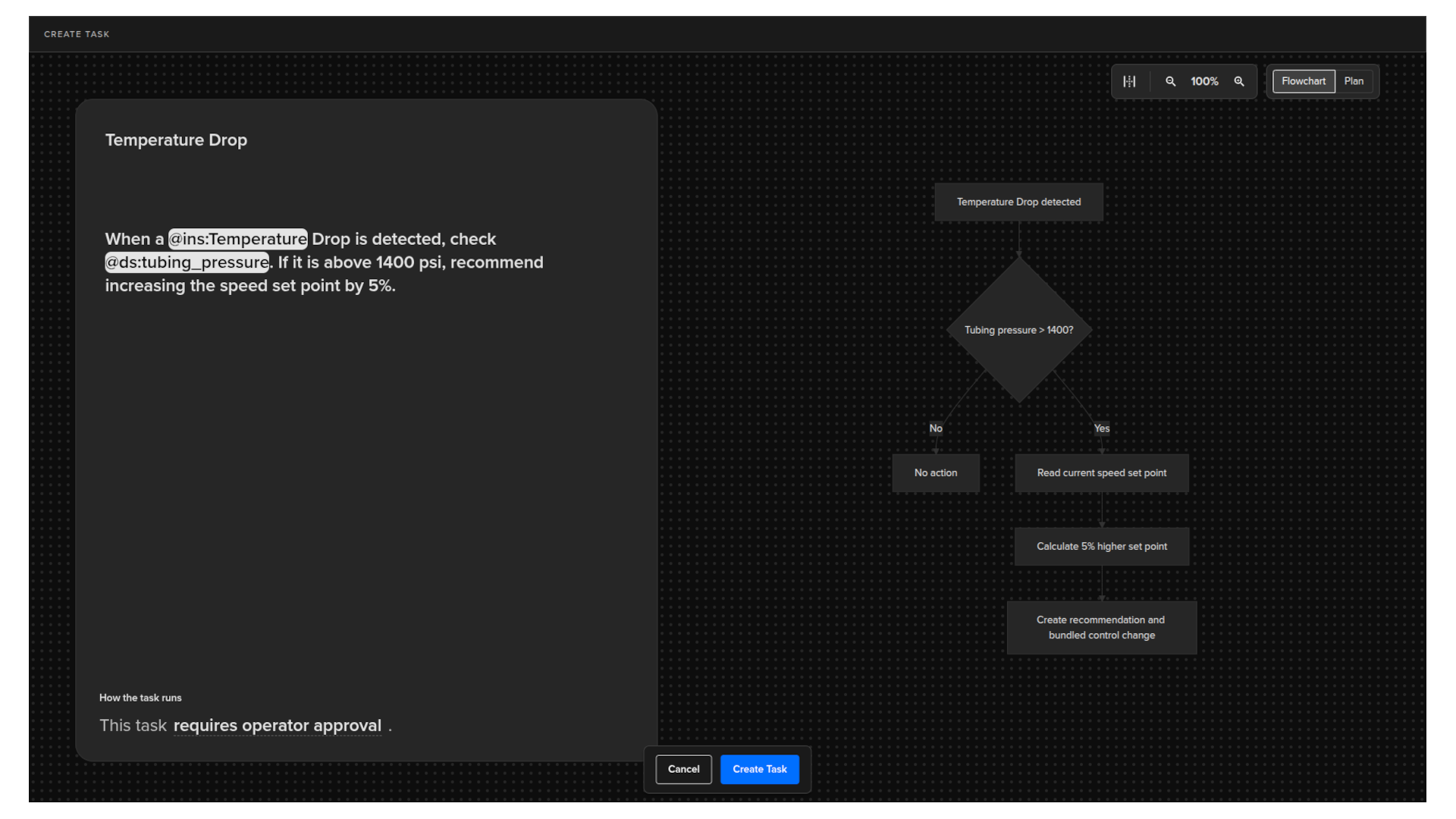
The flowchart
The right side of the screen shows the generated task as a visual flowchart.
You can switch between two views using the toggle in the top right corner:
Note
You can not edit the Flowchart or Plan directly.
TO make adjustments, modify your prompt on the left side and press Enter to initiate the AI to update the flowchart/plan.
- Flowchart: a visual diagram showing the decision branches and actions in the task.
- Plan: a structured text layout of the same logic.
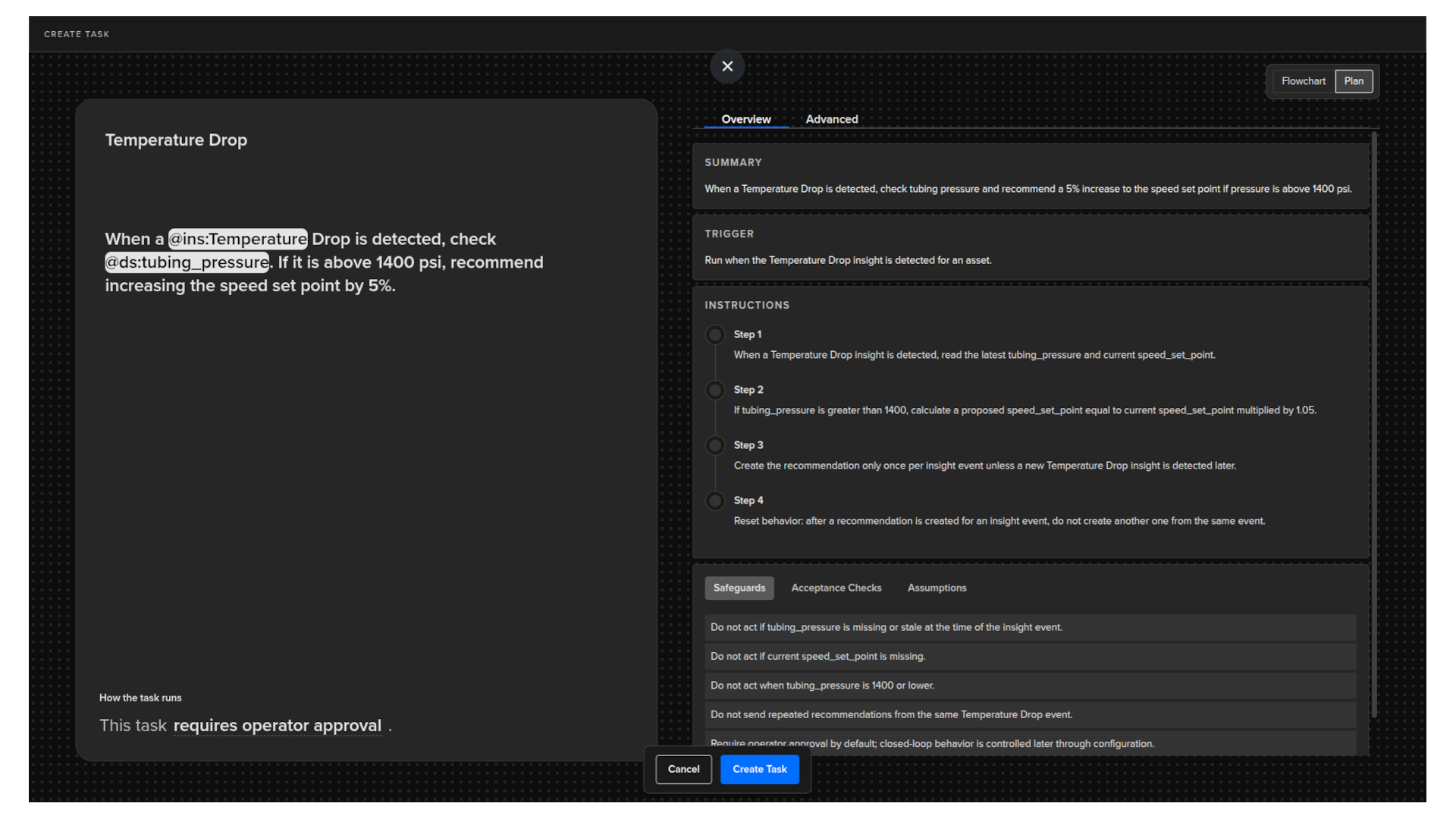
To navigate the flowchart:
- Click and drag to move around the canvas.
- Use the zoom controls to zoom in or out.
- Click the fit-to-page icon to recentre the view and show the full flowchart on screen.
Execution mode
At the bottom of the left panel, choose how the task runs when it detects a matching event:
- Runs autonomously: the task executes its actions automatically without any manual approval.
- Requires operator approval: the task prepares its recommended actions and waits for an operator to approve before anything is executed.
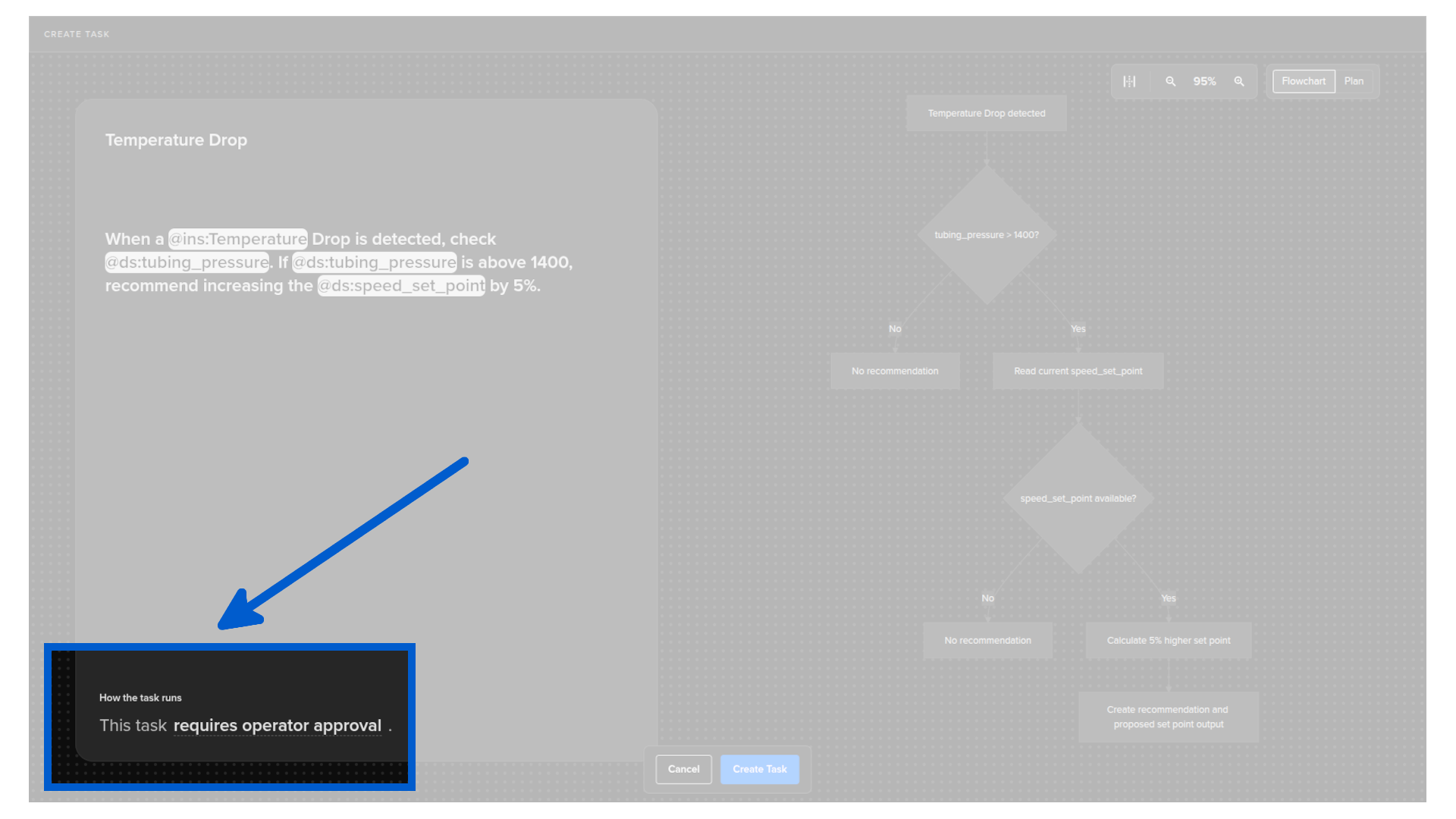
Tune and Save
You can edit your prompt on the left side at any time and the flowchart/plan will update to reflect your changes. Keep refining the prompt until the flowchart matches exactly how you want the task to respond.
Note
The task that is created uses standard logic-based execution. AI is not involved in carrying out the actions when the task runs. The AI is only used to help you define and create the logic.
When you are satisfied, click Create Task to save.
Tasks Overview
After saving, you are taken to the Tasks overview table. You can also reach it at any time by clicking Tasks in the left sidebar under Engines.
The table lists all tasks that have been created, with their current status and activity.
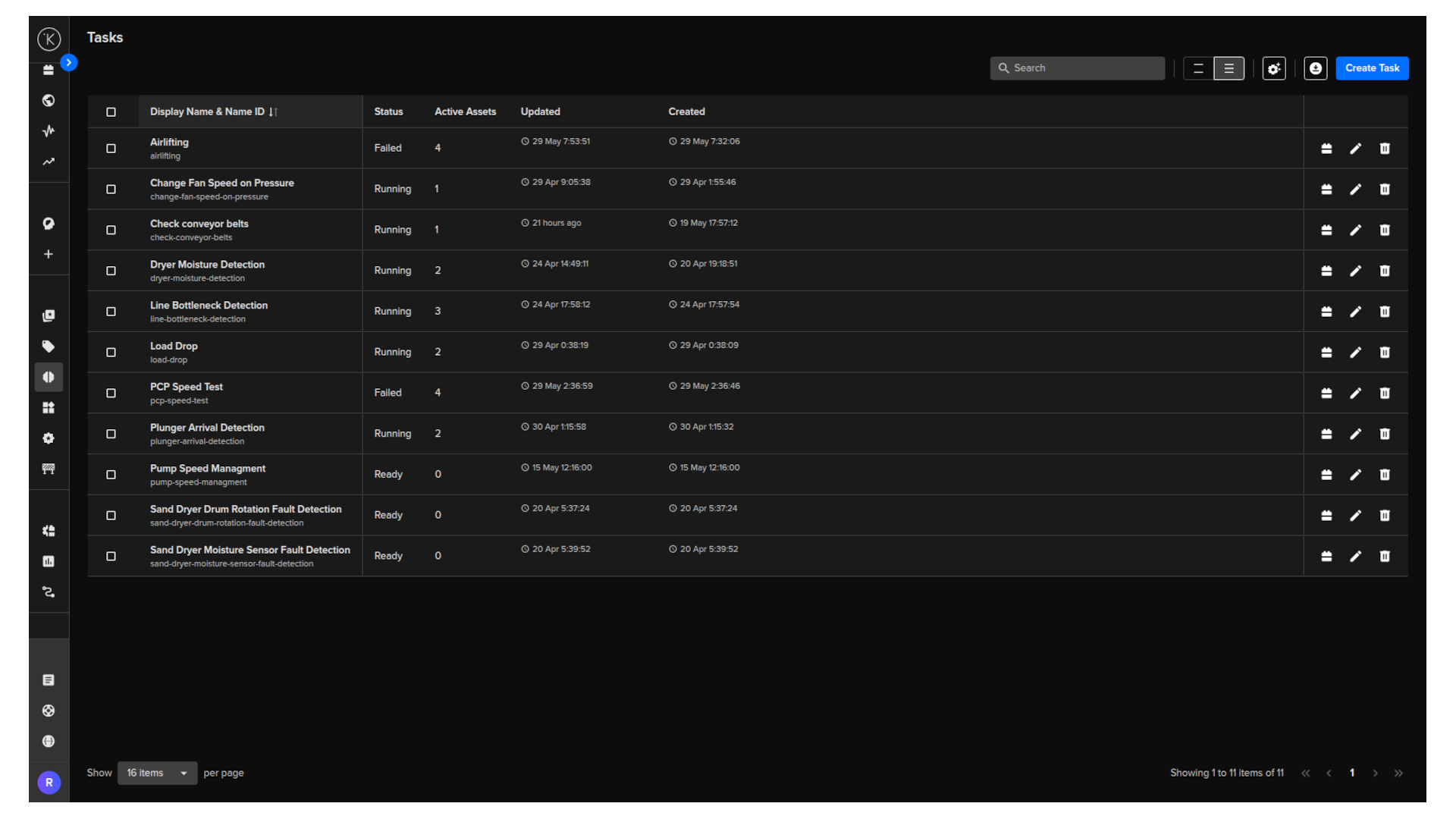
Basic features
The Tasks overview includes several features to help you find and manage your tasks.
Use the search bar at the top right to find tasks by name. The list filters as you type.
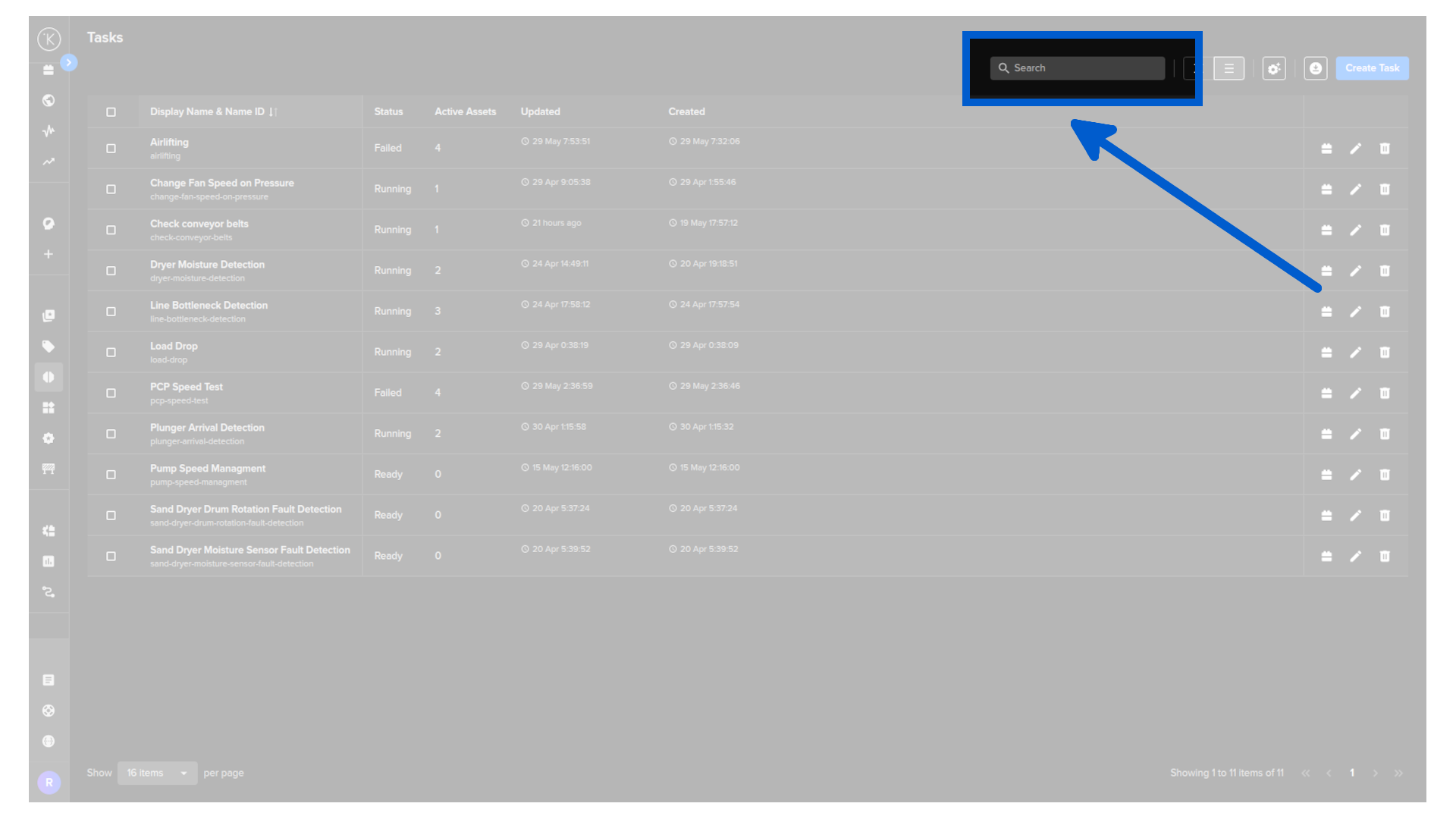
Use the row spacing control to adjust how compact or spaced out the rows appear.
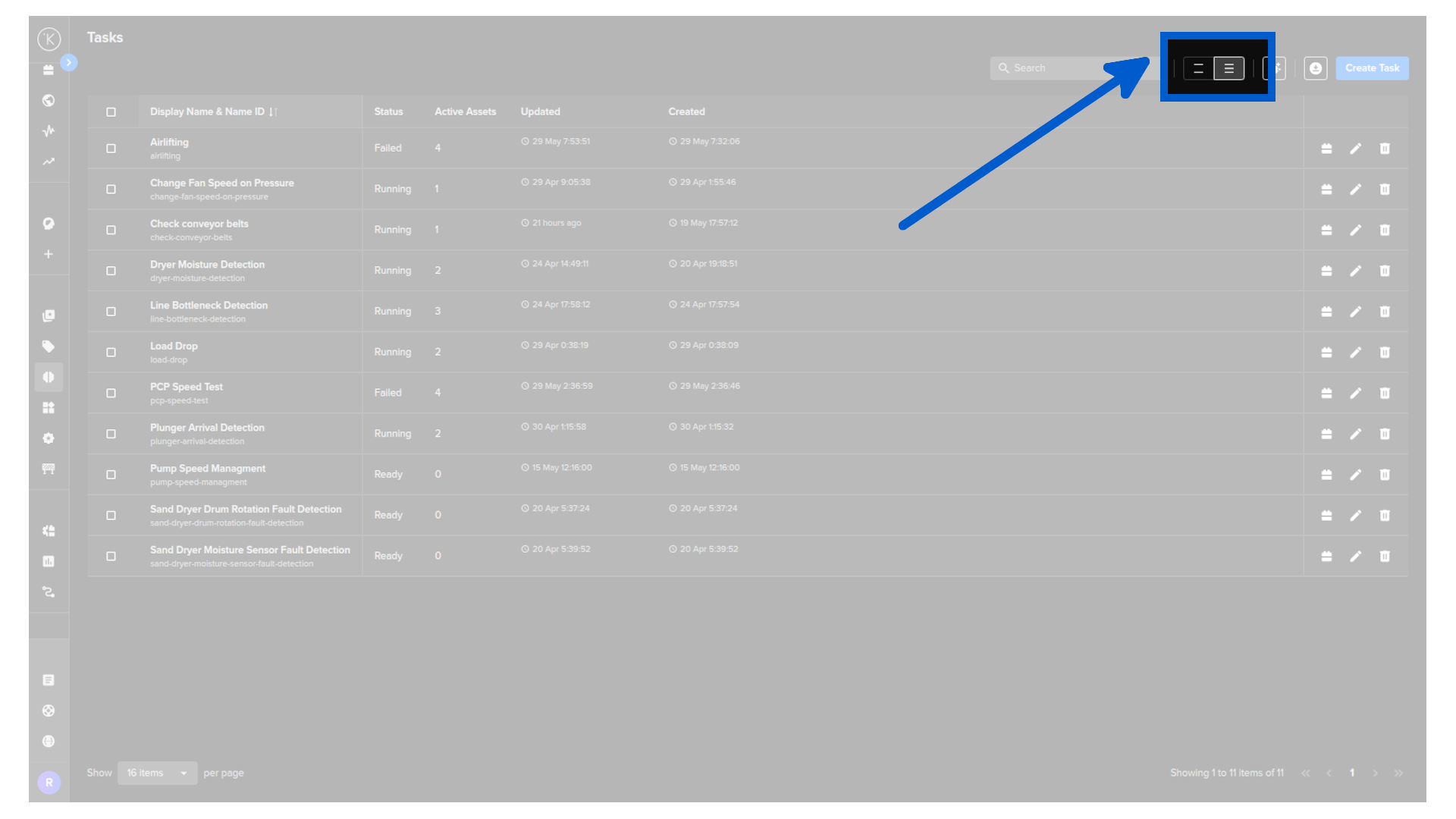
Click the download icon to export the table as a CSV file. The export contains exactly the columns and rows visible on screen at the time of download.
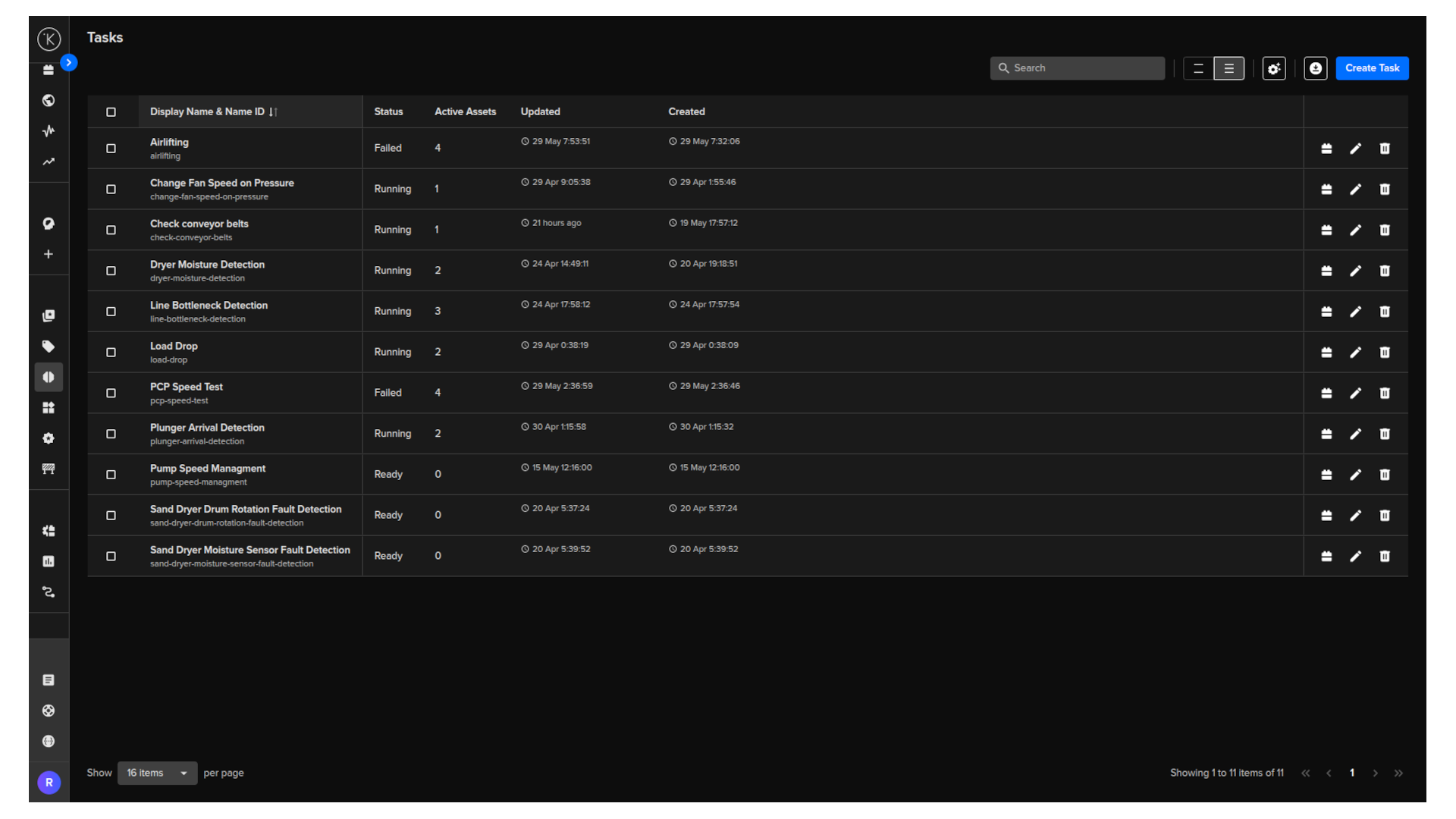
Table columns
The Tasks table has a fixed set of columns. You can reorder, freeze, hide, or show them, but no custom columns can be added.
| Column | Description |
|---|---|
| Display Name & Name ID | The task name and its system identifier. This column is frozen to the left by default. |
| Status | The current state of the task: Running, Ready, or Failed. |
| Active Assets | The number of assets the task is currently monitoring. |
| Updated | When the task was last modified, and by whom. |
| Created | When the task was created, and by whom. |
To edit the column header, click on the Configuration icon.
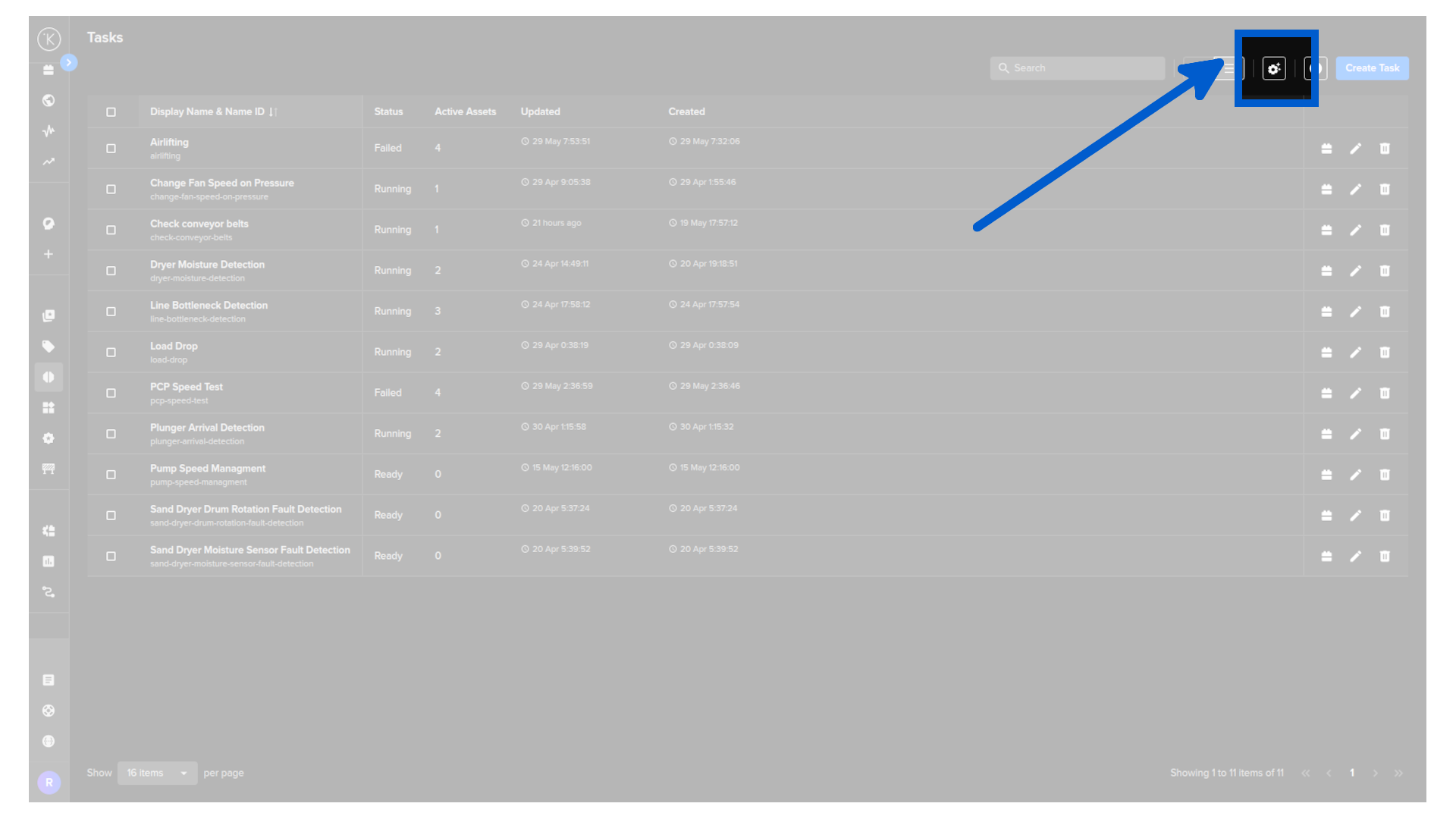
And the table column configuration menu will appear.
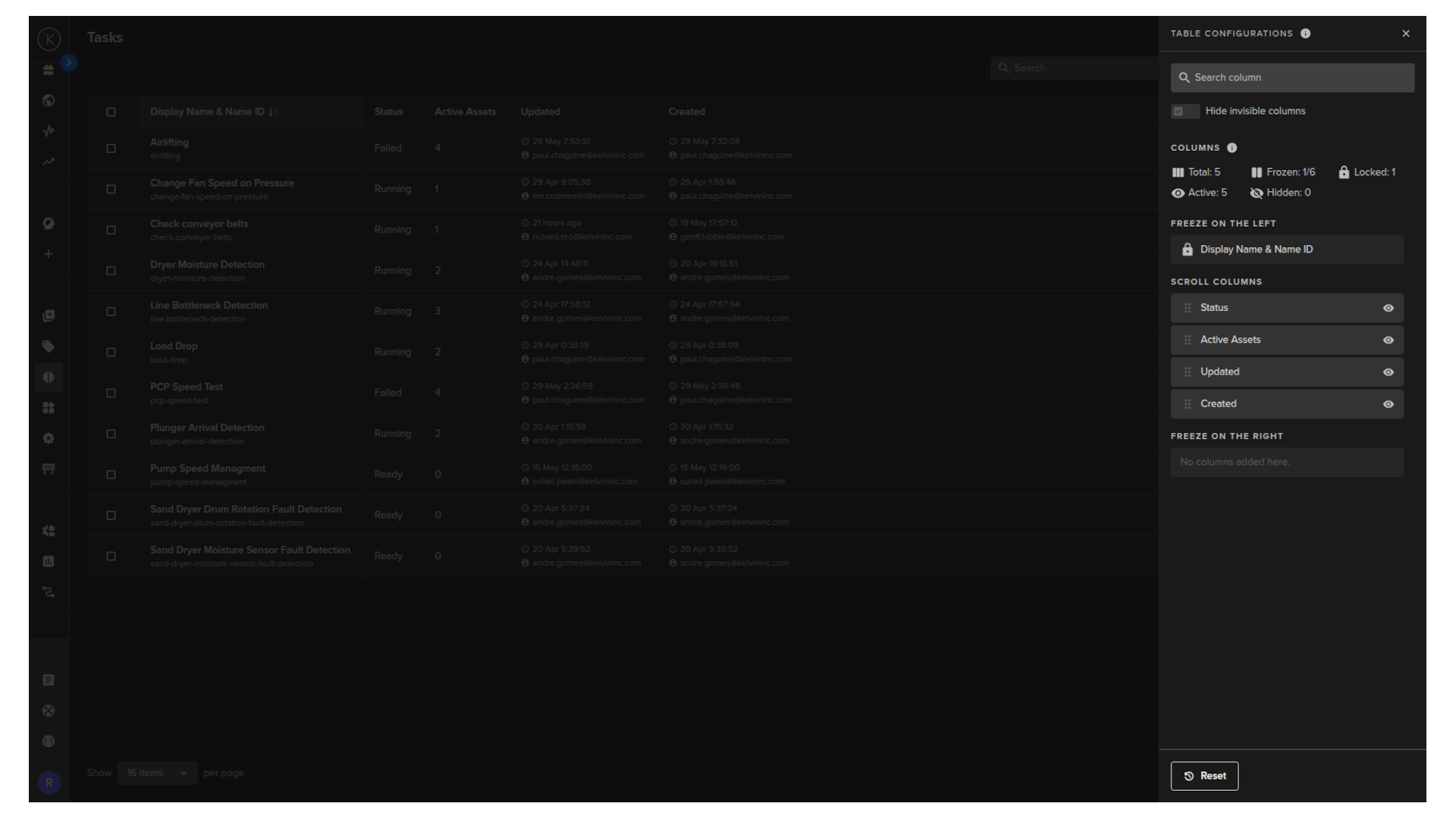
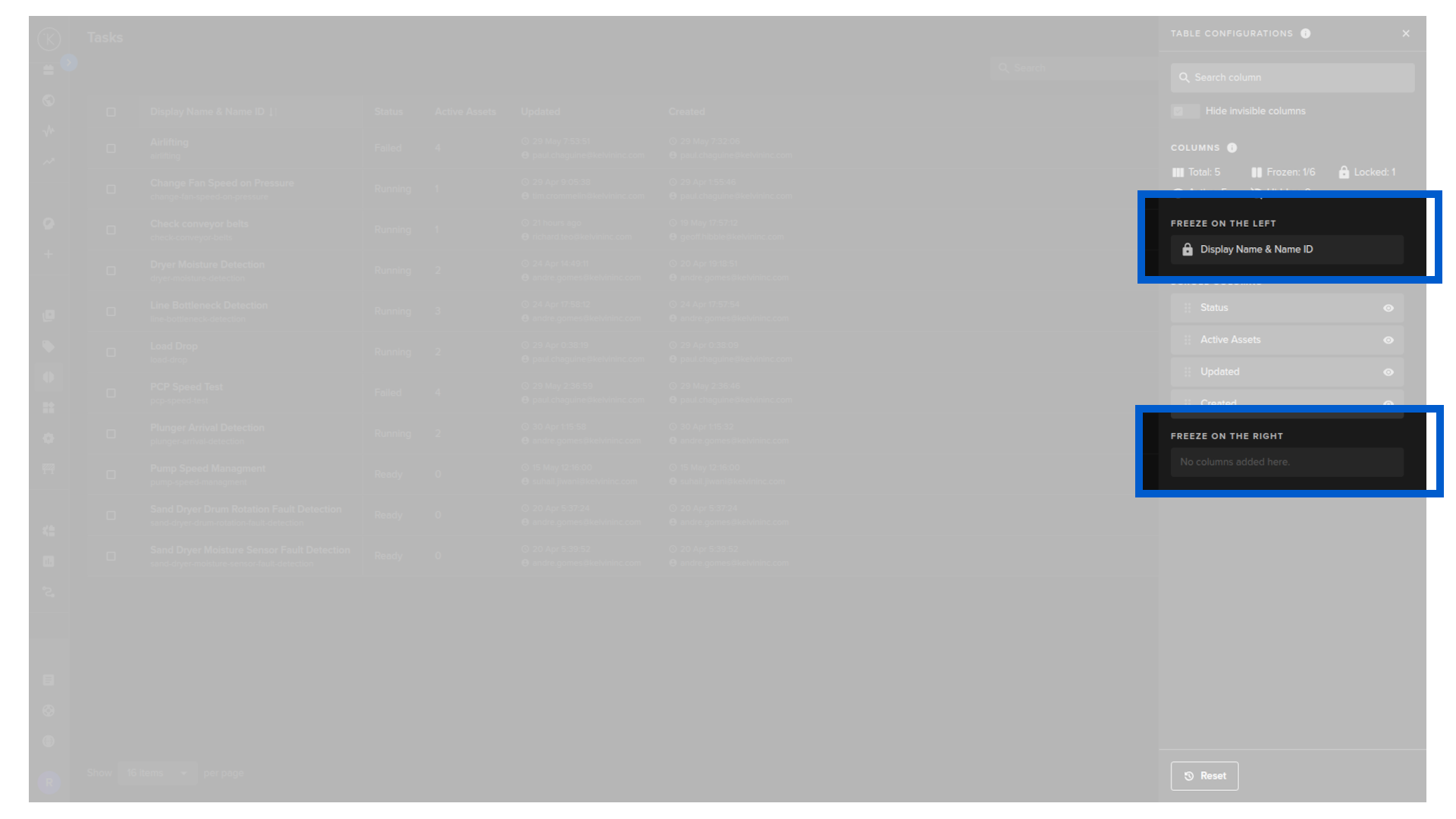
When you are inside the column settings you can freeze columns left and right. This ensures the columns will always show, even when you scroll left or right to see all the columns.
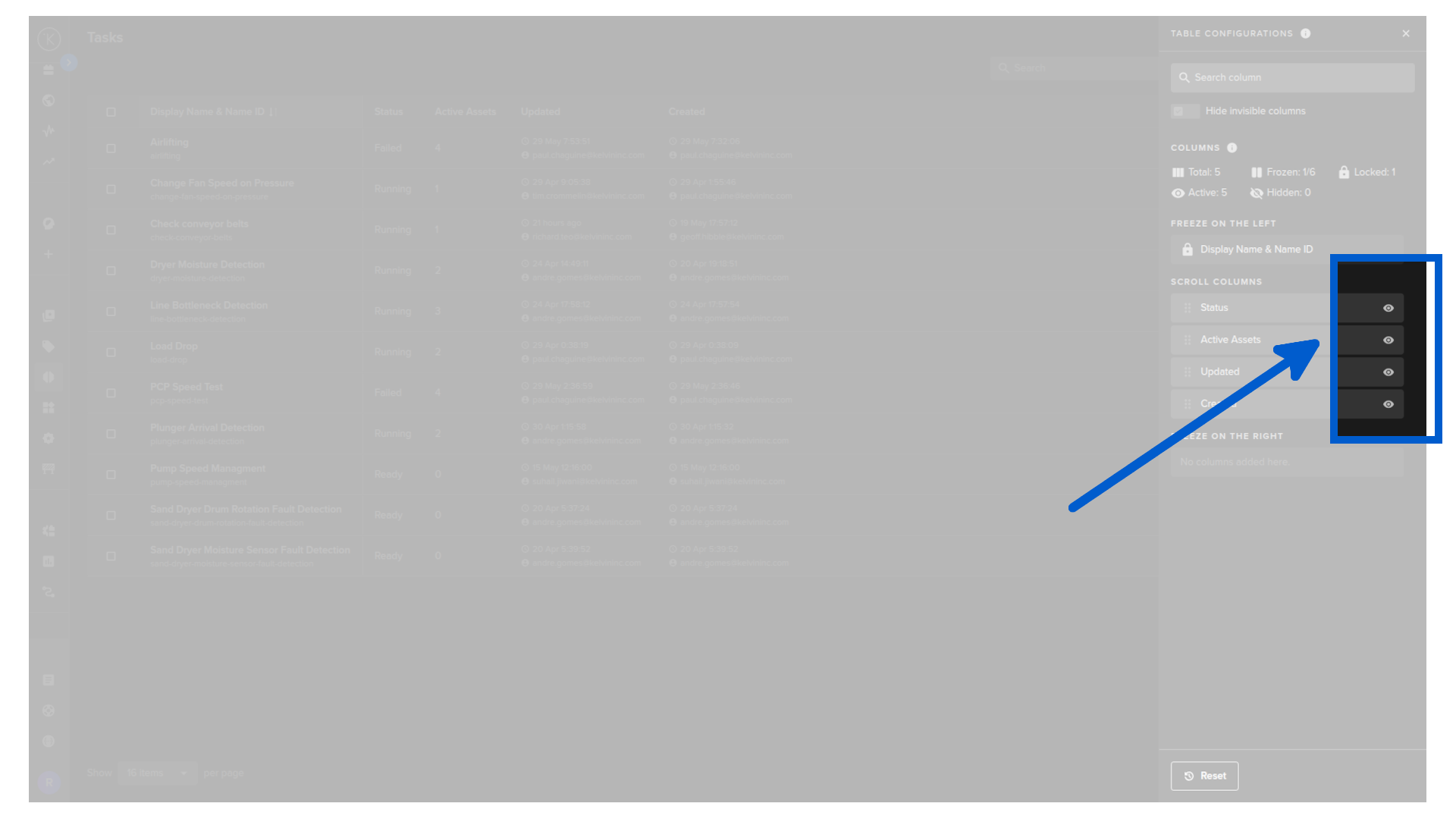
When you are inside the column settings you can show or hide columns to ensure you only see what you need to see.
When you are inside the column settings you can see an overview of the columns available and showing.
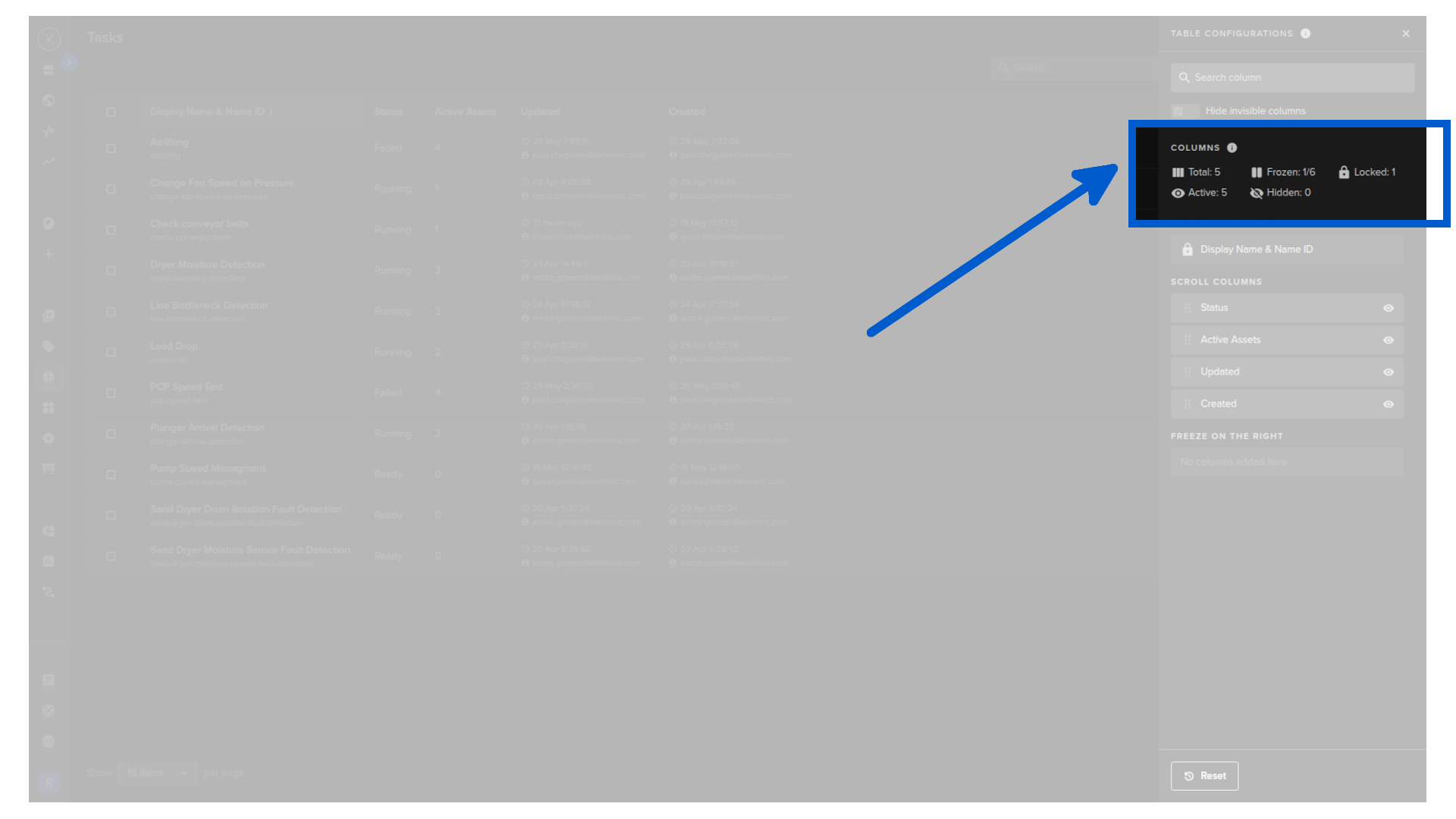
| Item | Description |
|---|---|
| Total | Total number of columns available (both active and hidden) |
| Frozen | Total number of columns that are in the left or right freeze positions out of a total number of columns that can be moved to the frozen sections |
| Locked | Total number of columns that can not be moved or edited |
| Active | Total number of columns that will be shown on the table |
| Hidden | Total number of columns that will not be shown on the table |
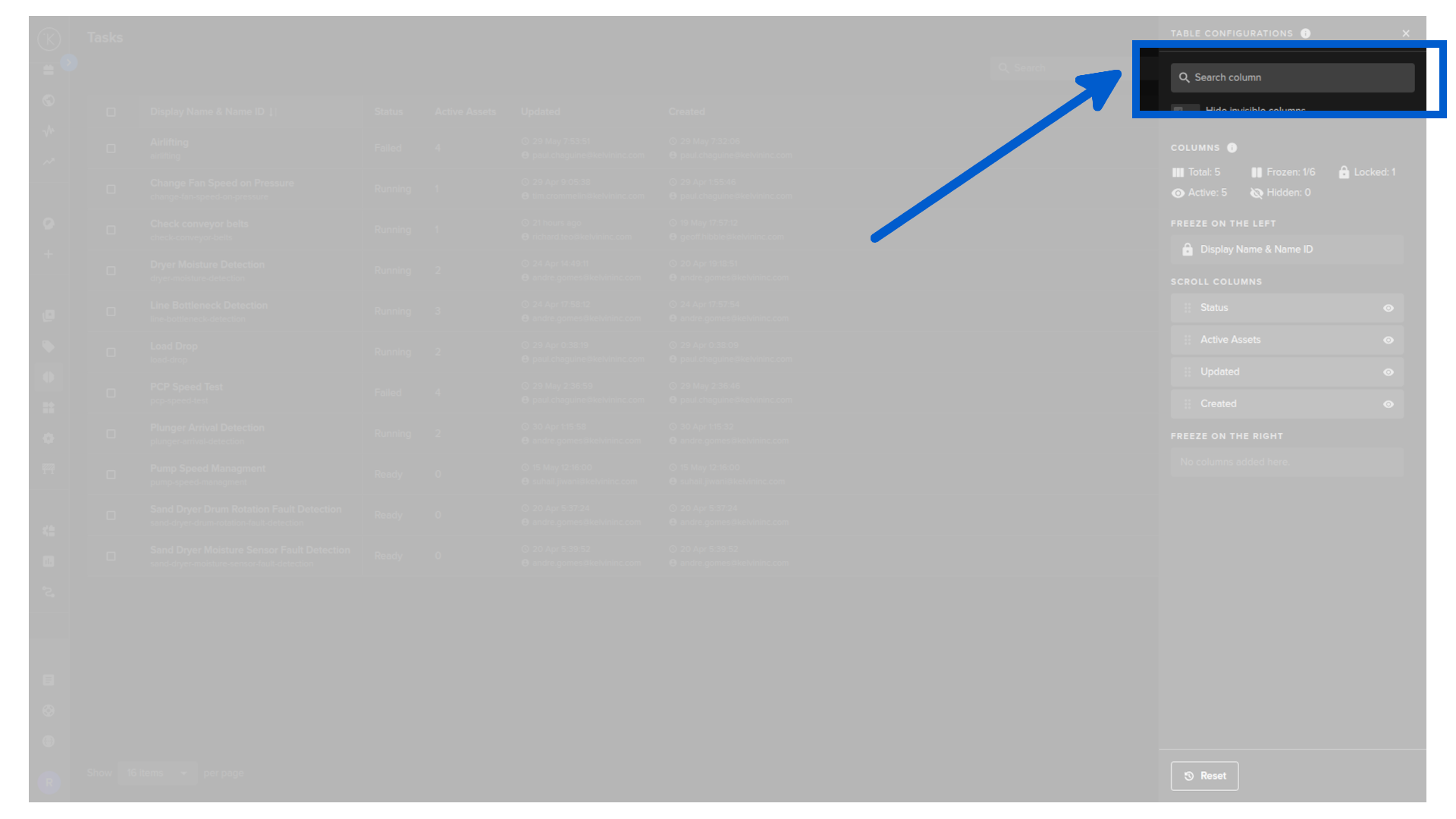
When you are inside the column settings with a large number of columns, this feature is useful to find columns and to hide the hidden columns from the list to make it easier to see what is relevant.
Create Task
Click Create Task in the top right to create a new task from scratch, without starting from an Insight.
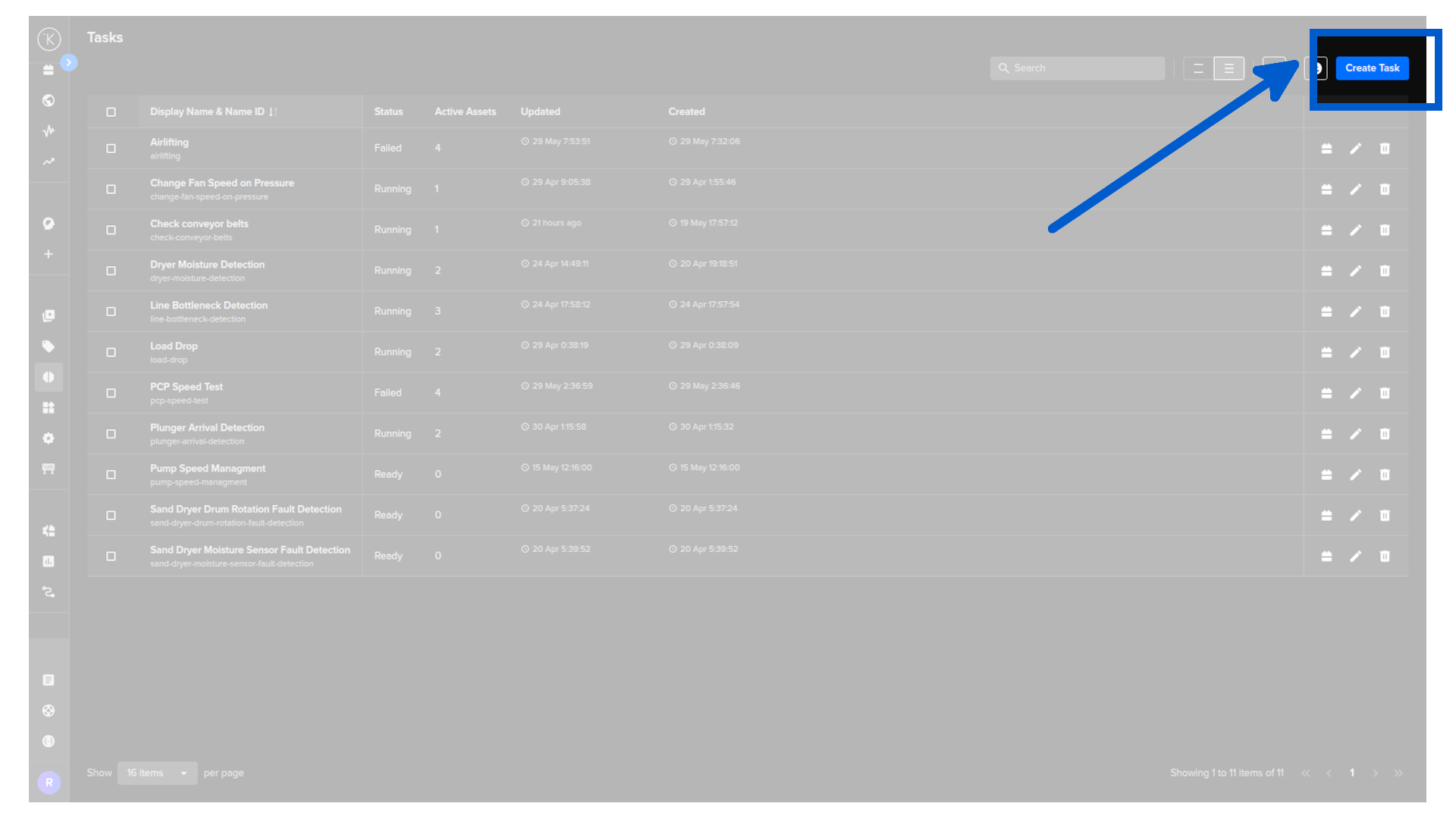
The rest of the process is the same as above.
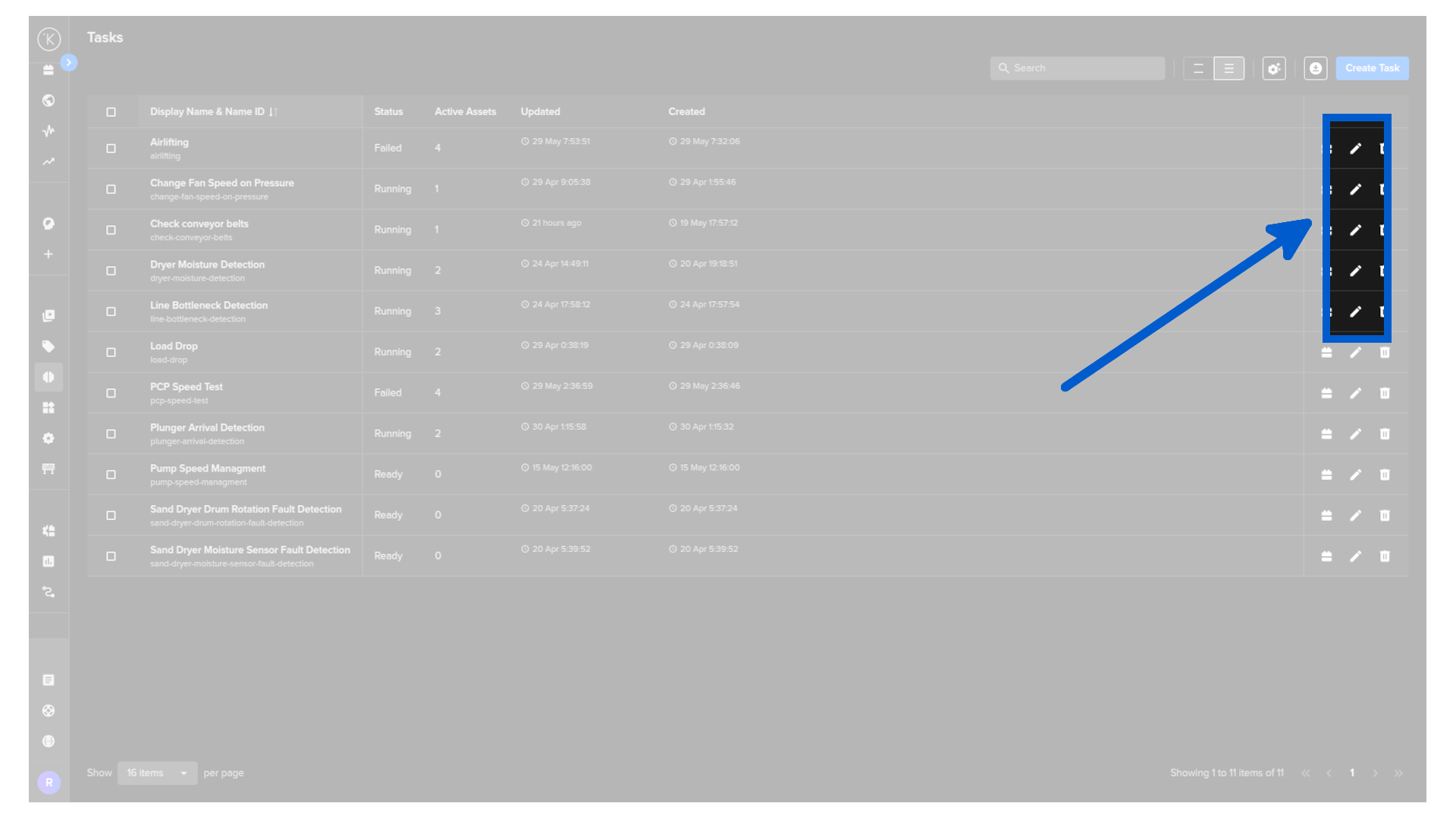
Edit Task
Click the edit icon to return to the Create Task screen for that task. You can update the description, re-run the AI clarification, and adjust the flowchart before saving.
Delete Task
Click the delete icon to remove a single task.
Warning
This cannot be undone.

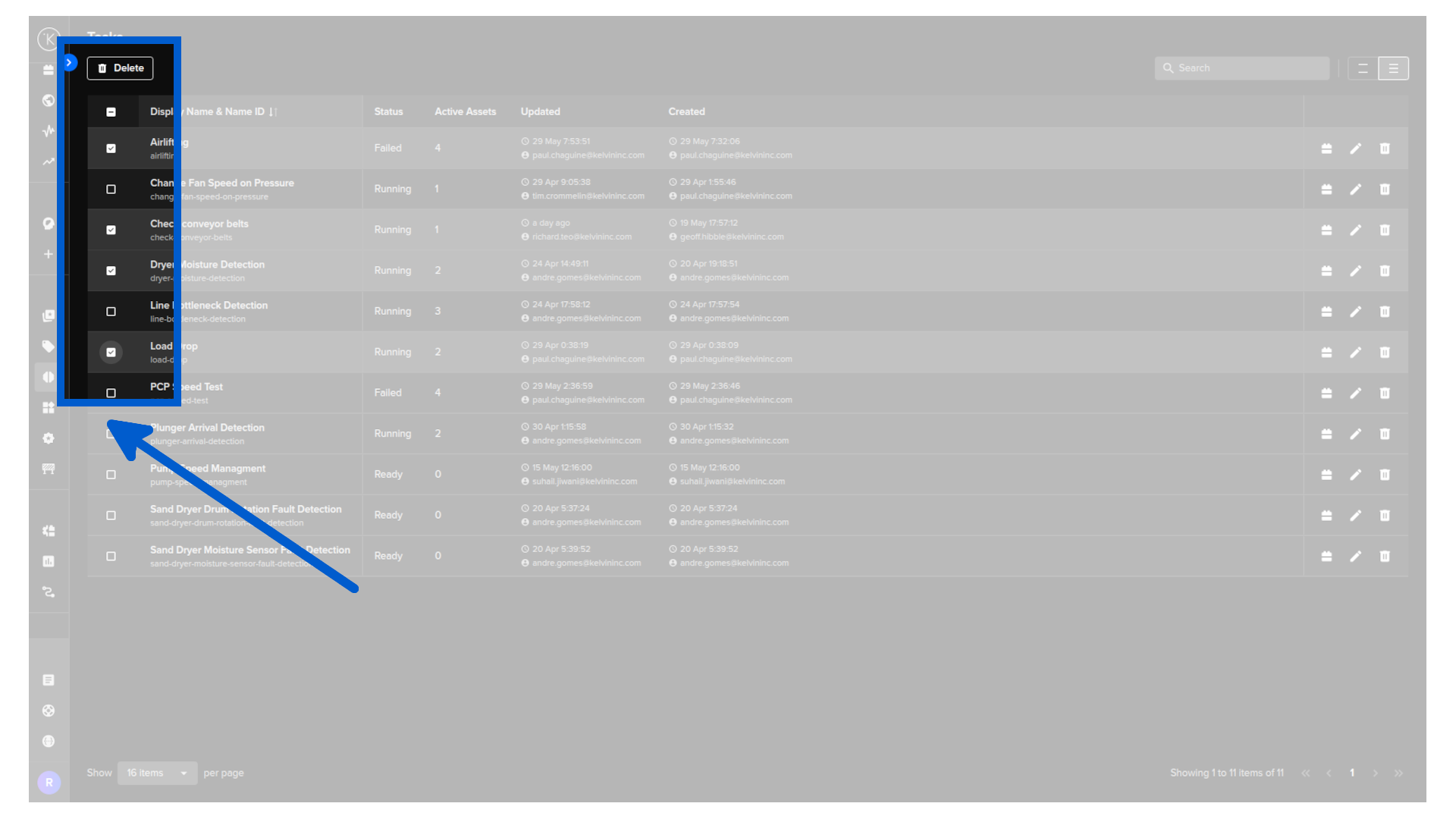
Select multiple rows using the checkboxes to enable bulk actions. The only bulk action available is Delete.
Bulk Delete Task
Click the delete icon to remove a single task.
Manage Task Assets
Click the first icon to open the asset selection screen.
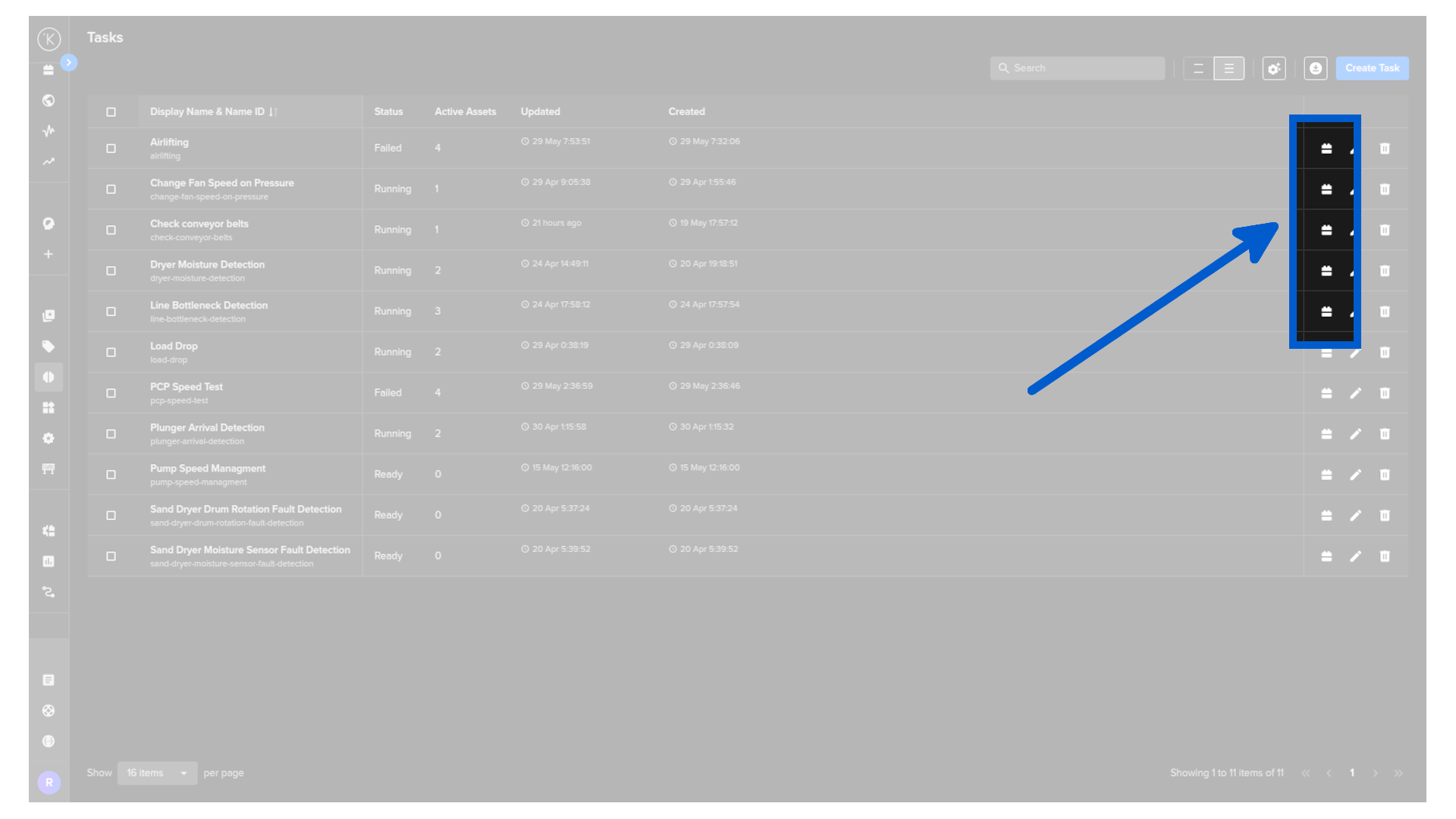
A full list of available assets is shown, filterable by Asset Type and Status. Select the assets you want this task to monitor and click Apply.
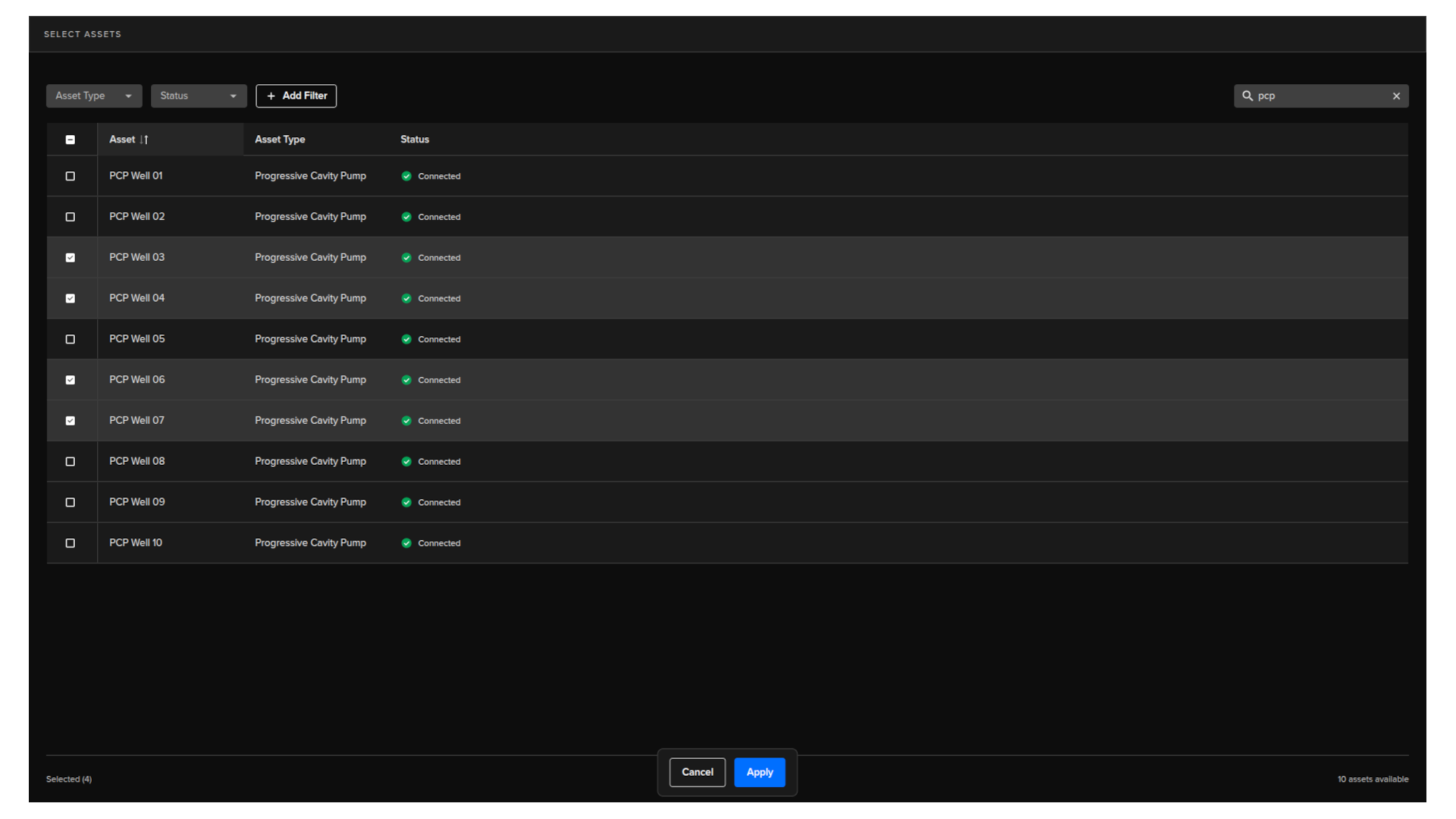
The task will then also monitor all selected assets for a matching event.