Chat with Kelvin
On this page you will learn how to talk to your Kelvin platform from the chat tools you already use every day.
What is Chat with Kelvin?
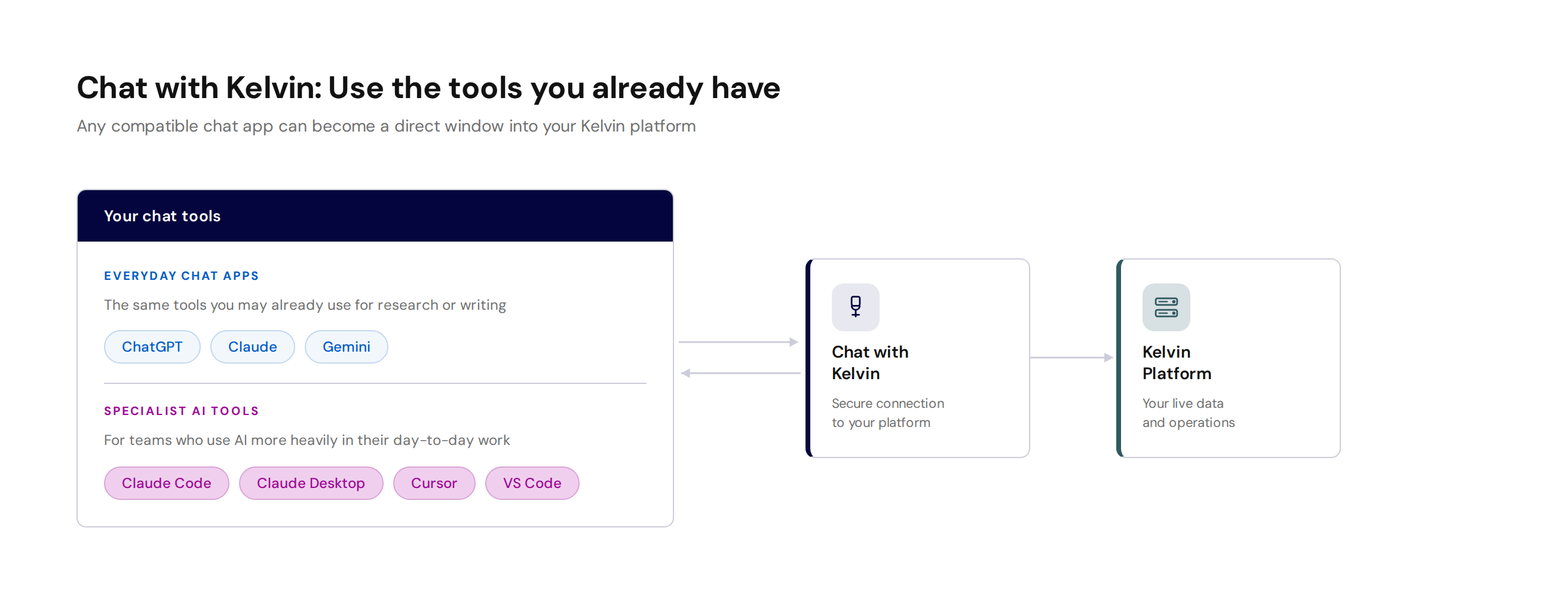
Chat with Kelvin connects your Kelvin platform to the AI chat tools you already use. It is built on an open standard called the Model Context Protocol (MCP), which is the technical name for how AI tools connect securely to external data sources. That is what makes it work across so many different chat applications. Instead of navigating the Kelvin UI to find information, you ask a question in your chat app and get a direct, plain-language answer about what is happening on your platform.
You do not need any technical knowledge to use it. If you can send a message in ChatGPT or Claude, you can use Chat with Kelvin.
What you can do
Once connected, you can have a real conversation with your platform. Ask questions the way you naturally think about them:
- Check whether your applications are running without issues
- Find out what happened on a specific asset in the last 24 hours
- Get a summary of recent recommendations across your operation
- Ask the AI to read through application logs and explain what went wrong, in plain language
- Investigate a problem, compare trends, or get a quick status update on any area that matters to you
- Ask for data compiled in a very specific way, for example: "List all the assets in the Midlands region that have a real-time gas flow rate above 500 and give it to me as an Excel file"
The AI handles all the technical work of retrieving and interpreting the data. You just ask.
Where you can use it
Chat with Kelvin works with two types of tools.
Everyday chat apps are tools many people already use for research, writing, or getting quick answers. ChatGPT, Claude, and Gemini are good examples. Once connected to your Kelvin platform, these tools become a direct window into your operation.
Specialist AI tools such as Claude Code, Claude Desktop, Cursor, and VS Code are popular with teams that use AI more heavily in their day-to-day work. These give you the same access to your Kelvin data alongside more focused AI workflows.
The experience is the same in all of them. You type a question, and you get an answer.
Getting access
Chat with Kelvin works through a secure connection that links your AI chat tool to your Kelvin account. How you get set up depends on the type of account you have with your AI chat provider.
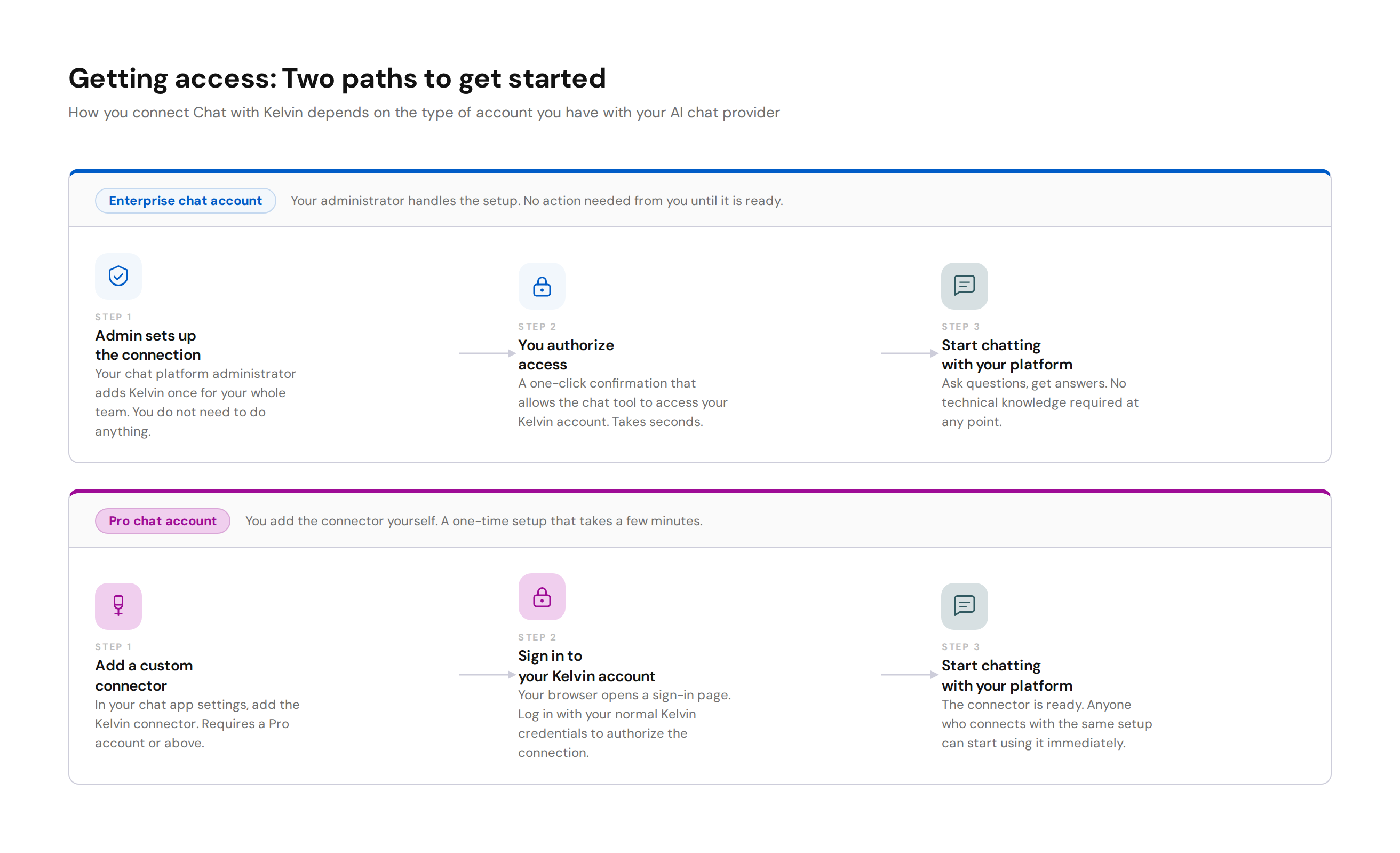
The steps below describe how to get started using Claude. If you are using a different tool, each has its own way of connecting. Setup guides for other common tools including ChatGPT, Cursor, VS Code, and Claude Code are available in the Kelvin MCP developer documentation.
If you have a Claude enterprise account (Claude for Work), your administrator can set up the connection for your whole team. Once they have done that, Chat with Kelvin will appear in your tool. You simply authorize it: a one-click confirmation that allows Claude to access your Kelvin account. No technical knowledge is needed.
If you have a Claude Pro account, you or a colleague can add the custom connector directly. This is a one-time setup that takes a few minutes. You will need at minimum a Claude Pro subscription, as custom connectors are a paid-tier feature.
Note
Adding a custom connector in Claude requires a Pro subscription or above. On enterprise accounts, your administrator handles the entire setup and you only need to authorize access when it is ready.
Limitations
Chat with Kelvin is connected to the Kelvin platform through its backend data interface, which is the same layer that most automation and integration tools use to interact with your platform. When you ask a question, the AI decides which parts of the platform to query and how to combine the results to give you an answer.
This means the tool can only retrieve or act on what is available through that interface. In everyday use you are unlikely to hit this boundary. Where it does come up is when a task is very complex or asks for something the platform does not currently make available.
The good news is that the AI will always tell you clearly when it cannot complete something. It will explain what it managed to do and where it ran into a limit, so you can decide how to proceed, rephrase your question, or reach out for additional help.
Simple, powerful, and yours to use
Once set up, Chat with Kelvin gives you the information that matters to you, in the format you want, without needing to know how any of it works under the hood. Ask about your assets, your applications, or your data. Dig into logs to understand an issue without doing any of the technical digging yourself. Get the answers you need by simply asking for them.
For technical setup instructions and developer reference, see the Kelvin MCP developer documentation.