Events Beta
Beta Release
Events is currently in beta. Improvements and new capabilities will continue to be added quickly with each new release.
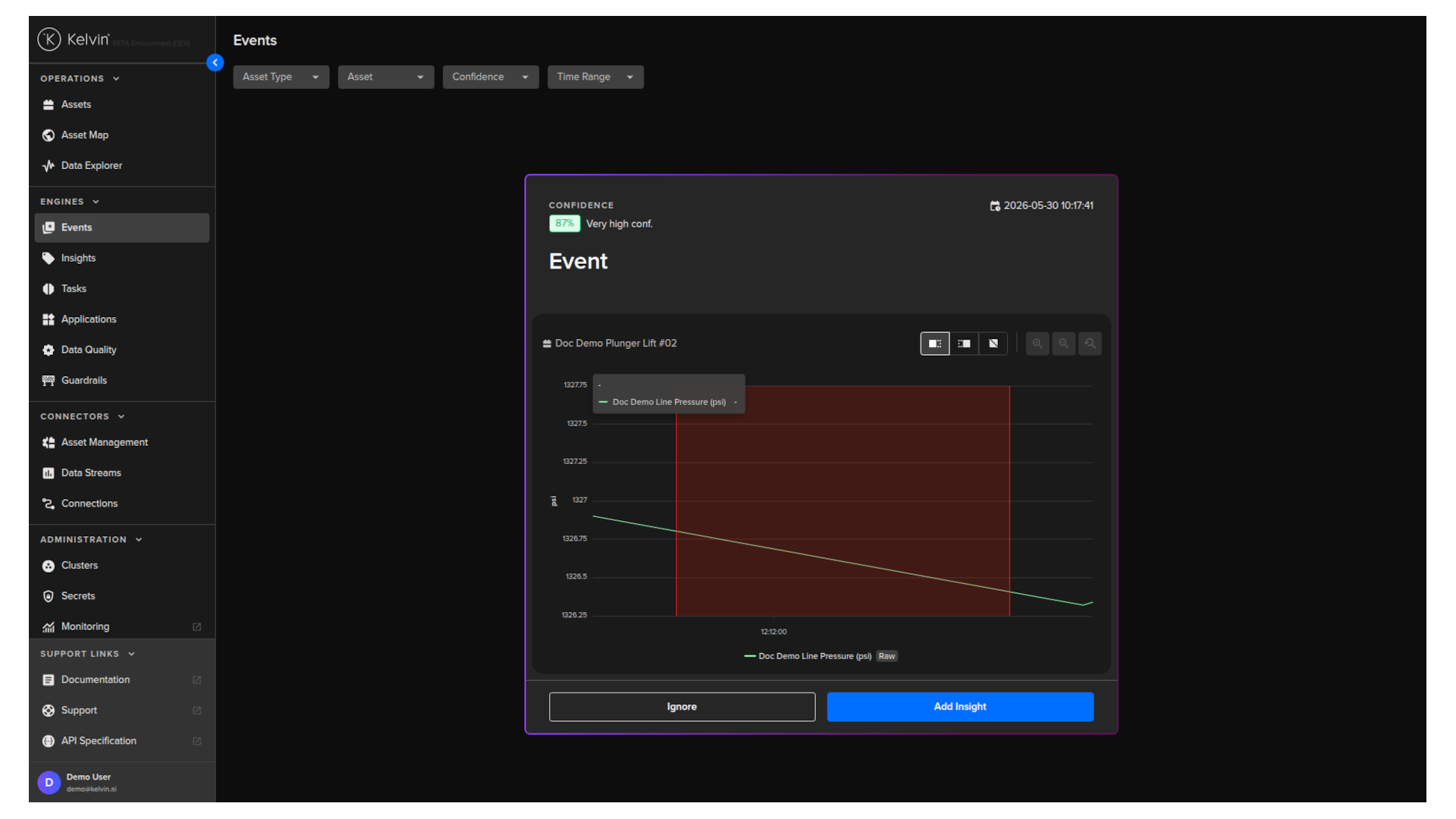
On this page you will learn how to use the Events screen to review detected asset behavior and decide what to do with each event.
Overview
The Events screen is the starting point of the AI Events to Tasks workflow.
It shows a card-based list of events detected across your assets. Each card represents a single detected occurrence that the platform has identified as noteworthy based on asset behavior.
You reach the Events screen by clicking Events under the Engines section in the left sidebar.
Filters
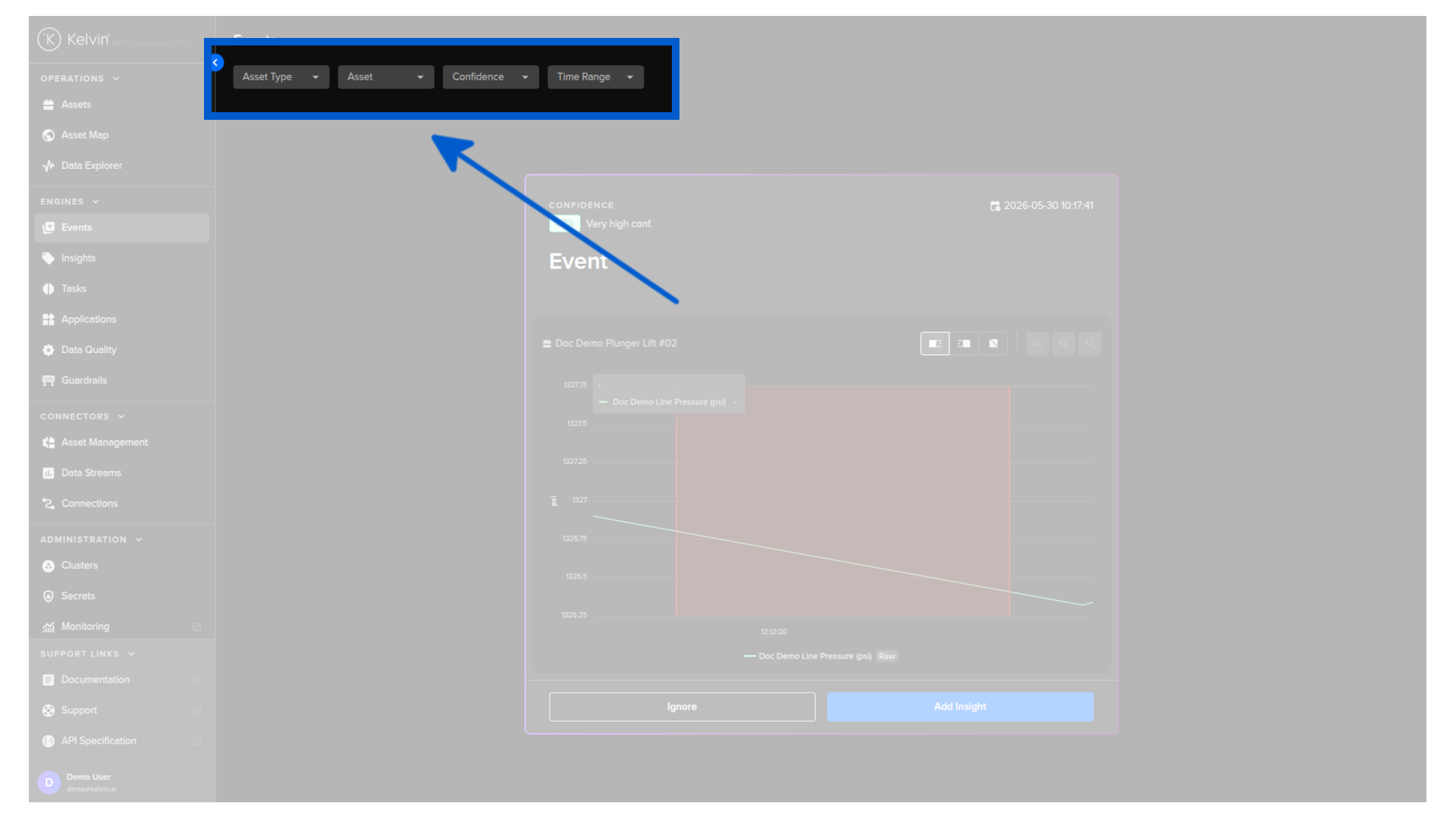
At the top of the screen, four filters let you narrow down the events displayed.
| Filter | What it does |
|---|---|
| Asset Type | Show events only for assets of a specific type, such as plunger lifts or compressors. |
| Asset | Show events for a specific named asset. |
| Confidence | Filter by how confident the platform is in the detection. For example, show only high-confidence events. |
| Time Range | Limit events to a specific time window. |
Select any combination of filters to focus on the events most relevant to you. The card list updates immediately.
Event cards
Each event is displayed as a card. The card gives you the key information you need to make a decision without opening anything else.
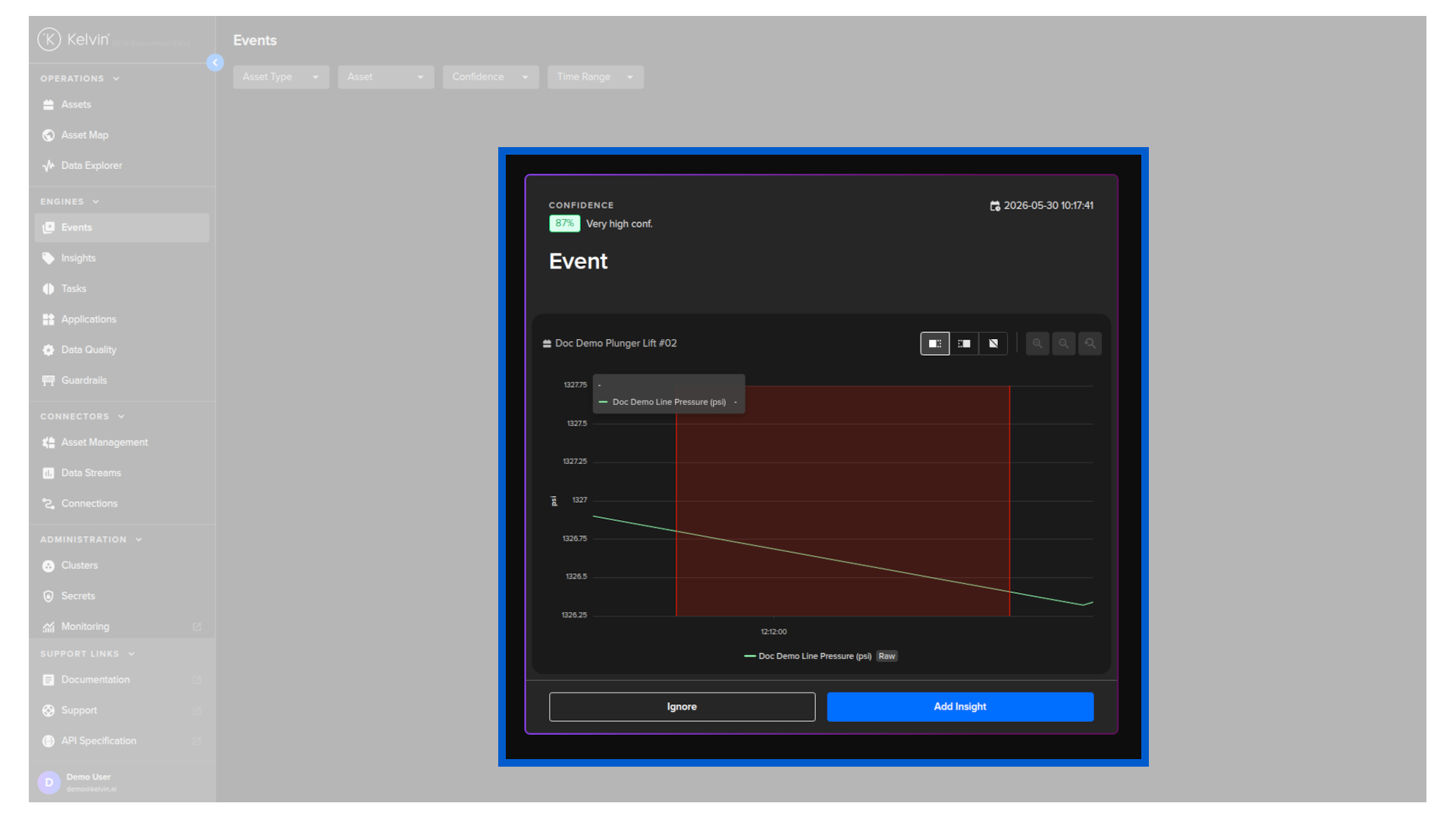
A card contains:
- Confidence: the platform's confidence level in the detection, shown as a percentage and a plain-language label such as "Very high conf."
- Timestamp: the date and time the event was detected.
- Event label: identifies the card as an Event.
- Asset name: the asset on which the event was detected.
- Data stream chart: a time-series chart of the relevant Data Stream. The highlighted region marks the period where the unusual behavior was detected. The Data Stream name and its source tag are shown below the chart.
Taking action
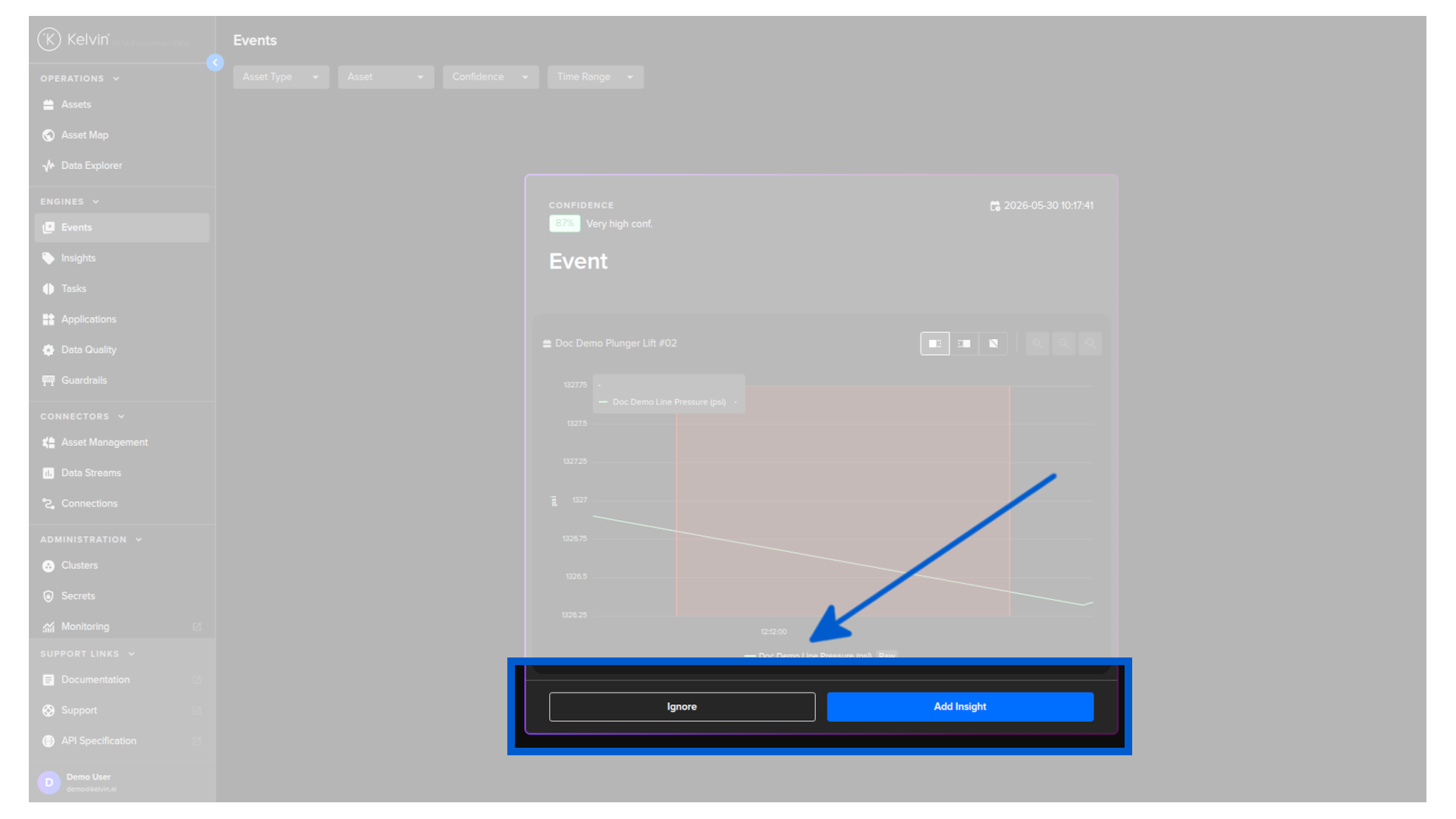
For each event card you have two options. Click the button or swipe the card to decide.
Ignore
Click Ignore or swipe the card left to dismiss the event.
The event is removed from your list. However, if the same type of event is detected again on the same asset in the future, it will appear in the list again. Ignoring an event does not permanently suppress that event type.
If you are seeing event types that are not relevant to your operation and you want them stopped entirely, you will need to raise this with the right team depending on how the event is detected:
- Supervised events are detected by models that have been trained to recognise a specific type of event pattern. Someone has taught the platform what to look for. To stop a supervised event type from appearing, contact the developer who configured that model.
- Unsupervised events are detected by models that look at the general behavior of your data and flag readings that look out of place compared to normal patterns, without being trained on any specific event type. To stop an unsupervised event type from appearing, contact Kelvin.
Add Insight
If the event is significant and you want to mark it as an insight, click Add Insight or swipe the card right to accept the event.
Note
This is the same feature as Insights in the Data Explorer.
Insights is the new name with additional features that used to be called Data Tags.
You are taken immediately to the Add Insights page, where you can select an insight type from a list of existing names or create a new one. From there you have a range of options to validate and configure the insight.
Note
The full Add Insights workflow is covered in Insights.