Chat with Kelvin
On this page you will learn how Platform Administrators can use Chat with Kelvin to monitor infrastructure, investigate issues, and act directly on the platform through natural language.
What is Chat with Kelvin?
Chat with Kelvin connects your Kelvin platform to AI chat tools such as Claude, ChatGPT, Cursor, and VS Code. It is built on an open standard called the Model Context Protocol (MCP), which is how AI tools connect securely to external APIs and data sources.
For Platform Administrators, this means more than just querying status. You can ask questions about cluster health and logs, investigate connector and workload issues, and instruct the AI to create assets, data streams, deploy workloads, and more — all in plain language from a chat interface you already use.
The connection is read and write. The AI has access to the full surface of the Kelvin API that your account permissions allow.
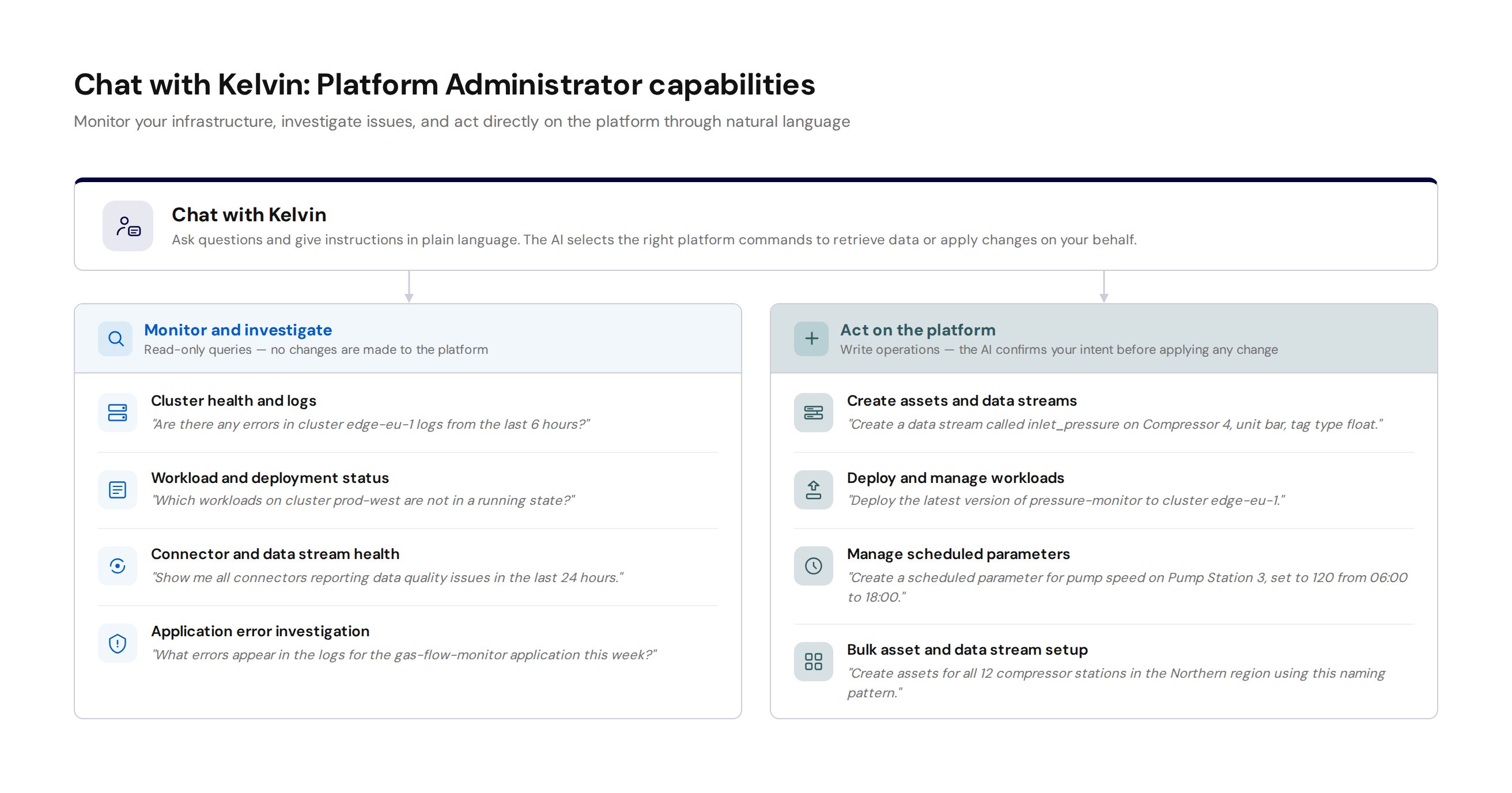
Monitoring and investigation
Chat with Kelvin is particularly useful for rapid investigation across your infrastructure. Instead of navigating between the Admin Dashboard, cluster logs, and connector status screens, you ask in plain language and get a consolidated answer.
Useful queries for platform administrators include:
- Checking cluster status and surfacing errors from logs:
"Are there any warnings or errors in cluster edge-eu-1 logs from the last 6 hours?" - Identifying workloads that are not in a running state across a specific cluster:
"Which workloads on cluster prod-west are stopped or in an error state?" - Auditing connector health and data quality:
"Show me all connectors that have reported data quality issues in the last 24 hours and what the issue type is." - Investigating application errors without opening the logs manually:
"What errors appear in the logs for the gas-flow-monitor application this week?" - Checking which data streams on an asset have not received data recently:
"Which data streams on Compressor 4 have not received a value in the last hour?"
Because the AI can combine multiple queries, you can ask compound questions such as: "List all clusters where at least one workload is not running and show me the relevant log entries."
Acting on the platform
In addition to investigation, Chat with Kelvin can apply changes directly to your platform. You can instruct the AI to create, update, or delete resources by describing what you want in natural language.
Examples of write operations:
- Creating data streams:
"Create a data stream called inlet_pressure on Compressor 4, unit bar, tag type float." - Creating assets:
"Create a new asset called Pump Station 7 of type Pump Station in the Northern region." - Deploying workloads:
"Deploy the latest version of pressure-monitor to cluster edge-eu-1." - Managing scheduled parameters:
"Create a scheduled parameter for pump speed on Pump Station 3, set to 120 from 06:00 to 18:00 Monday to Friday." - Bulk setup:
"Create data streams for all 12 assets in the Northern Compressors group using the standard template."
Warning
Write operations apply changes to your live platform. Always review the AI confirmation step carefully before proceeding.
How write operations work
When the AI detects that your request would create, update, or delete data on the platform, it does not execute immediately. It presents exactly what it intends to do and asks for your confirmation first.
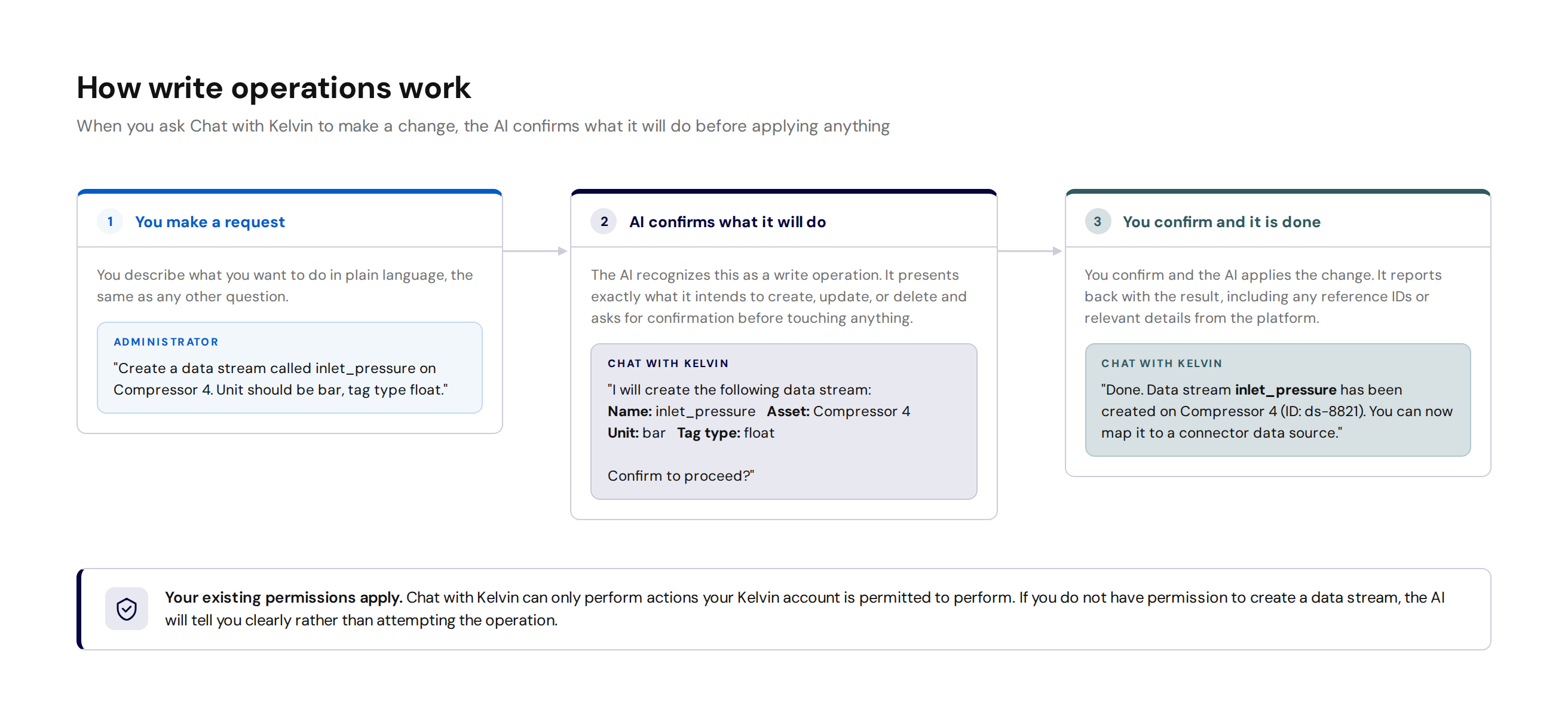
This applies to all write operations regardless of scope. Whether you are creating a single data stream or instructing the AI to bulk-create assets, it will show you the full scope of the change before applying it.
Your existing Kelvin permissions govern what the AI can do. If your account does not have permission to perform an operation, the AI will tell you clearly rather than attempting it.
Getting started
Chat with Kelvin uses the same sign-in as the rest of the Kelvin Platform. When you connect a supported AI tool, a browser sign-in flow opens automatically. No manual token handling is required.
For step-by-step connection guides covering Claude, ChatGPT, Cursor, VS Code, and others, see the Kelvin MCP developer documentation.
For full technical reference including available tools, authentication details, and OpenAPI integration, see the Kelvin MCP overview.
Limitations
Chat with Kelvin is connected to the Kelvin Platform through the Kelvin API, which is the same interface that all automation and integration tools use. When you ask a question or give an instruction, the AI selects and sequences the appropriate API operations to retrieve or apply what you requested.
This means the tool is bounded by what the API exposes. Most day-to-day platform administration tasks fall well within what is available. Where limitations arise, they typically involve very complex compound operations or functionality that is not yet exposed through the API.
If the AI cannot complete a request, it will explain precisely what it was able to do and where it ran into a constraint. You can then decide to rephrase, break the task into steps, or proceed through the Kelvin UI directly.